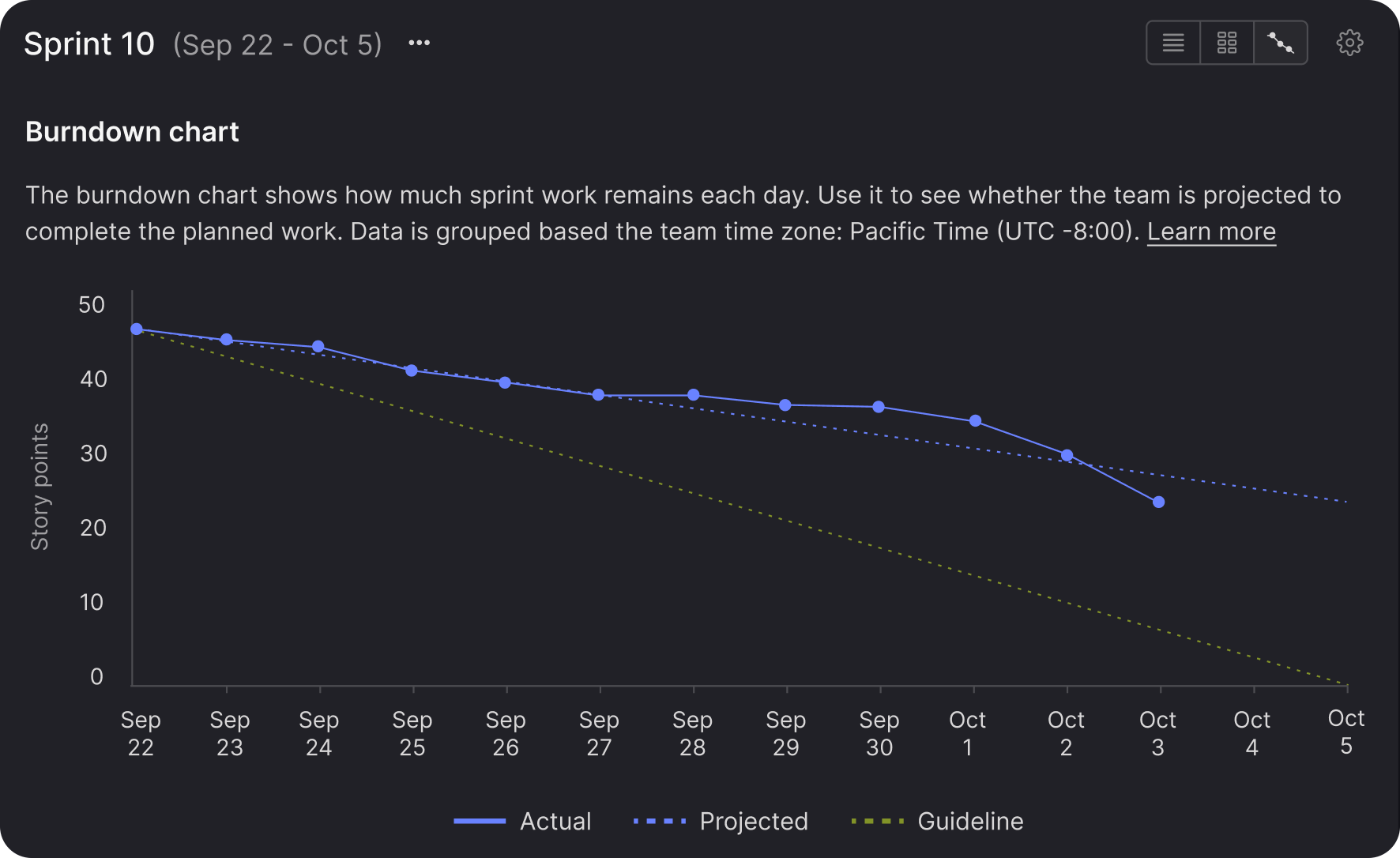

Release overview: April 1, 2026
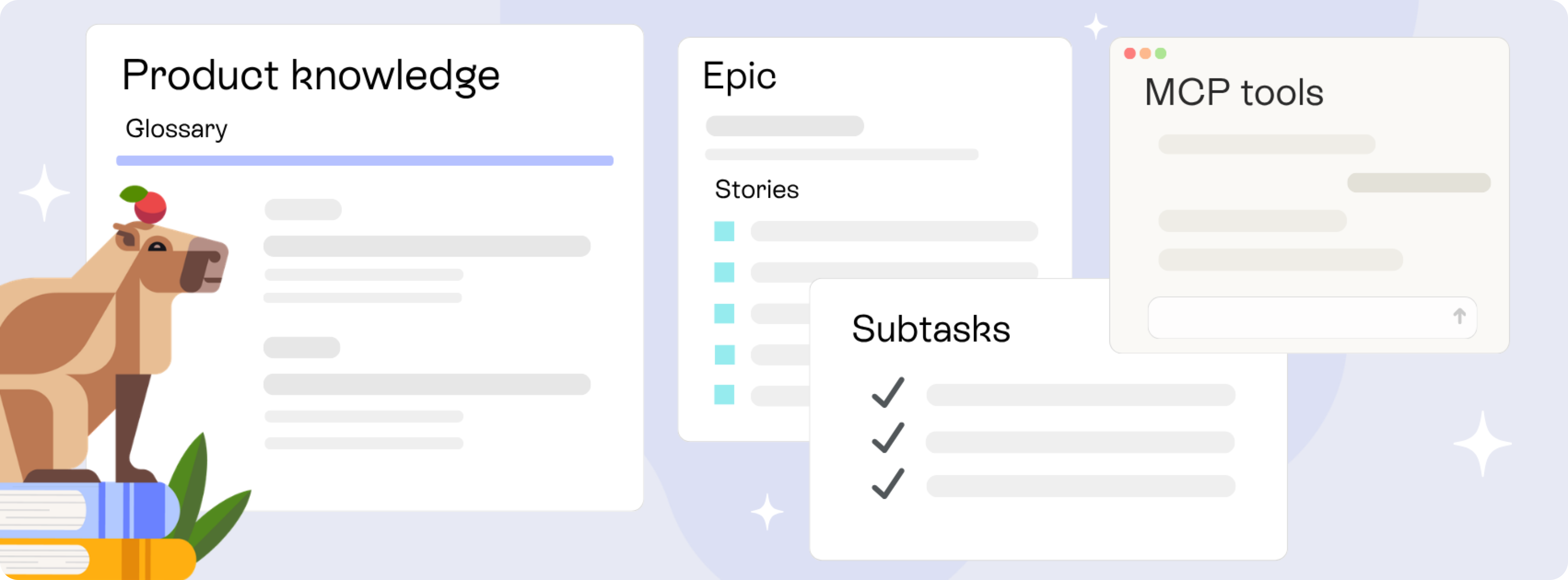
This release is about giving you better context—across your product, your planning, and your tools.
Product knowledge builds a structured glossary from your own documentation, so AI tools understand your product instead of guessing. Epics and Subtasks add new planning layers that connect stories to goals and break work into concrete steps. And with new MCP capabilities, you can draft stories and build release content directly from AI tools without leaving your workflow.
Together, these changes help you plan more clearly, write better stories, and keep everything grounded in how your product actually works.
In this release
-
Give AI the context it needs to get requirements right with Product knowledge, which builds a structured, exportable glossary from your own documentation so AI tools understand your product's terms and features—not just their general knowledge.
-
See how stories connect to bigger goals with Epics that group related stories under a shared goal, track delivery progress, and preserve context when stories are split.
-
Track exactly what it takes to finish each story or bug with Subtasks that break work into implementation steps with assignees, descriptions, statuses, and their own activity history.
-
Draft and update stories directly from your AI tool with new MCP capabilities that let you update story content and acceptance criteria, and pull in timebox context to plan your release—from Claude, Cursor, Copilot, or any MCP-enabled tool.
Those are just the highlights. Read on for the full details, or jump ahead to the sections you're most interested in using the links below.
On this page
- Product knowledge
- Plan at every level
- Write stories and build release content with AI
- Usability improvements
Product knowledge
AI tools can help write stories, draft requirements, or generate code—but without context about your product, they're working from generic assumptions. The output looks plausible, but it's not accurate for your product.
Product knowledge gives your workspace a shared vocabulary built from your own documentation. It creates a structured glossary of key concepts that you can manage in Atono and export to any AI tool. The result: AI-generated stories and requirements that reflect how your product actually works, so you spend less time correcting and reworking them.
Build a glossary from your documentation
Turn your existing documentation into a structured glossary without any manual work.
Point Atono at one or more documentation URLs, and it reads the content and extracts up to 200 key concepts. Each concept captures a name, plain-English description, synonyms or aliases, and links to related concepts.
The process runs in the background, so you can navigate away while it's working. When it's done, the glossary is alphabetized and ready to use. Review when the build started, which pages were read, and any errors or partial failures. Export it as a TSV file and use it in Claude, Cursor, or any AI tool to provide product context in your prompts.
As your product evolves and your documentation changes, you can delete the glossary and rebuild it from your updated documentation at any time.
Manage and evolve your glossary
The glossary is a living document you manage directly in Atono, not a one-time export.
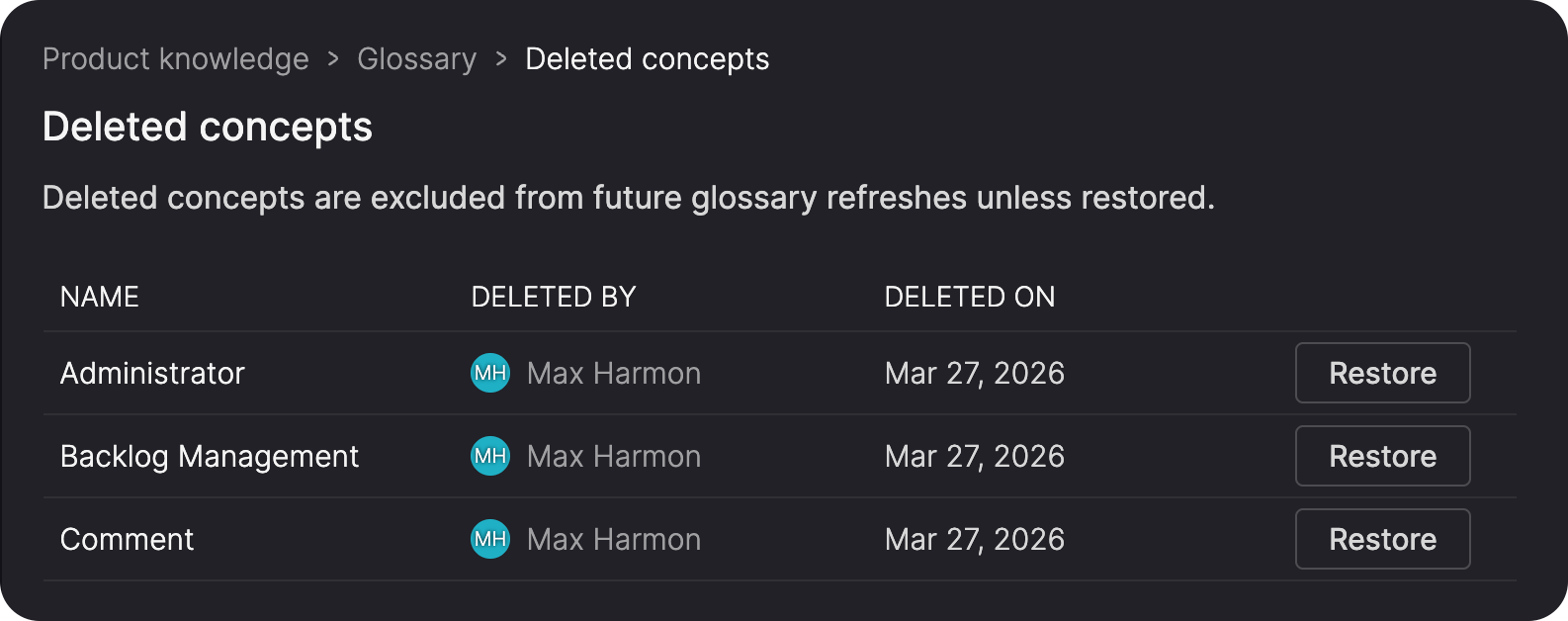
Search by concept name or description to find what you need, then edit any concept's name, description, synonyms, or related concepts directly. Add concepts manually for things your documentation doesn't cover. When you no longer need a concept, delete it—deleted concepts are listed in a separate view, so you can restore them later if needed.
Version history
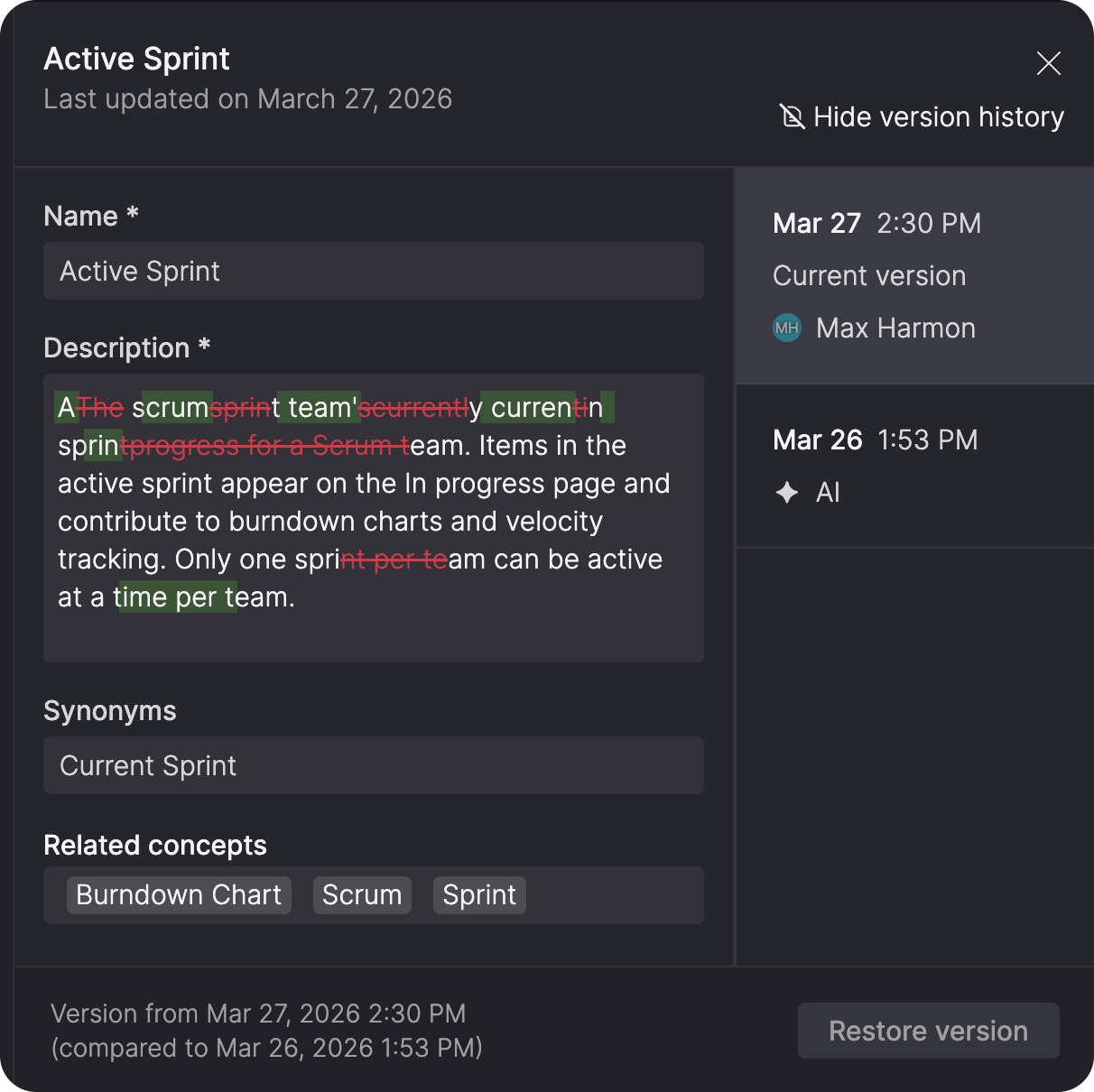
Atono also protects you from common mistakes. If you create a new concept with the same name as a deleted one, we flag the conflict and offer to restore the original instead. Every concept has a version history, so you can see what changed and restore an earlier version if the current one has drifted.
Permissions
Permissions keep the glossary open to the whole team without giving everyone editing rights. Anyone in your workspace can view it. Glossary Contributors can add, edit, and delete concepts. Glossary Owners—along with Workspace Owners, Administrators, and Product Managers—can also delete the glossary.
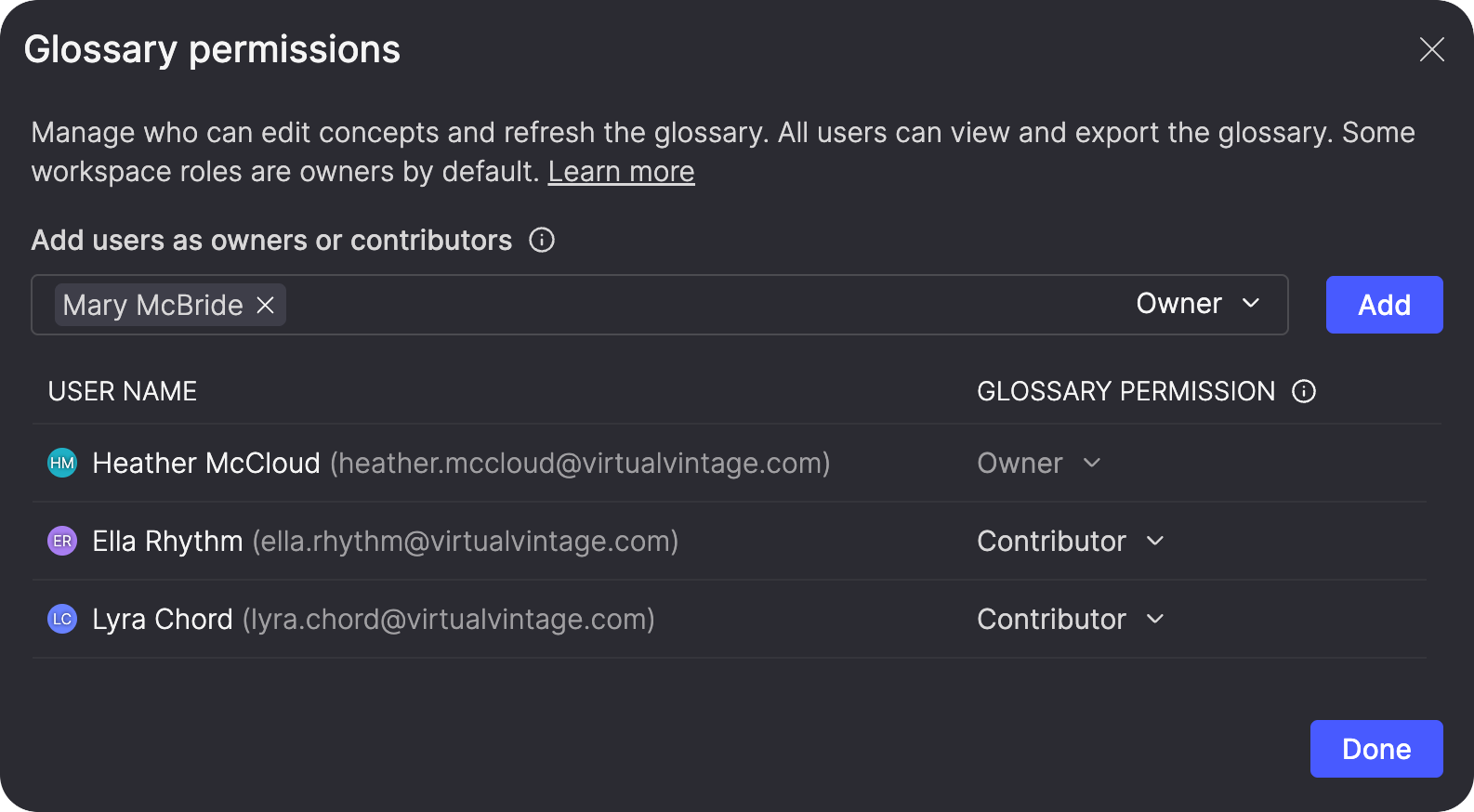
The ability to refresh the glossary is coming soon, so you can keep it up to date as your documentation evolves without losing any manual edits.
Learn more about Product knowledge →
Plan at every level
Stories and bugs capture individual pieces of work well—they're schedulable, assignable, and fit into your team's workflow. This release adds two new ways to plan: zoom out and see how stories connect to broader goals, or zoom in and track exactly what it takes to finish each one.
Epics
An Epic groups related stories under a shared goal. Use it to capture why a body of work exists, describe the user journeys involved, and track how delivery is progressing.
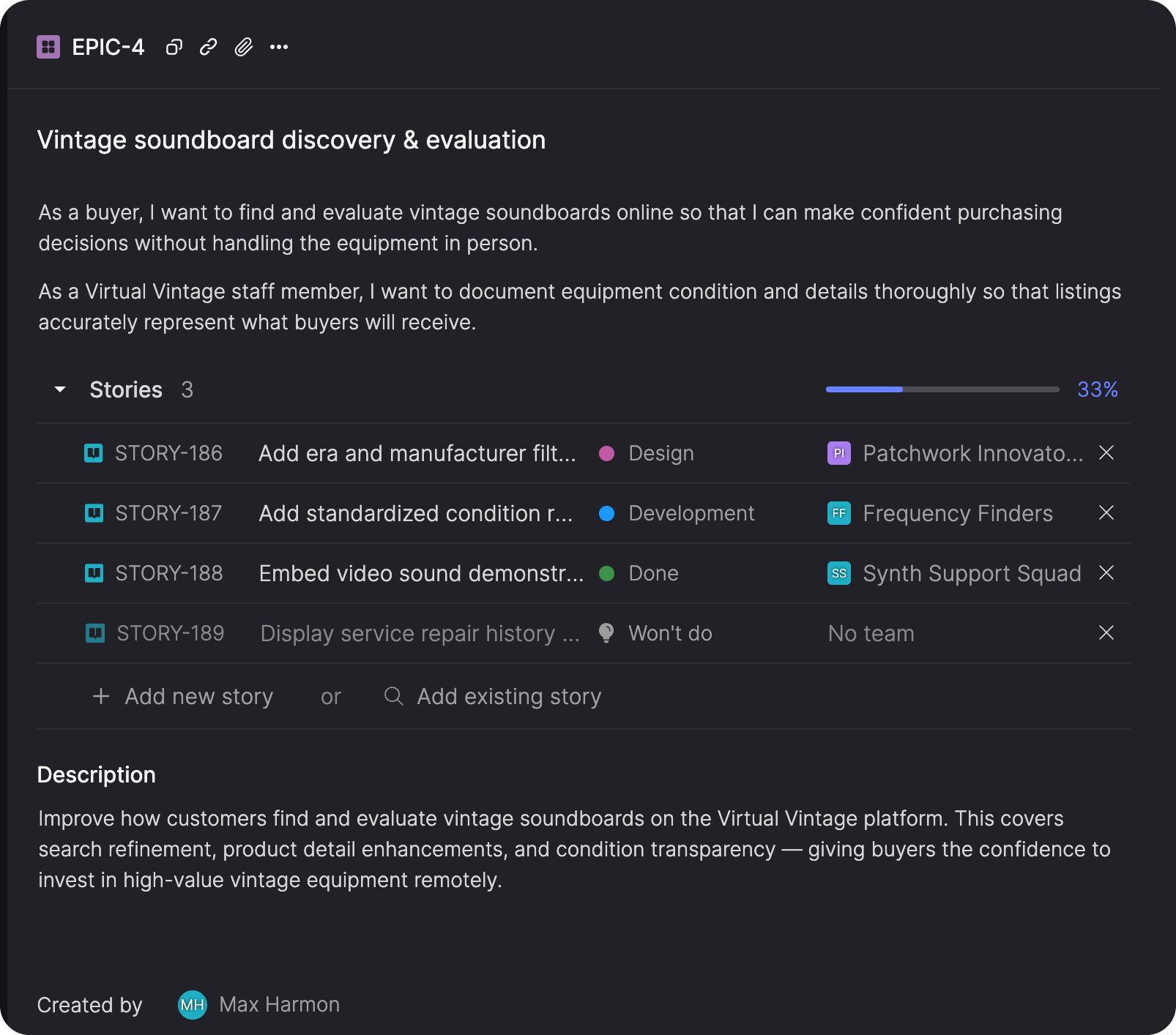
Build an epic
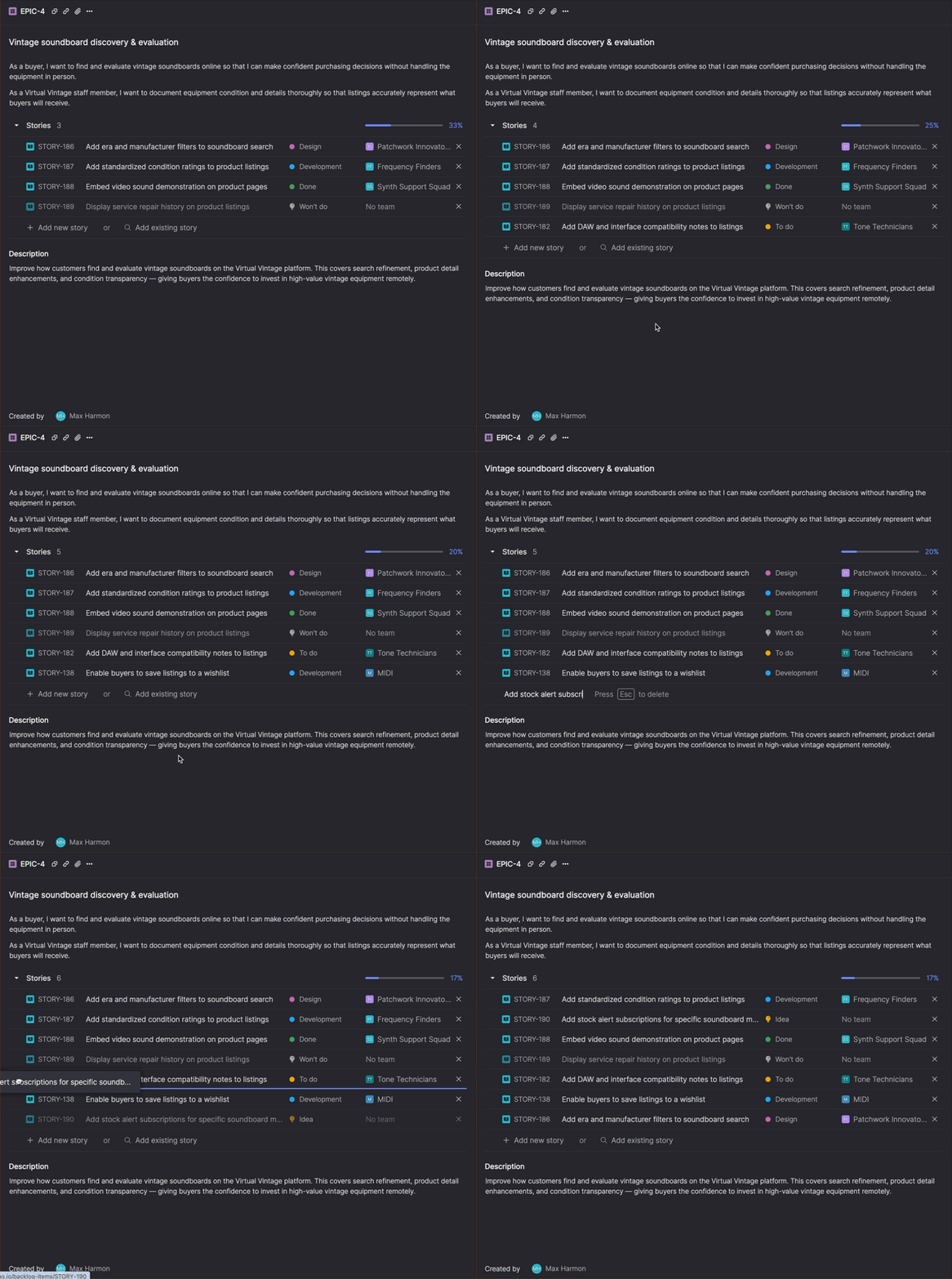
Start with a title and rich-text description, then add the stories that make up the work. You can pull in up to 100 existing stories from anywhere in your workspace, or quick-add new ones by title while you're still brainstorming. Reorder stories by dragging them to reflect rough priority or dependencies. Each story can belong to only one epic, so the grouping stays meaningful. A progress bar shows what percentage of the epic's stories are done.
Keep context as work evolves
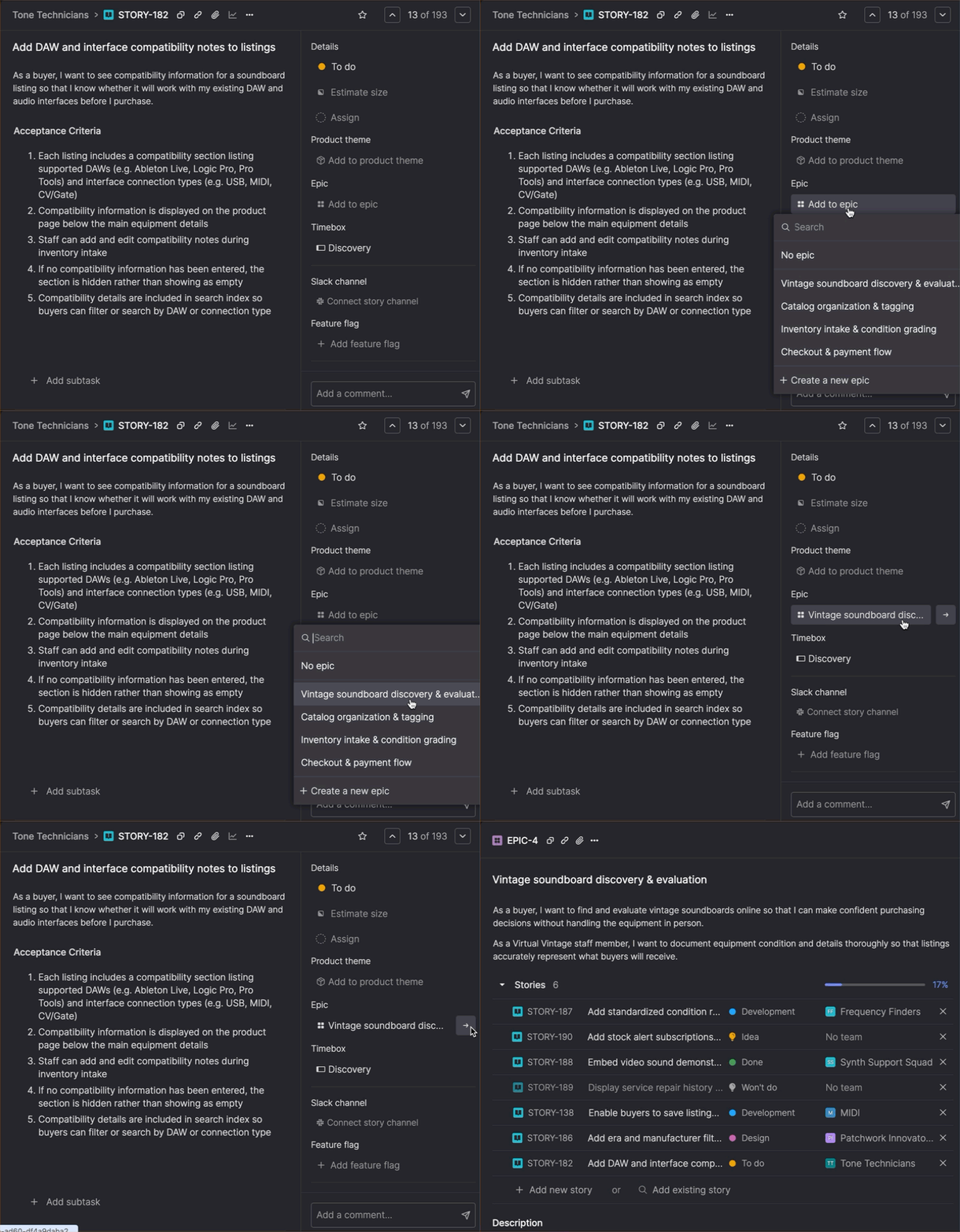
Epics stay connected to the work as it evolves. When you split a story that belongs to an epic, both resulting stories stay linked—you don't lose the context that connects them to the bigger goal. If the story you're splitting has no epic yet, you can create one on the spot to keep the resulting stories connected. Link an epic to any story from the story detail page, and navigate to it directly at any time.
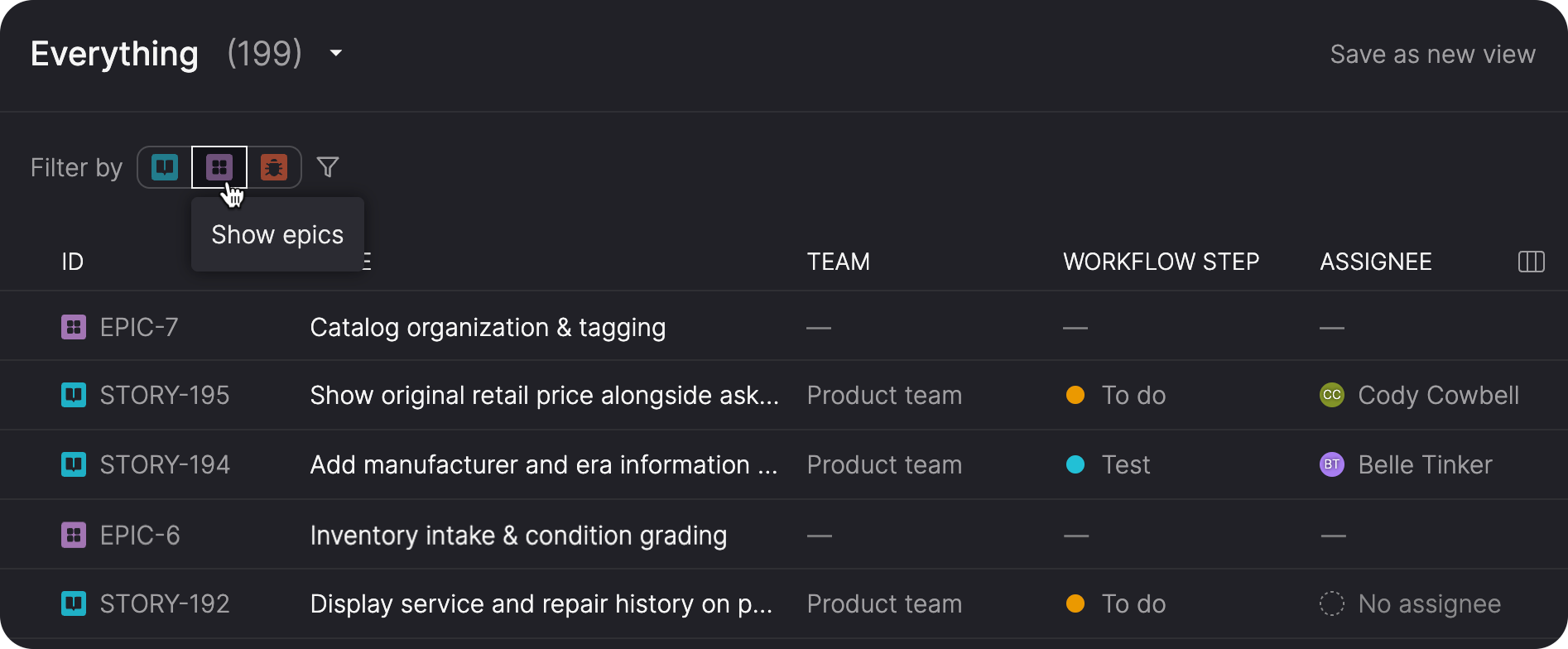
Epics also appear in search results and in the Everything view alongside stories and bugs.
Subtasks
Subtasks let you capture the individual things that need to happen before a story or bug is done, without turning them into separate backlog items. At their simplest, they're a checklist—and you can add as much structure as you need from there.
Use them as a checklist
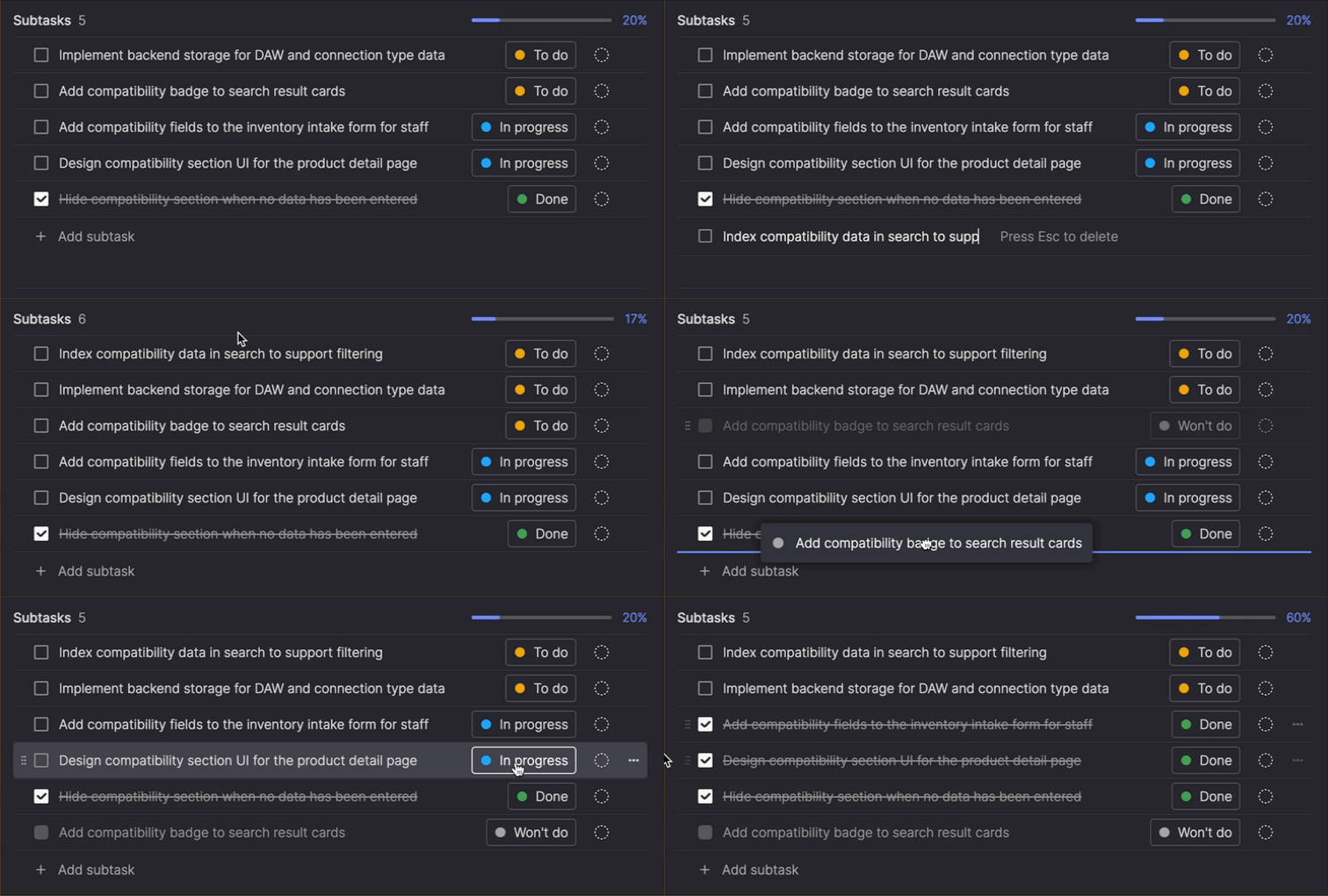
Add subtasks to any story or bug, during refinement or later in delivery. Each subtask starts with a title; check it off when it's done, or mark it as Won't do if plans change. Won't do subtasks show a disabled checkbox and don't count toward progress. Reorder subtasks by dragging them to reflect rough dependencies. You can edit or delete subtasks at any time.
Add structure when you need it
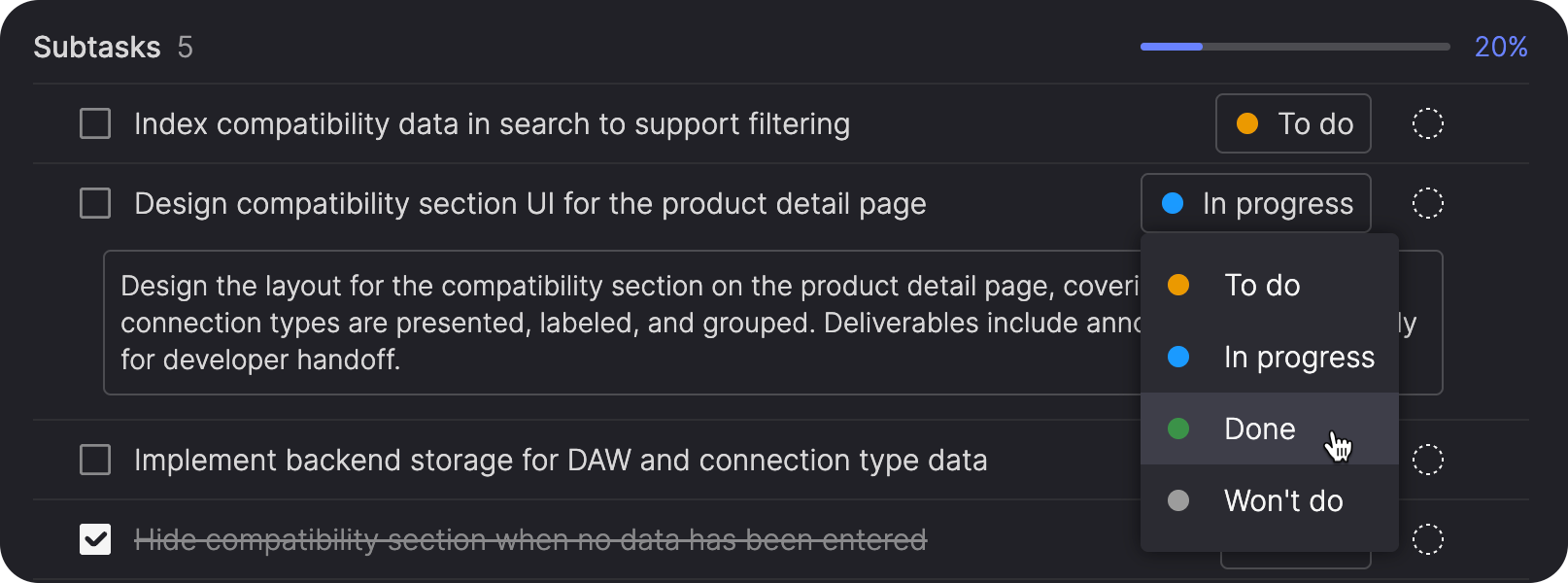
Each subtask can also have an assignee, a status—To do, In progress, Done, or Won't do—and a rich-text description to document what needs to happen or record results once it's done. Expand or collapse descriptions by clicking on the subtask.
See how the work is tracking
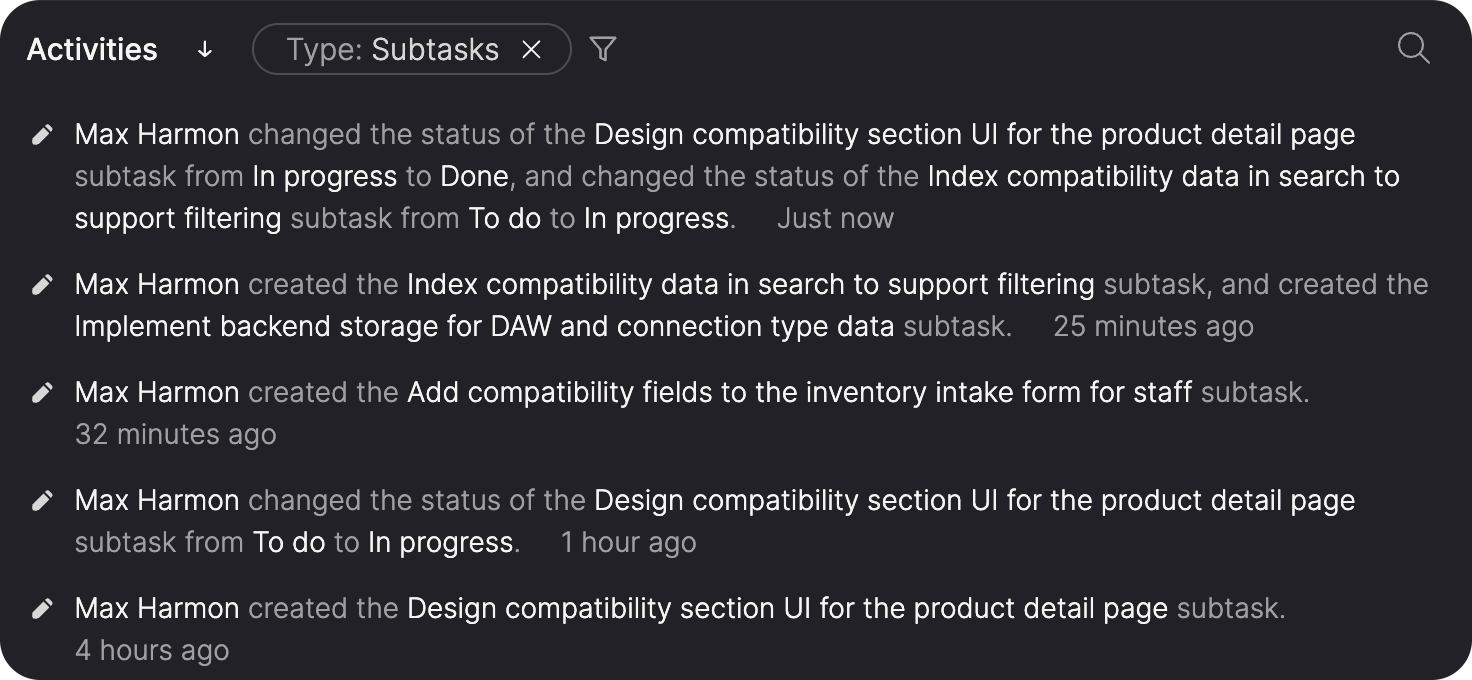
A progress meter shows at a glance how far along the work is. Subtask activity—creating, assigning, status changes, and deletions—is recorded in the item's Activities list, with a dedicated Subtask filter so you can focus on just what changed.
Write stories and build release content with AI
New MCP tools built for product management workflows bring your AI tool and Atono into a single flow. Write stories and build release content from Claude, Cursor, Copilot, or any MCP-enabled tool—and have the changes land in Atono without switching context.
Update story content and acceptance criteria
Ask your AI tool to write or improve one or more user stories for any Atono story in the proper "As a [persona], I want... so that..." format, or to write or fully replace a story's acceptance criteria with proper hierarchy.
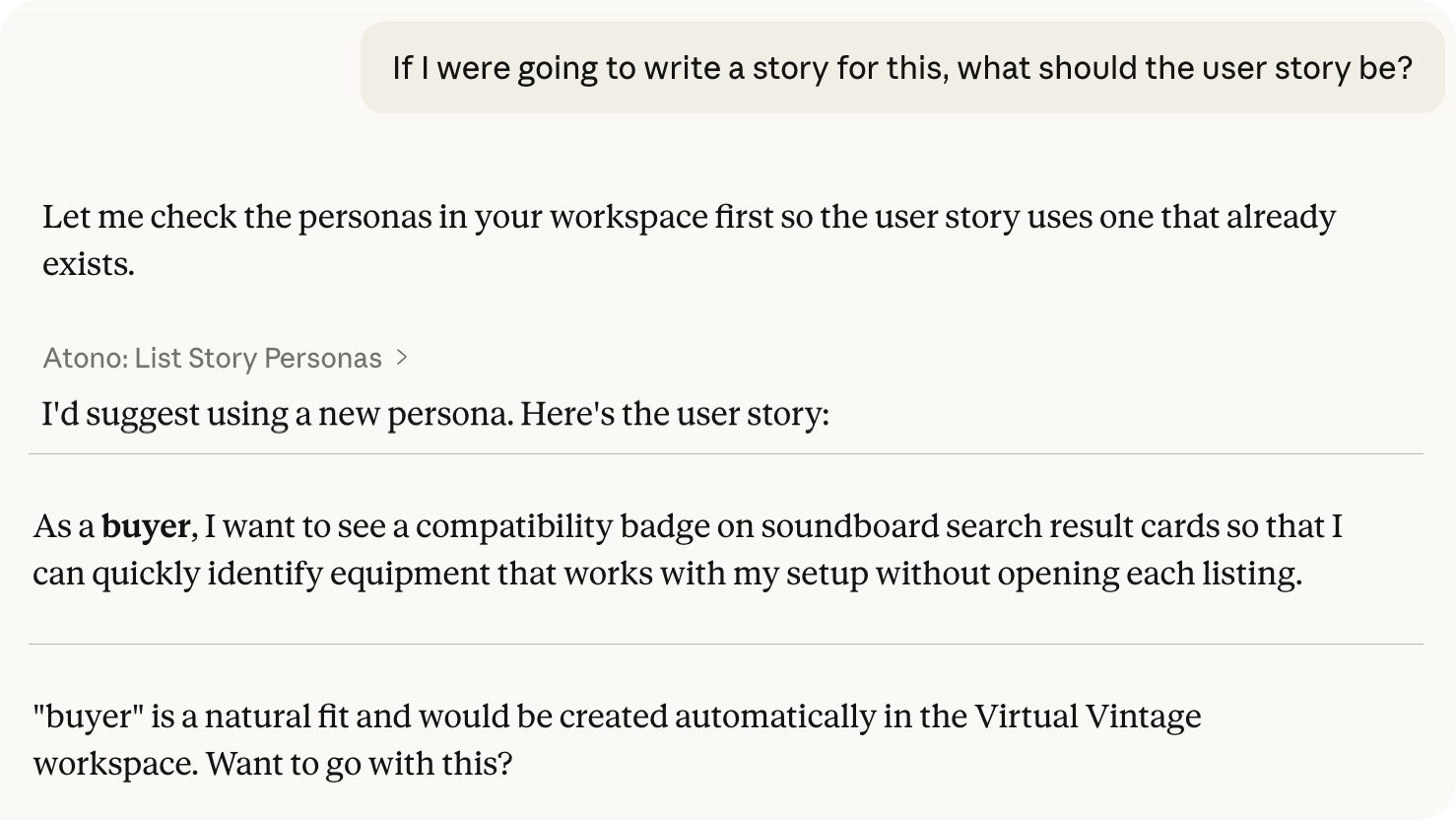
Use the right personas
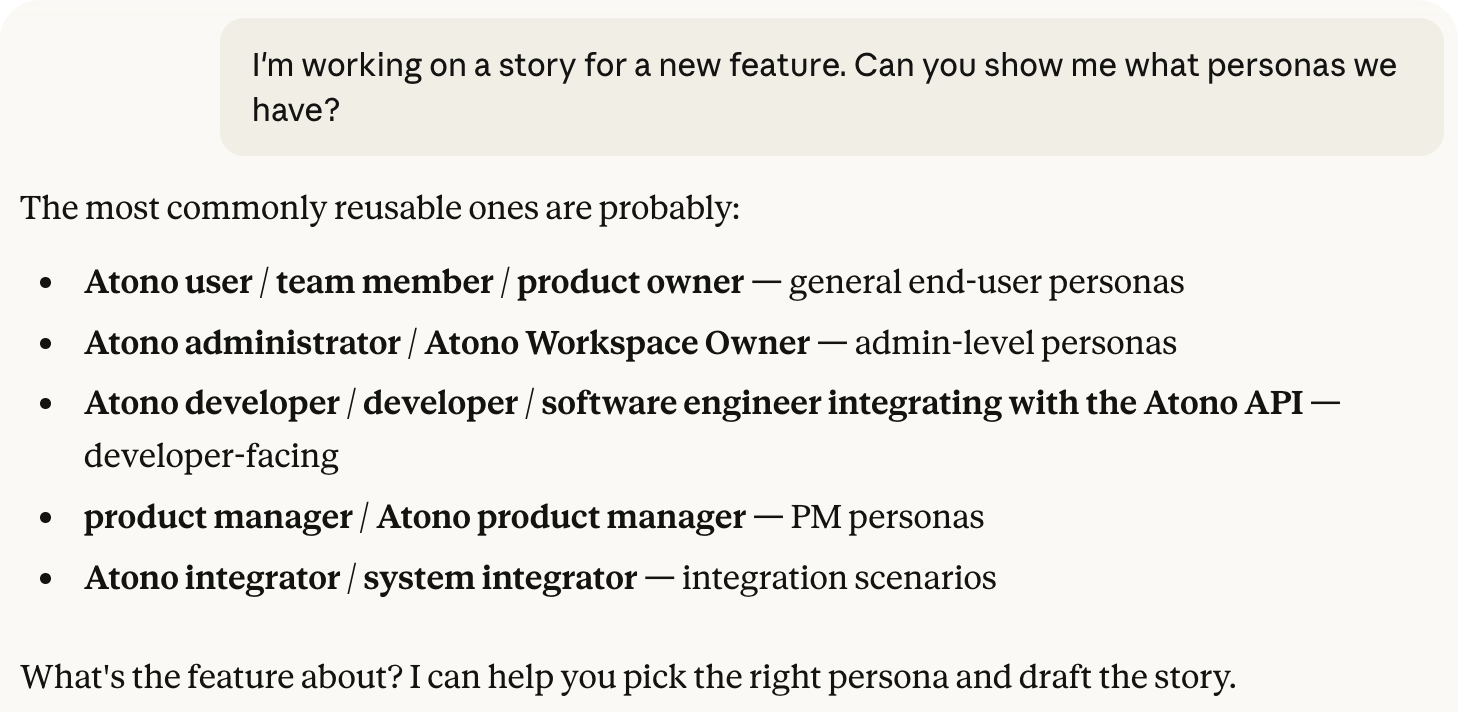
Before writing stories, retrieve all personas defined in your workspace so your AI tool uses names that already exist rather than inventing new ones. If a new persona is needed, provide it directly and Atono creates it automatically.
Bring in release context
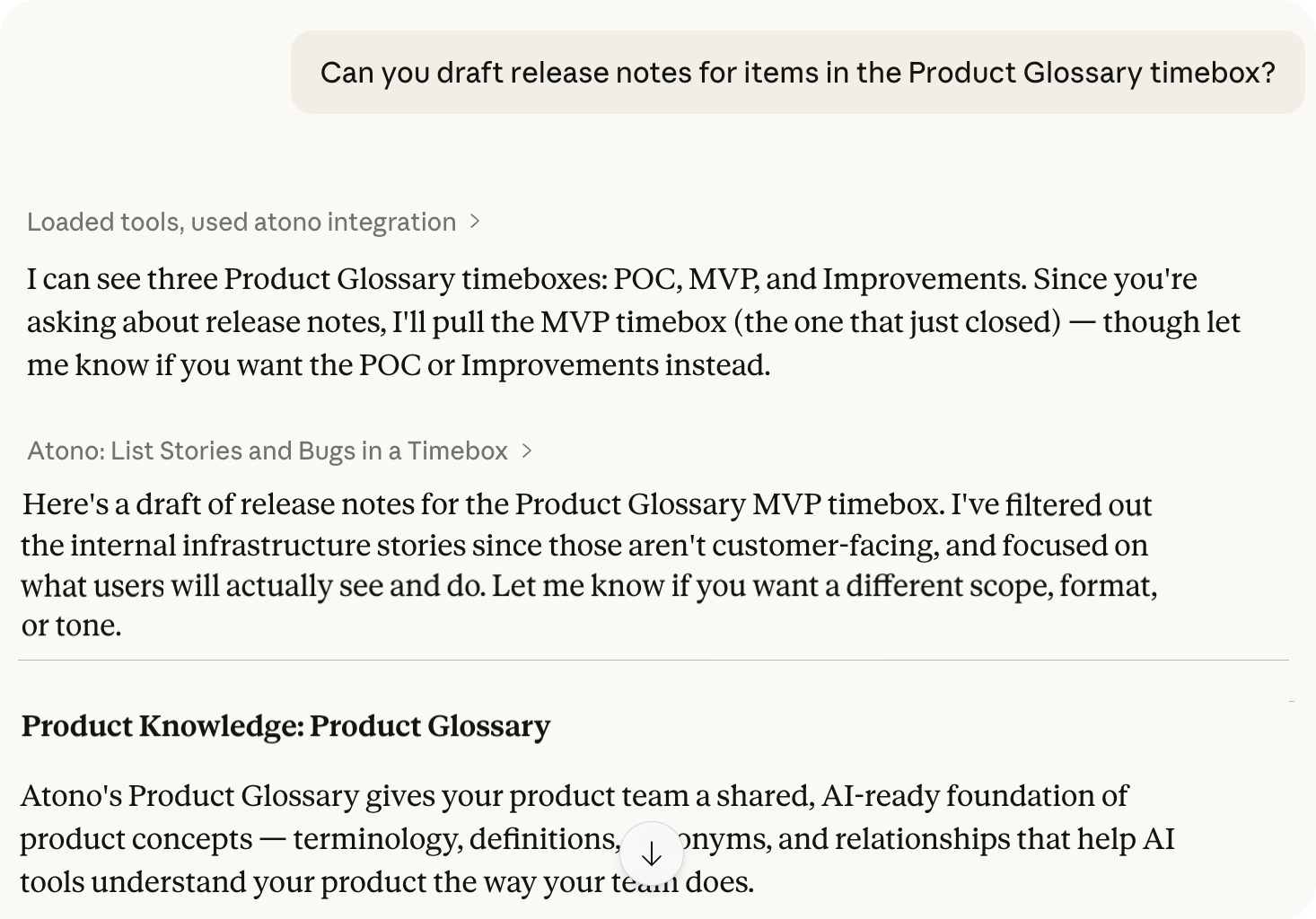
Ask your AI to build release notes, summaries, or other release content from any timebox by name. Retrieve the full contents—stories and bugs with titles, workflow steps, and full text—so your AI has everything it needs. List all timeboxes in your workspace first so your AI can find the right one, even if the name isn't spelled exactly right.
Learn more about MCP tools for Atono →
Usability improvements
We've also added a handful of small improvements that reduce friction in daily workflows.
Navigate timebox and product theme context
Move between backlog items and their broader context in fewer steps. When viewing a story or bug, update the timebox or product theme directly from the field, or hover to reveal an arrow button that takes you straight to that timebox or product theme.
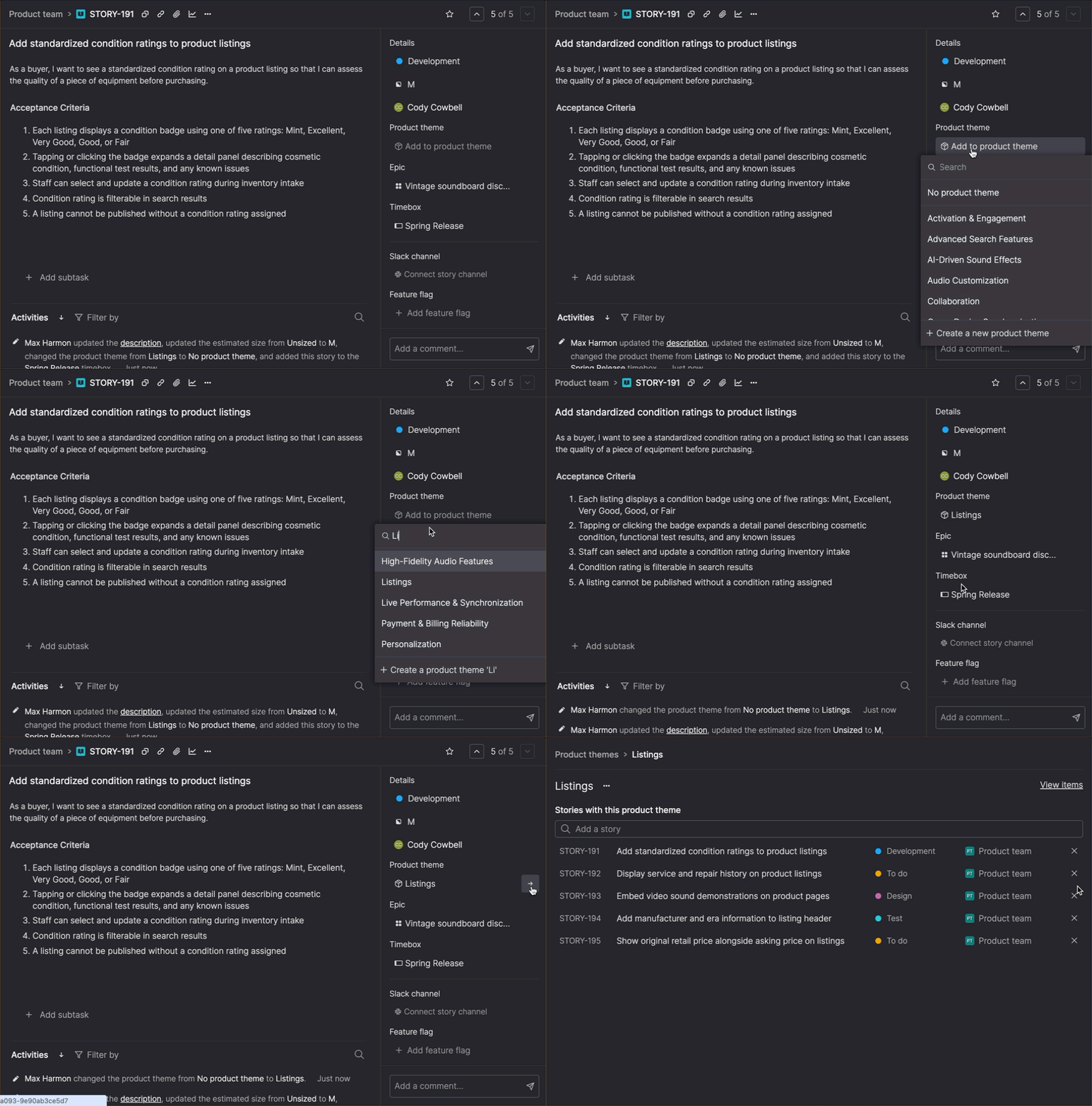
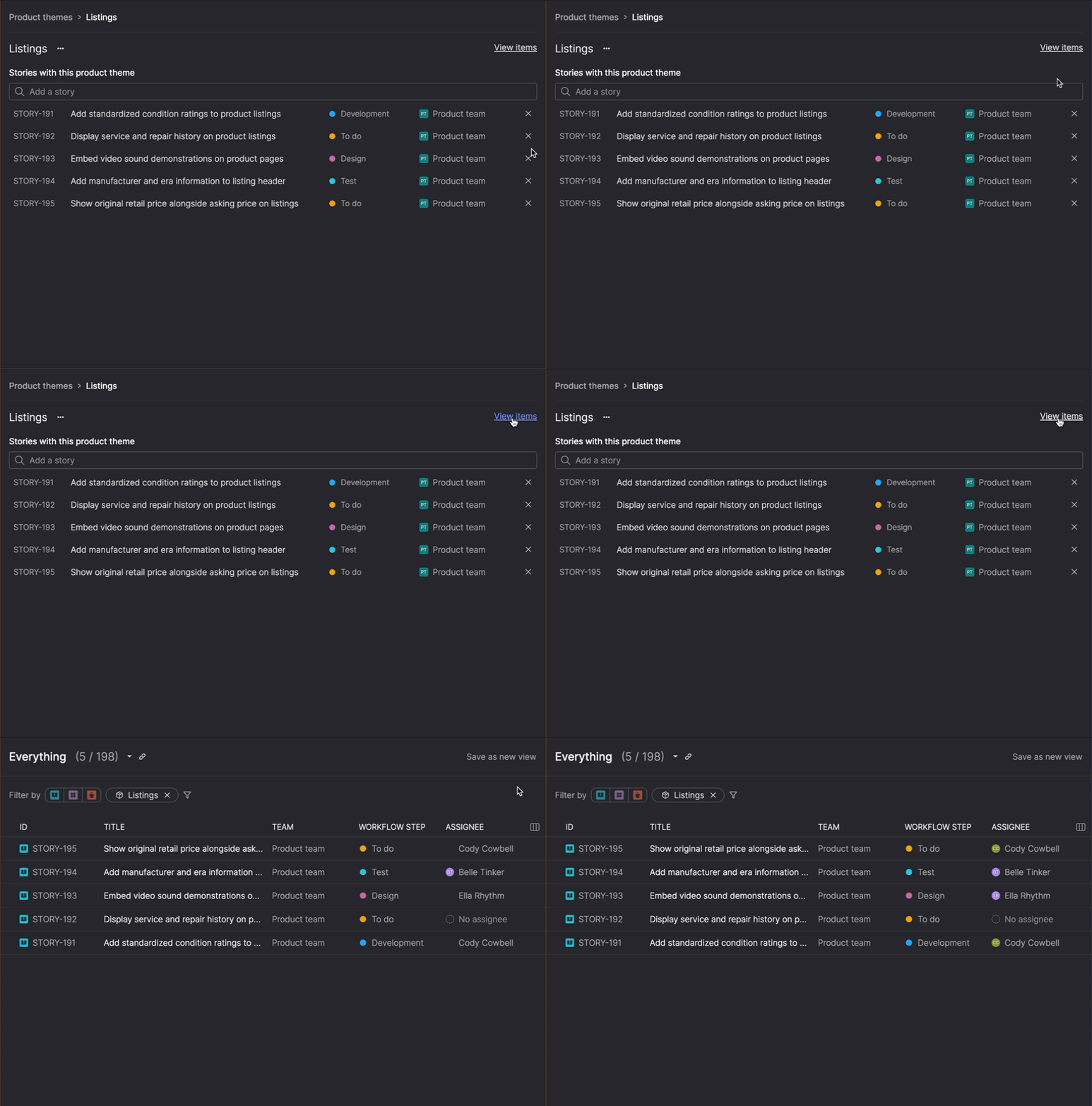
From a product theme, you can now click View items to open a filtered view of the Everything page for quick review or bulk updates.
Set team time zones
Set a time zone for your team so burndown charts and cycle time reports display consistently for everyone, regardless of where they're working.