

Release overview: Feb 18, 2026
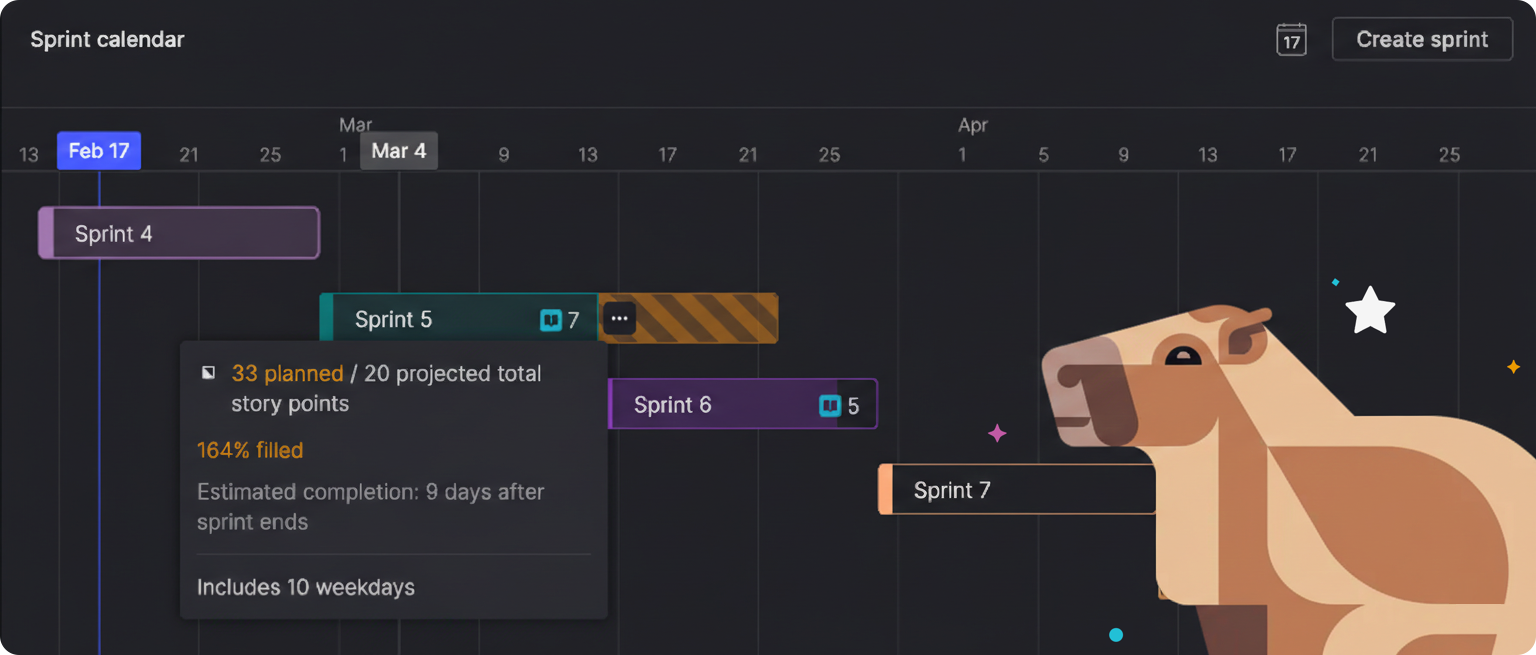
Atono helps you plan with timelines and execute with Scrum or Kanban. This release brings them together, showing you whether you'll actually deliver what you planned, not just what you hoped to ship.
Atono now uses historical delivery data to project capacity, flag risks early, and explain what's driving them—including capacity shortfalls, unassigned work, scheduling gaps, or coordination problems.
Teams can build plans faster, see risks earlier, and adjust while there's still time to act, without adding heavier process or new workflows.
In this release
- Build plans faster and see risks earlier with capacity projections that show if you’re overloaded, release scope visible where you work, and timeline warnings that flag cross-team coordination issues before deadlines slip.
- Navigate sprints more efficiently by collapsing and expanding sprints to focus on what matters, browsing past sprints to see what shipped, and tracking how items moved through sprints over time.
- Coordinate with teammates through contextual notifications by mentioning users in comments to pull them into conversations, with intelligent batching that reduces email noise.
- Let AI coding assistants store context directly on backlog items with MCP resources that capture investigation notes and change summaries, making handoffs between sessions seamless.
- Polish daily workflows with clearer icons, saved graph preferences, streamlined story splitting, and the ability to paste images directly from your clipboard.
Those are just the highlights. Read on for the full details, or jump ahead to the sections you're most interested in.
On this page
- Planning intelligence and adaptive execution
- Managing sprints
- Collaboration
- AI-assisted development
- Usability improvements
- What's next
Planning intelligence and adaptive execution
These features use historical delivery data to help you build plans quickly and adjust as you execute—projecting capacity, flagging cross-team risks, and showing you mid-sprint whether you're on track, while there's still time to make tradeoffs.
Project future sprint capacity
Build an initial plan quickly without lengthy planning sessions. See if your timeline is realistic using projected capacity instead of detailed upfront planning.
Atono uses your team's historical velocity to project capacity for future sprints automatically. On the Sprint calendar, future sprints display projected capacity based on your team's average velocity. If a sprint is over capacity, you'll see a visual indicator showing where the sprint would actually end based on your historical delivery rate.
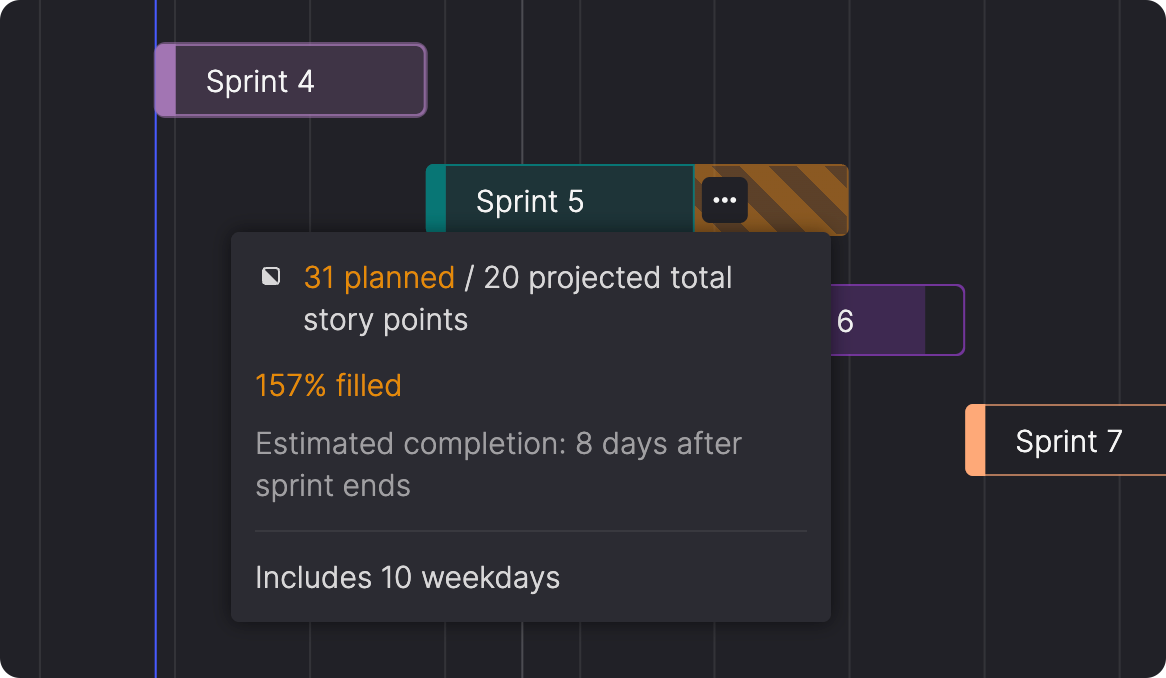
The same projections appear on your backlog view and sprint detail pages, updating in real time as you add, remove, or resize stories.
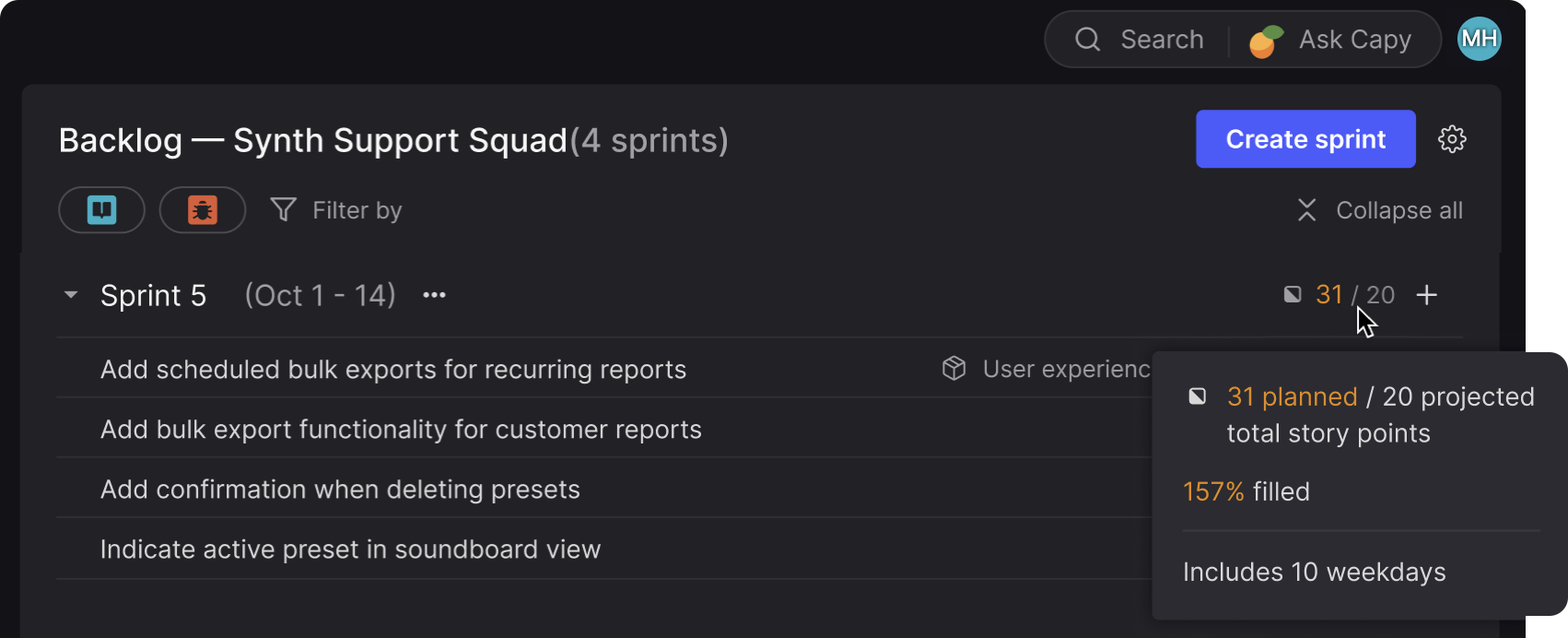
Instead of manually calculating how much work fits in each sprint, you can see at a glance whether your planned sprints are under capacity, properly loaded, or overcrowded. You discover problems with the plan while you're still building it, not after the sprint has started.
Track sprint progress
Have tradeoff discussions early when you're falling behind, while there's still time to adjust.
For teams executing work in active sprints, burndown charts now show whether you're trending ahead or behind and what to do about it.
Once your sprint is at least halfway complete, the burndown chart projects whether you'll finish all the work by the sprint end date. If you're tracking behind, the chart shows which stories are at risk of not being completed based on your current pace. If you're tracking ahead, it suggests stories from your next sprint or backlog that could be pulled in to fill the remaining capacity.
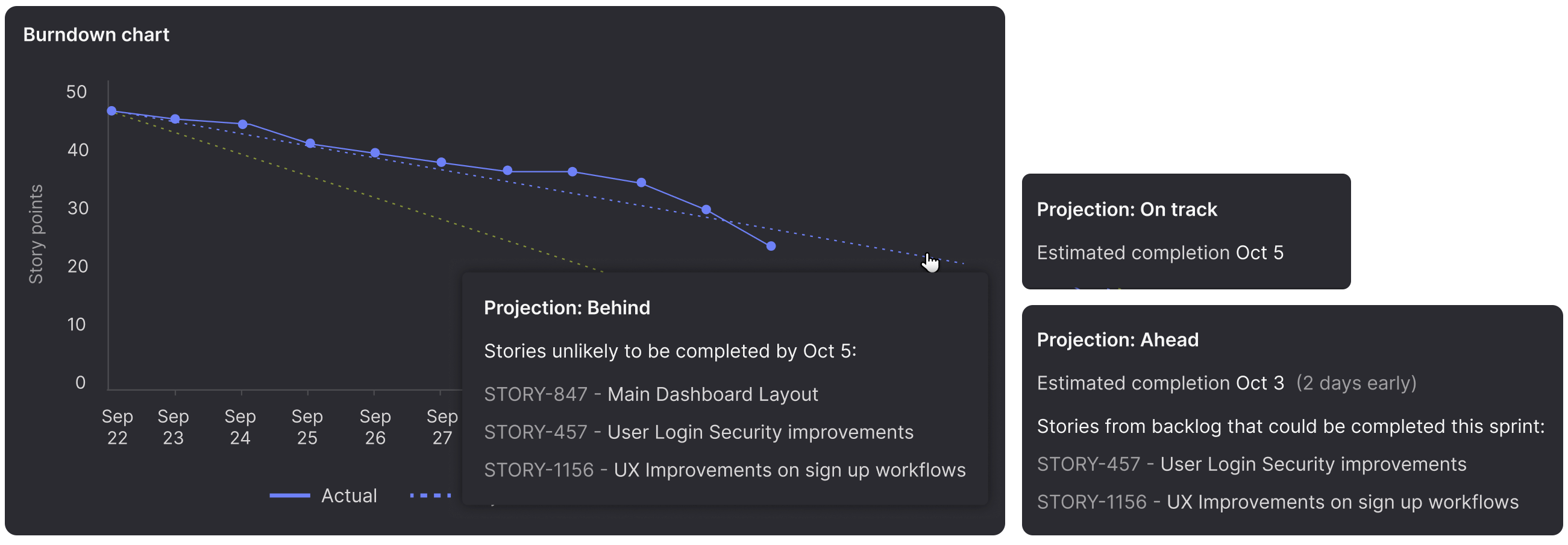
These aren't just projections. They're conversation starters. Should we extend the sprint? Reduce scope? Pull in help from another team? The chart gives you the data to make those calls while there's still time.
Flag cross-team delivery risks
See coordination problems early and know which conversation to have about each one.
Planning across multiple teams with different workflows, all working toward a shared release is where coordination gets complex. The timeline view now flags timeboxes that have potential delivery issues before deadlines arrive. When you view a timeline, timeboxes ending within the next three months show a warning indicator if there are problems with the plan.
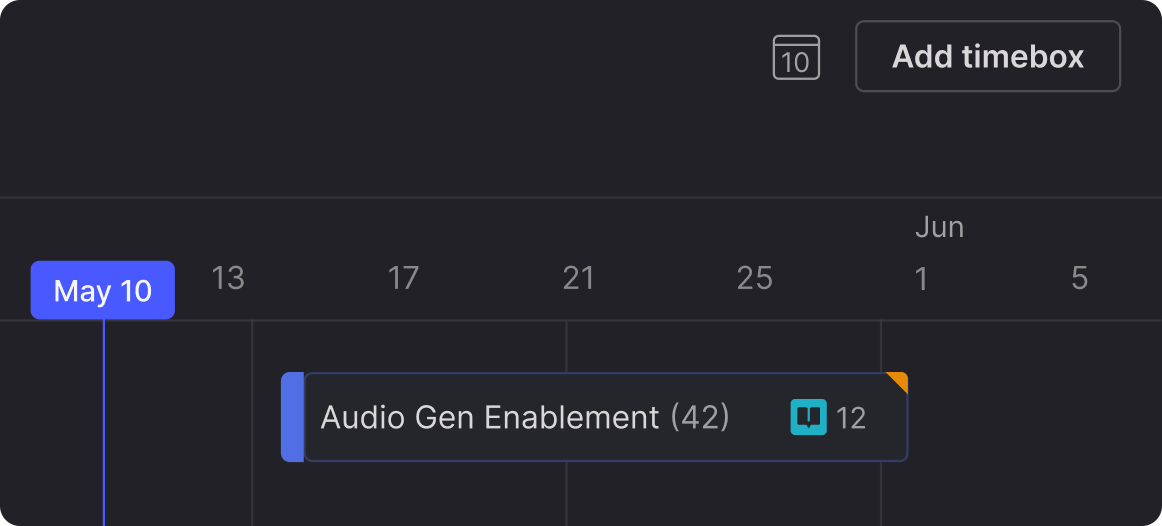
Click into the timebox to see exactly what's wrong: unassigned items, Kanban teams whose projected completion falls outside the timebox, items on Scrum teams that aren’t in a sprint yet, or sprints ending after the timebox ends.
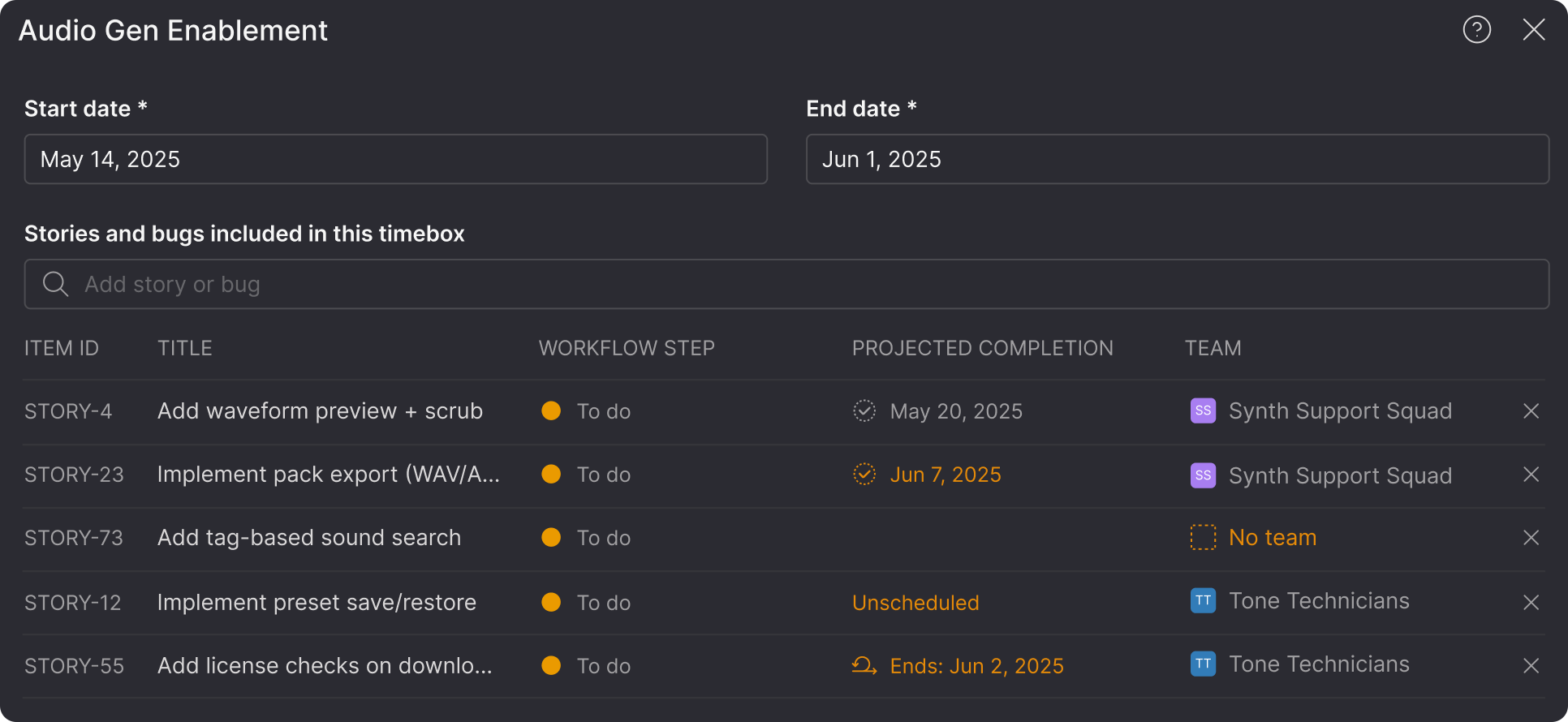
This helps you distinguish between different kinds of risk. An unassigned item is a planning gap. A Kanban team's projected completion date falling outside the timebox might be a prioritization issue or a capacity problem. A sprint ending after the timebox closes means the work might not get done in time. Each requires a different conversation.
Visualize release scope
Whether you're running Scrum or Kanban, see what's actually going into each release and whether your plan is realistic. Team backlogs can now display release markers, with different visualizations depending on how your team works.
Scrum
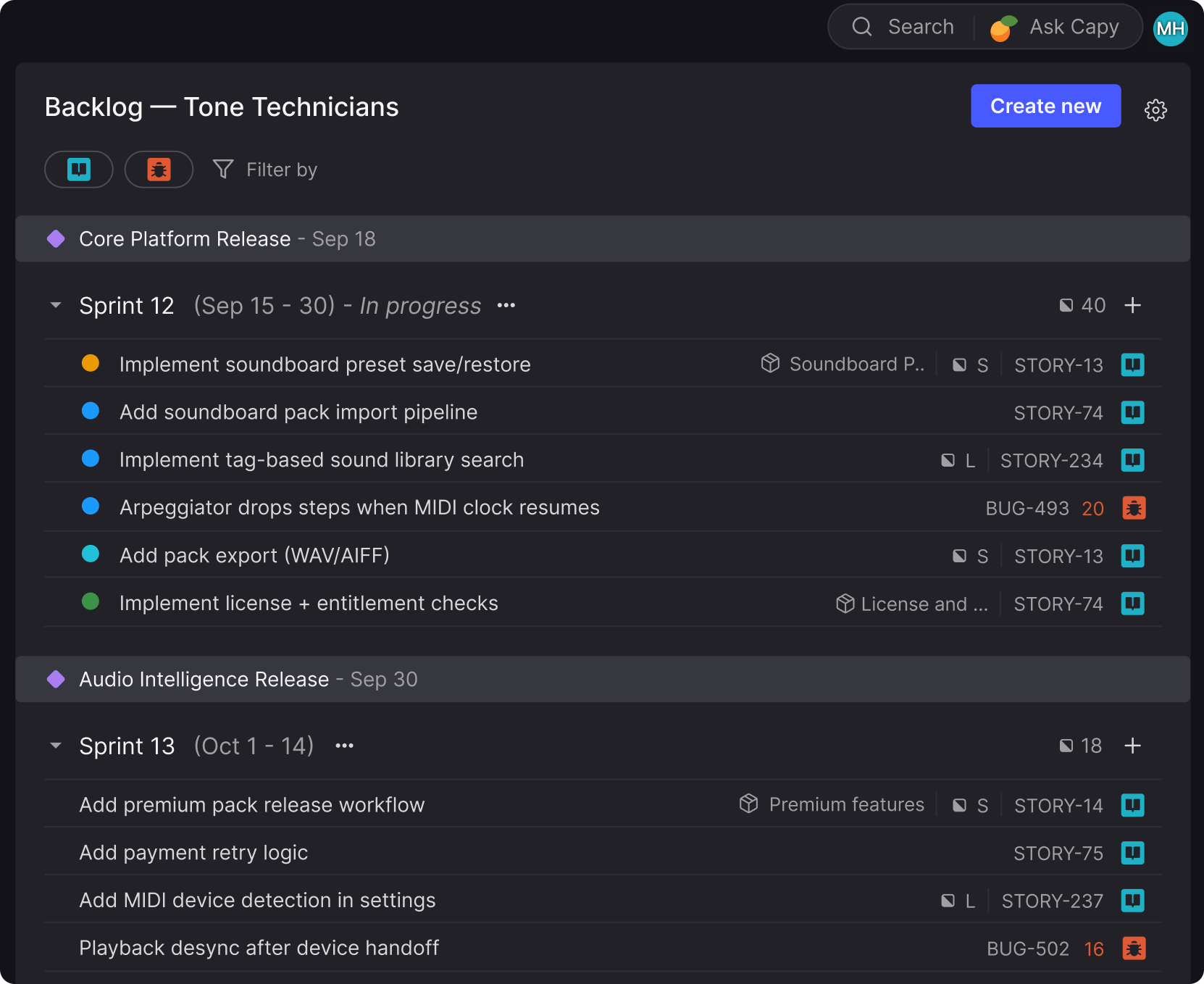
For Scrum teams, release markers appear as horizontal lines on the backlog between sprints. A release appears immediately after the sprint that ends on or before the release date, giving you a visual sense of what ships when. This makes it easier to have conversations about whether you're planning the right amount of work for each release.
Kanban
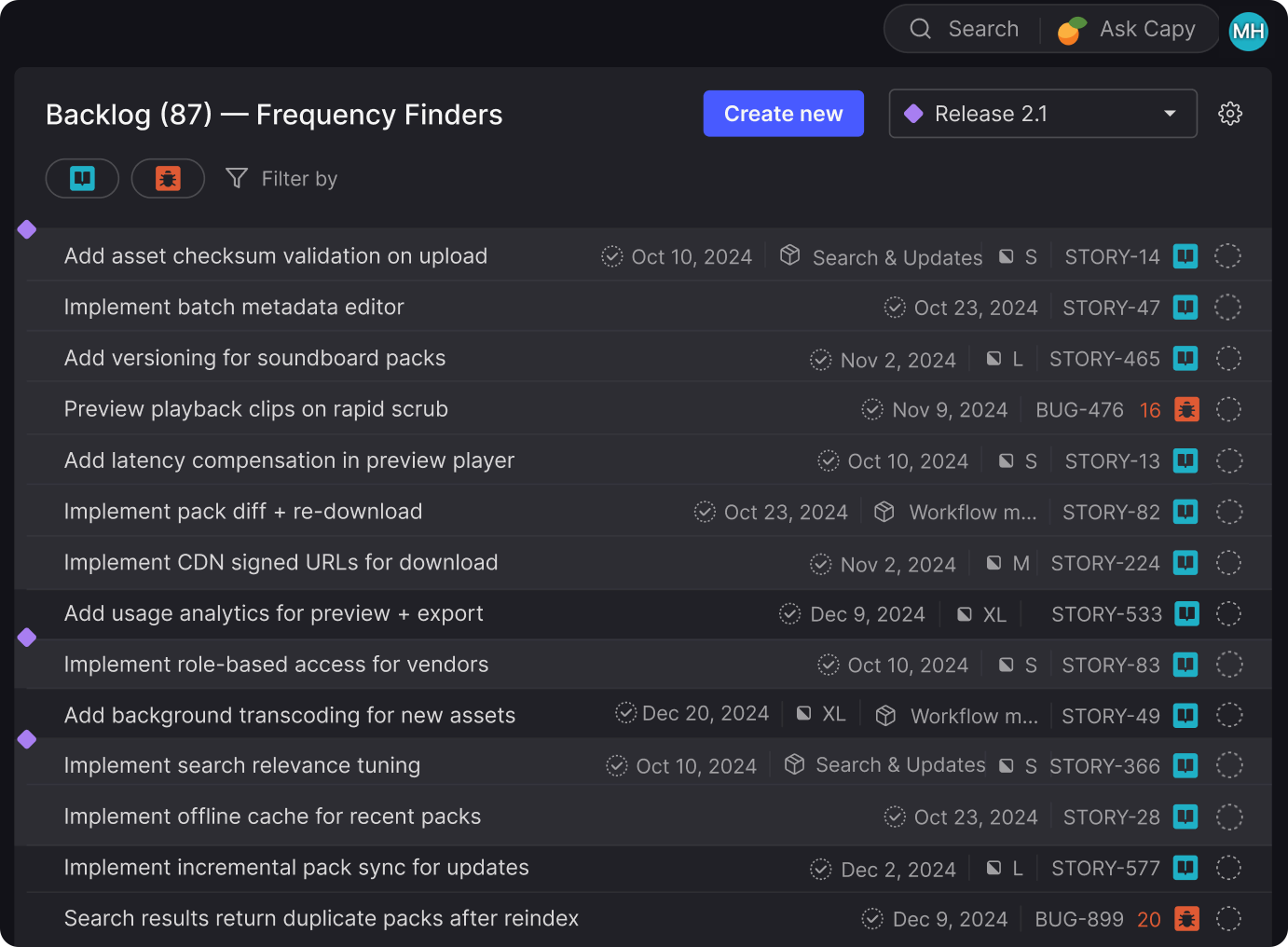
For Kanban teams, you can select a release from a dropdown, and Atono highlights which items would make it into that release based on their projected completion dates. As you drag items up and down to reprioritize, the highlighting updates in real time, showing you how reordering affects your release scope. You can see immediately whether moving one story up bumps another story out of the release.
Managing sprints
For teams running Scrum, we’re delivering modern sprint management capabilities that make it easier to navigate sprint context, track changes over time, and control who can modify plans.
Navigate and organize sprints
A collection of improvements that help you focus on current work, understand what happened in past sprints, and keep sprint assignments organized.
Collapse and expand sprints
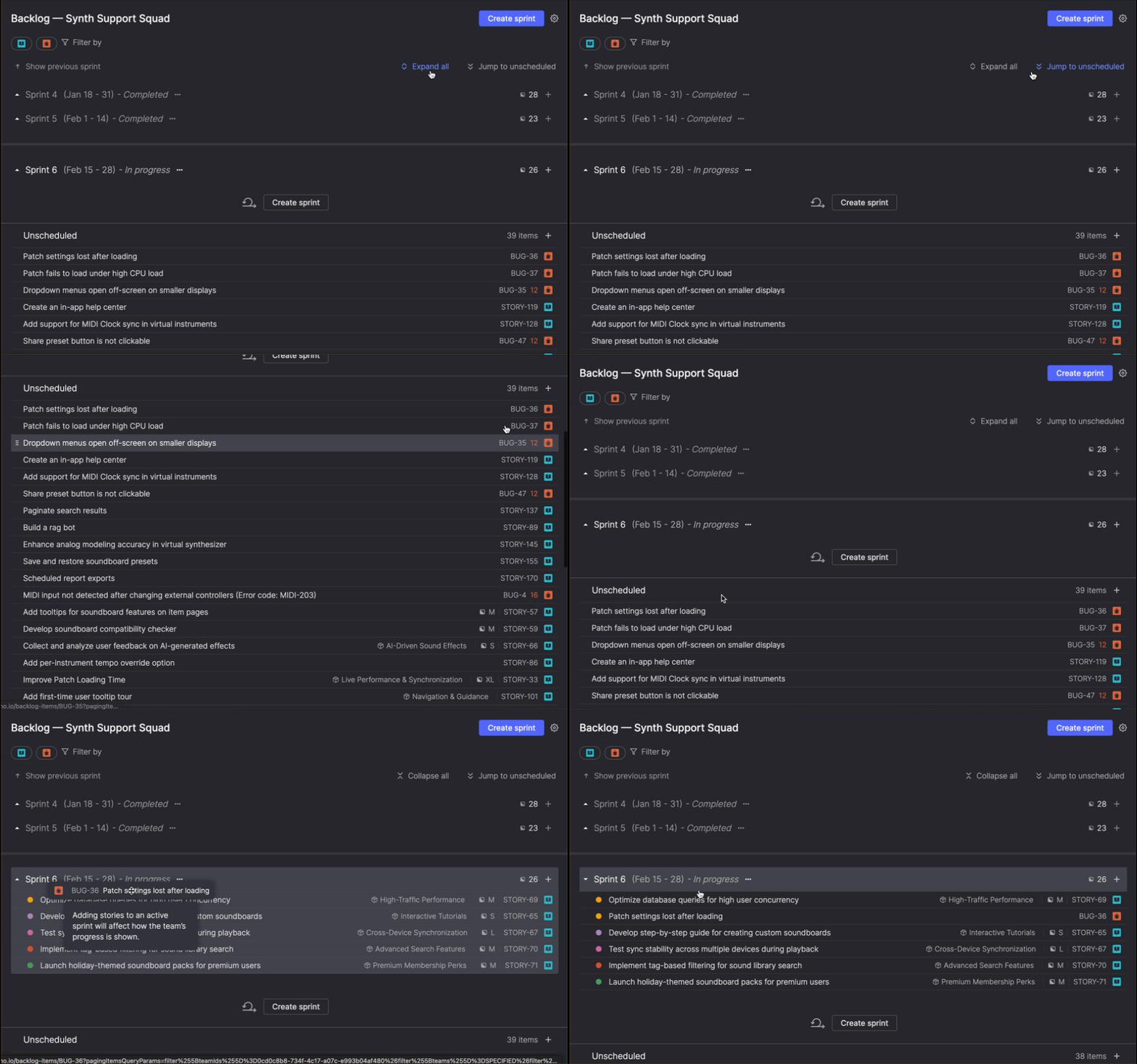
Scrum backlogs now let you collapse and expand sprints individually, or collapse and expand all sprints at once. This helps you focus on planning the next sprint, reviewing the current one, or checking what shipped last month without scrolling through everything.
When you drag an item onto a collapsed sprint, it automatically expands so you can see where you're dropping it. You can also jump directly to unscheduled items to quickly get to work that hasn't been assigned to a sprint yet.
Browse past sprints
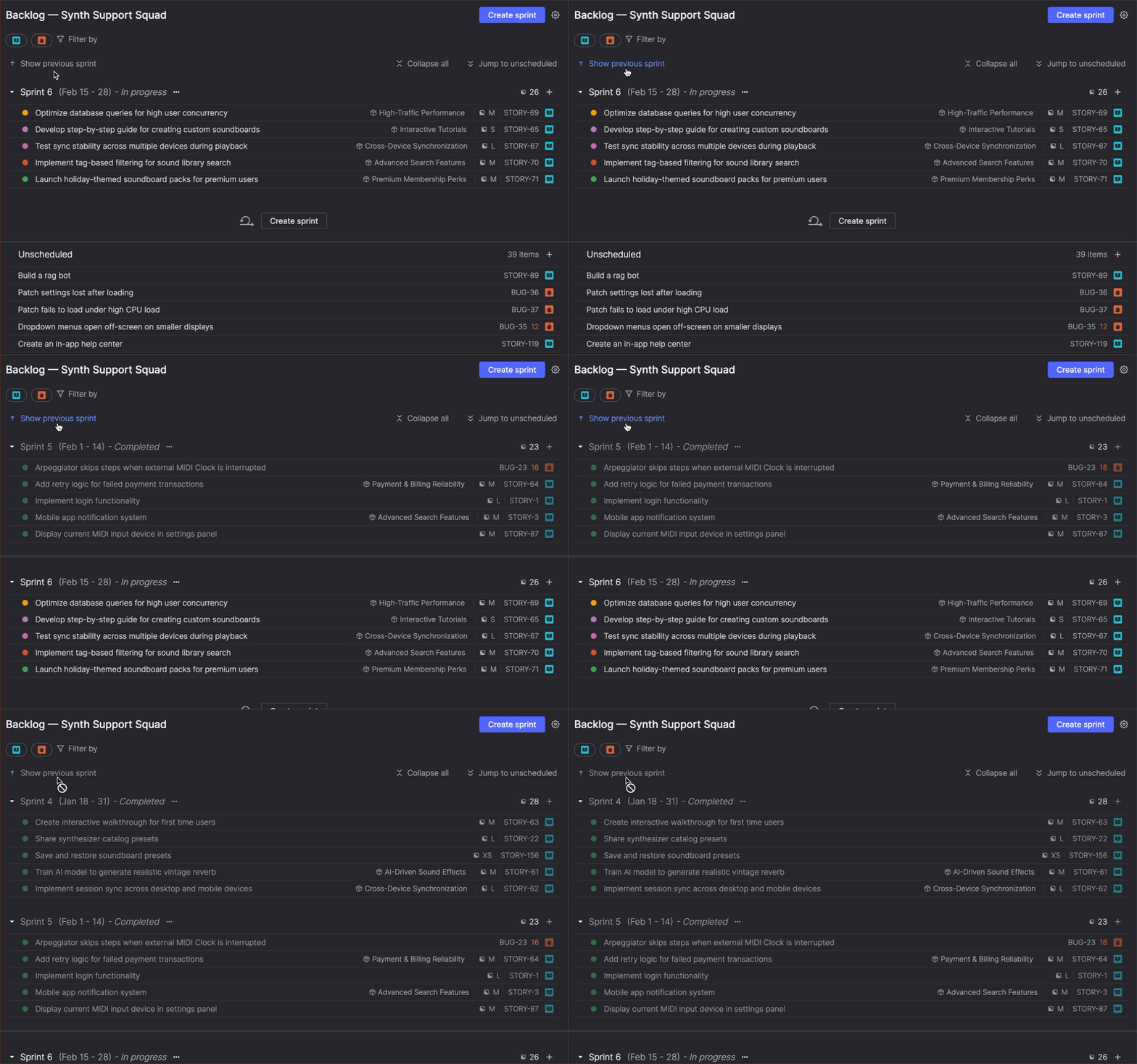
You can browse completed sprints directly from the backlog view to understand what shipped and when. Historical sprints are visually distinct from active and future sprints, and they display workflow step icons so you can see how work was distributed when the sprint closed.
Create sprints faster
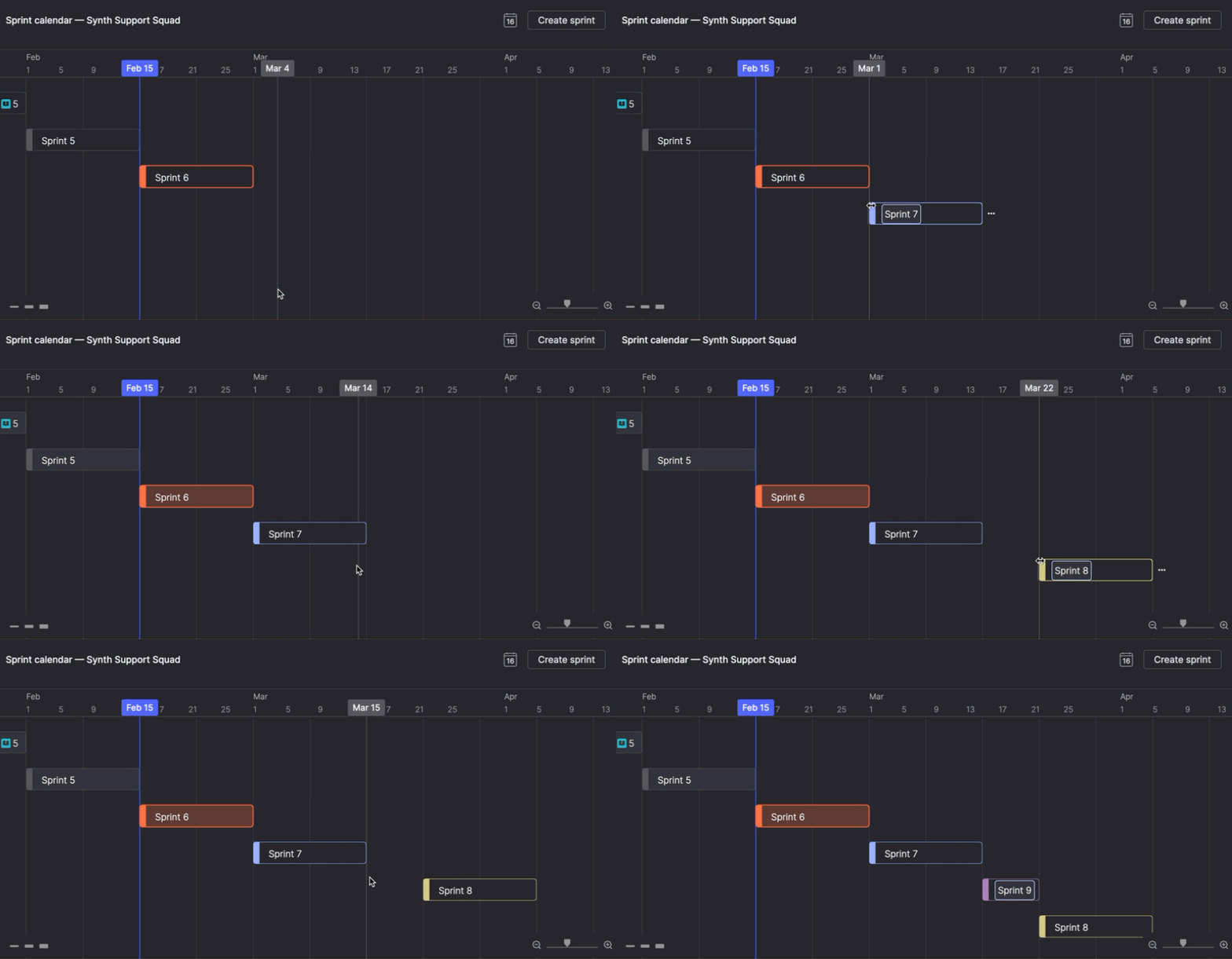
Sketching out a plan gets faster: double-click on a Sprint calendar where you want a new sprint to start, and it's created instantly. The sprint defaults to two weeks, or adjusts automatically if the next sprint is closer.
Bonus: This also works on timelines to quickly create two-week timeboxes.
Manage sprint assignments
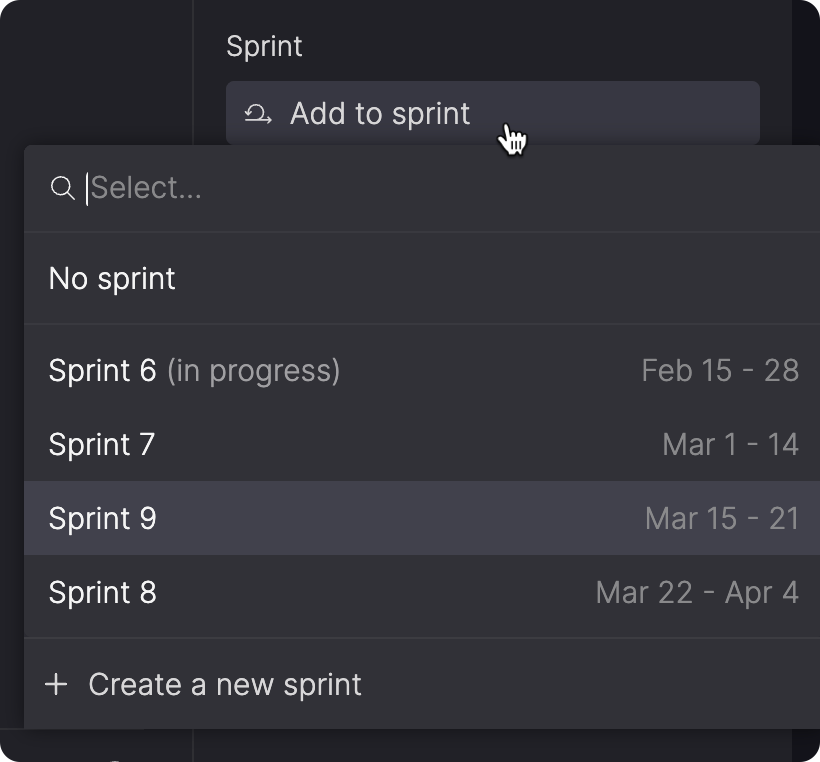
Managing sprint assignments is simpler. On a backlog item's detail page, you can view and change which sprint it's in, search for sprints by name, see start and end dates, and create new sprints without leaving the page.
Track sprint changes
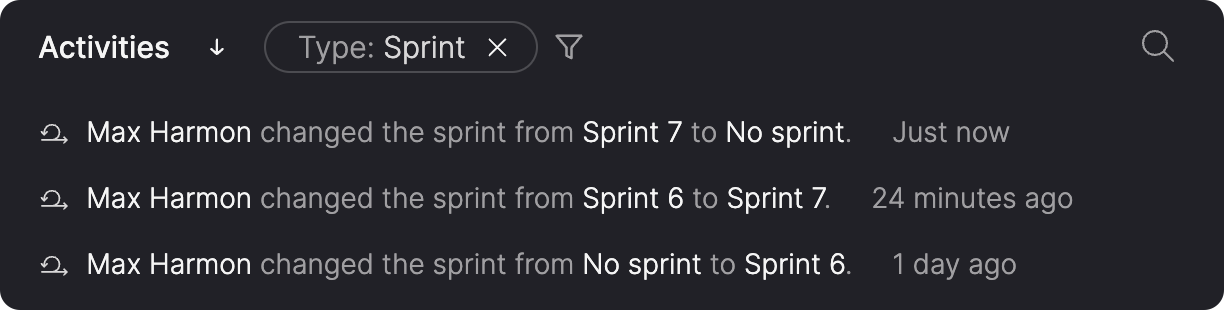
When you need to understand how an item moved through sprints over time, the Activities section now tracks sprint changes. You can see when items were added to, moved between, or removed from sprints and who made each change. A new "Sprint" filter lets you view just sprint-related activity, making it easier to spot items that keep getting postponed or understand why scope changed.
Protect sprint data from accidental changes
To keep your velocity projections and burndown charts accurate, Atono warns you before you make changes with unintended side effects—like removing completed work from historical sprints, which would skew future capacity projections.
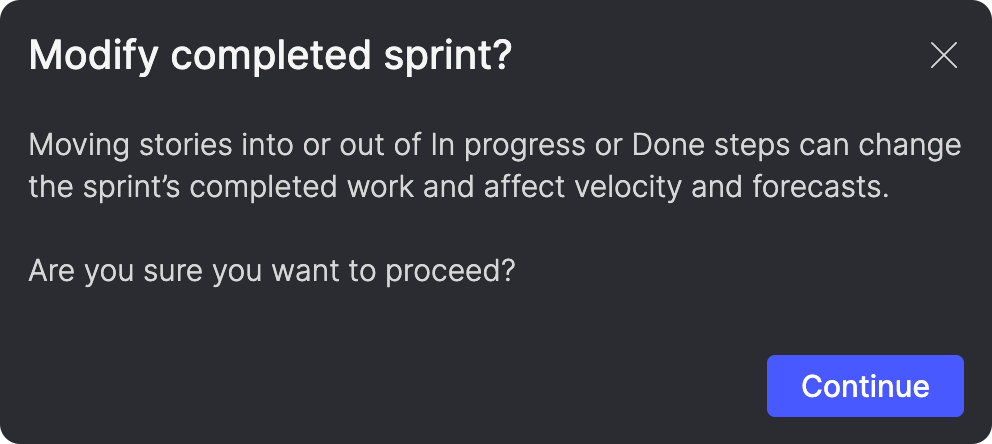
You'll see warnings before actions that affect burndown accuracy or historical data. Each warning explains what will happen so you can make an informed decision.
These warnings help prevent accidental data loss and make the consequences of workflow changes visible before you commit to them.
Control who can modify sprint plans
For teams with managed backlogs, those permissions now extend to sprints. Backlog owners can create, modify, or delete sprints, or change which items are in them.
This applies everywhere sprints appear: the Sprint calendar, Backlog, In-progress, sprint detail pages, and story detail pages. If you're not a backlog owner, you can still move items through workflow steps and reorder them, but you can't change sprint scope or structure.
Collaboration
We’re introducing email notifications and collaboration features that keep communication tied directly to backlog items instead of creating another Inbox to manage.
Mention teammates in comments
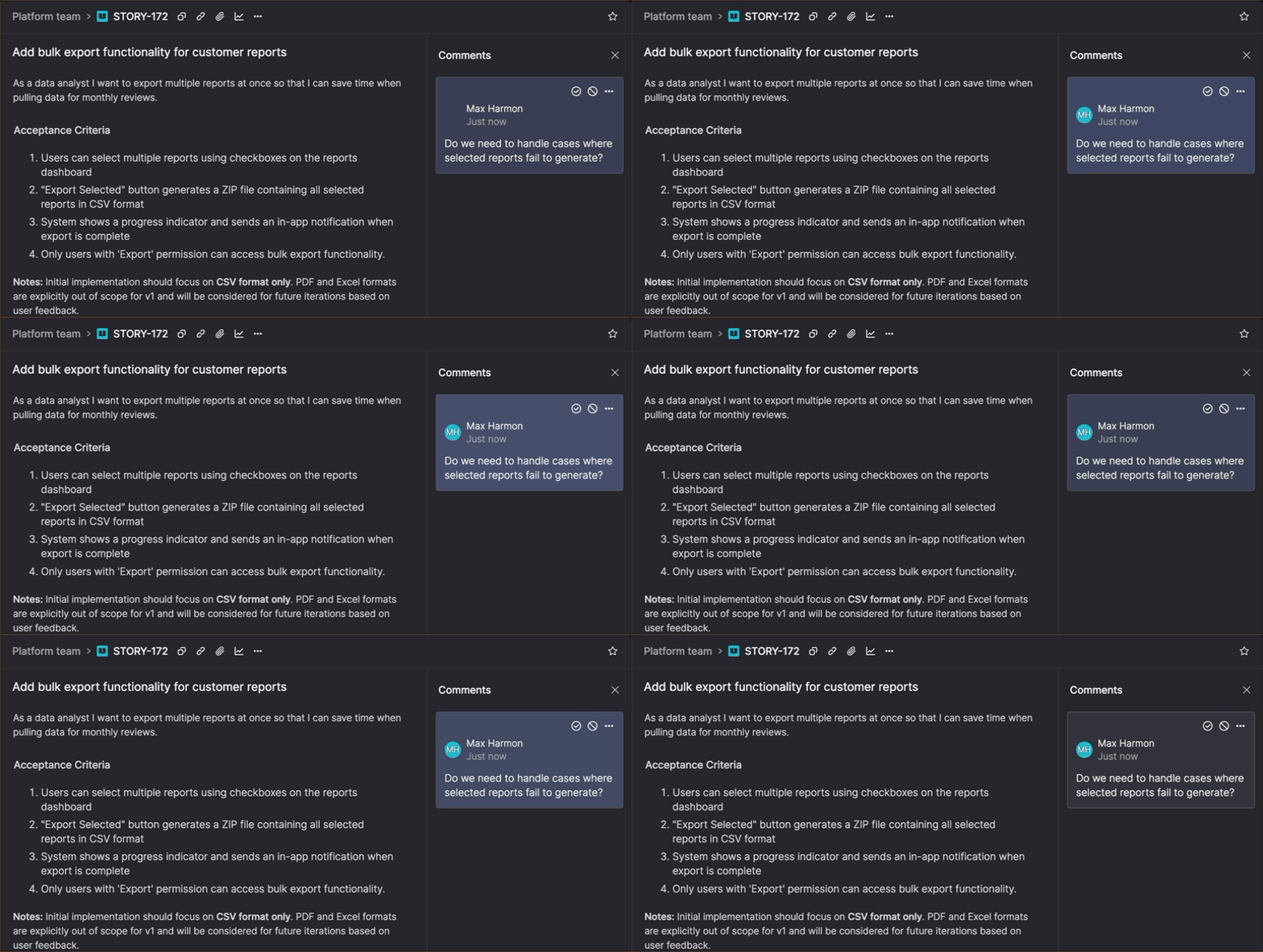
You can now @mention users in comments to pull them into conversations. When you mention someone, they receive an email notification with a link directly to the backlog item.
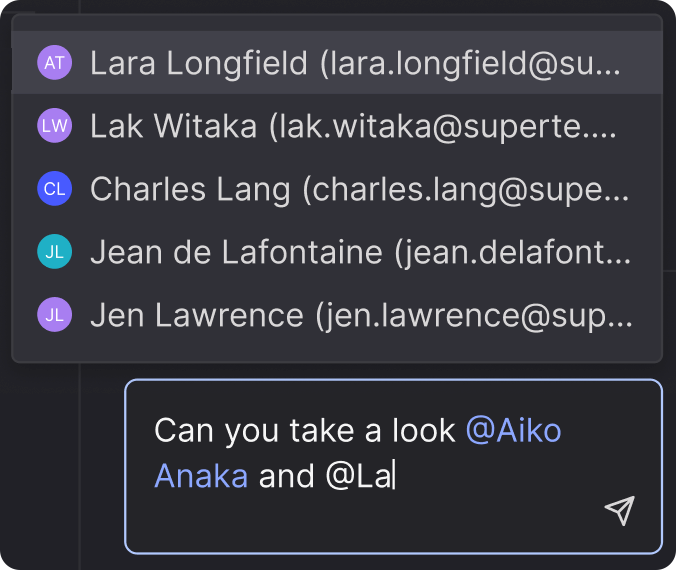
Mentions are batched intelligently to reduce email noise. If multiple people mention you within a short window, you'll receive a single email with all the comments and a link to the conversation.
Get notified when assigned work
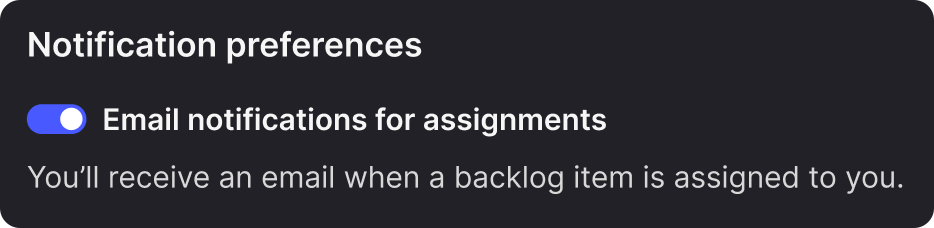
Stay on top of new work without constantly checking your backlog. Enable email notifications in your user profile to get notified when someone assigns work to you. You're only notified when someone else assigns work, not when you assign it to yourself, keeping notifications relevant and reducing noise.
Link directly to comments
Copy a direct link to any comment from its menu. When someone follows the link, the backlog item opens with the comment highlighted. Links remain valid even if you split the story and the comment moves to a different item, so conversations stay connected to the relevant context no matter how work evolves.
View user information on hover
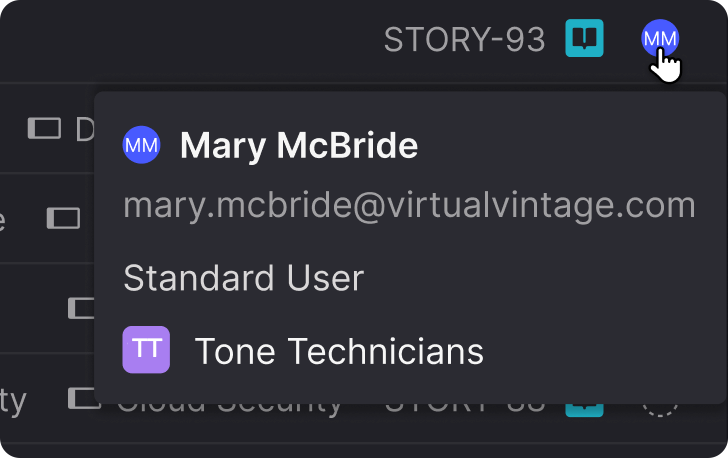
Throughout Atono, hovering over a user shows an infocard with their full name, email, workspace roles, and team memberships. This makes it easy to verify you've got the right person or check someone's role.
AI-assisted development
We’re introducing MCP resources—a way for AI coding assistants to store investigation notes and implementation changes directly on backlog items. The next person or AI session can pick up where the last one left off, because the important context lives on the item itself.
Store AI context on backlog items
When you use the Atono MCP server with your AI coding assistant and ask it to add context to a story or bug, a new MCP resources section appears on the backlog item.
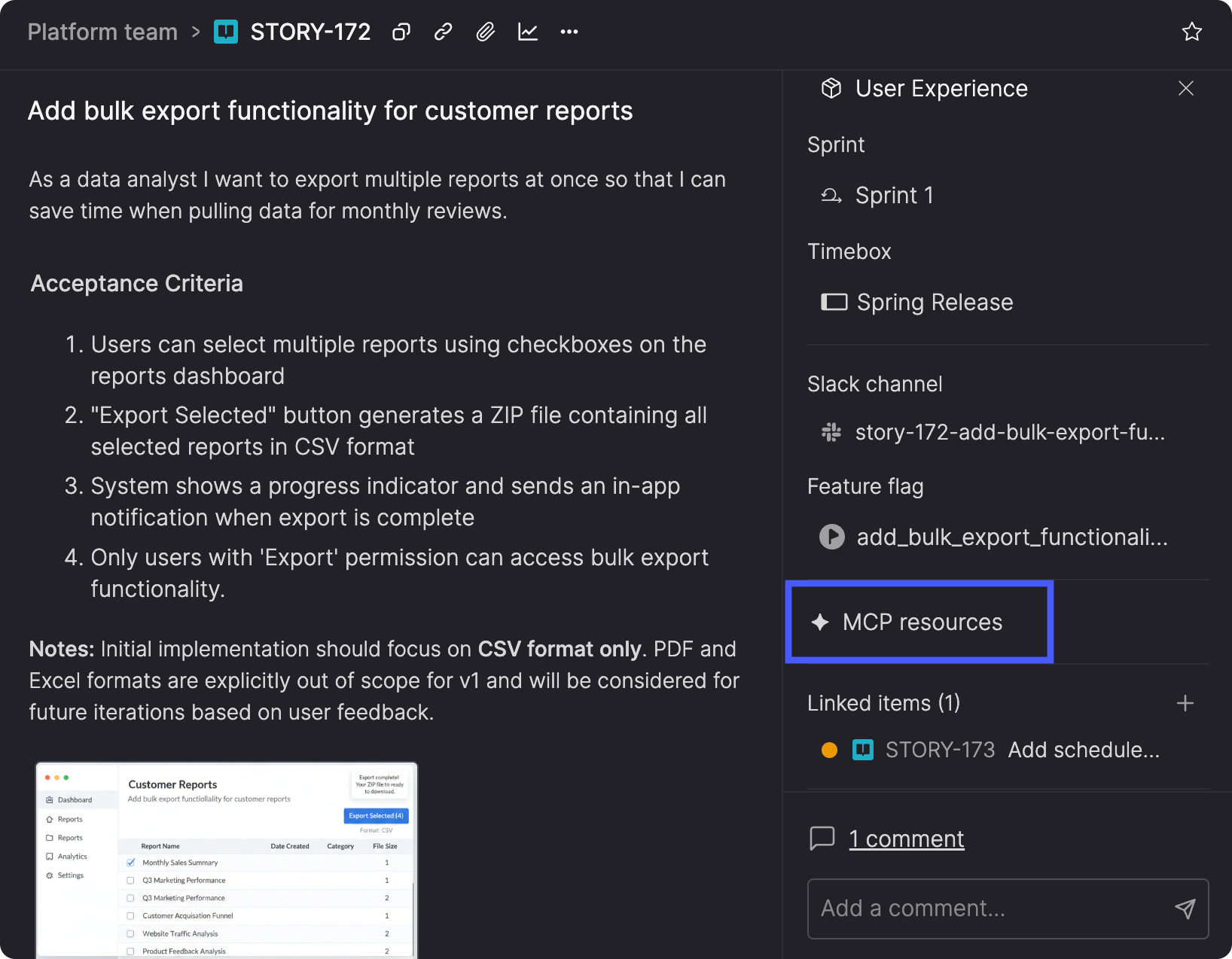
MCP resources have two sections: Investigation captures what AI agents learned before making changes—findings, constraints, relevant files, and recommended next steps. Change summary tracks what was actually implemented—files modified, tests updated, and current status.
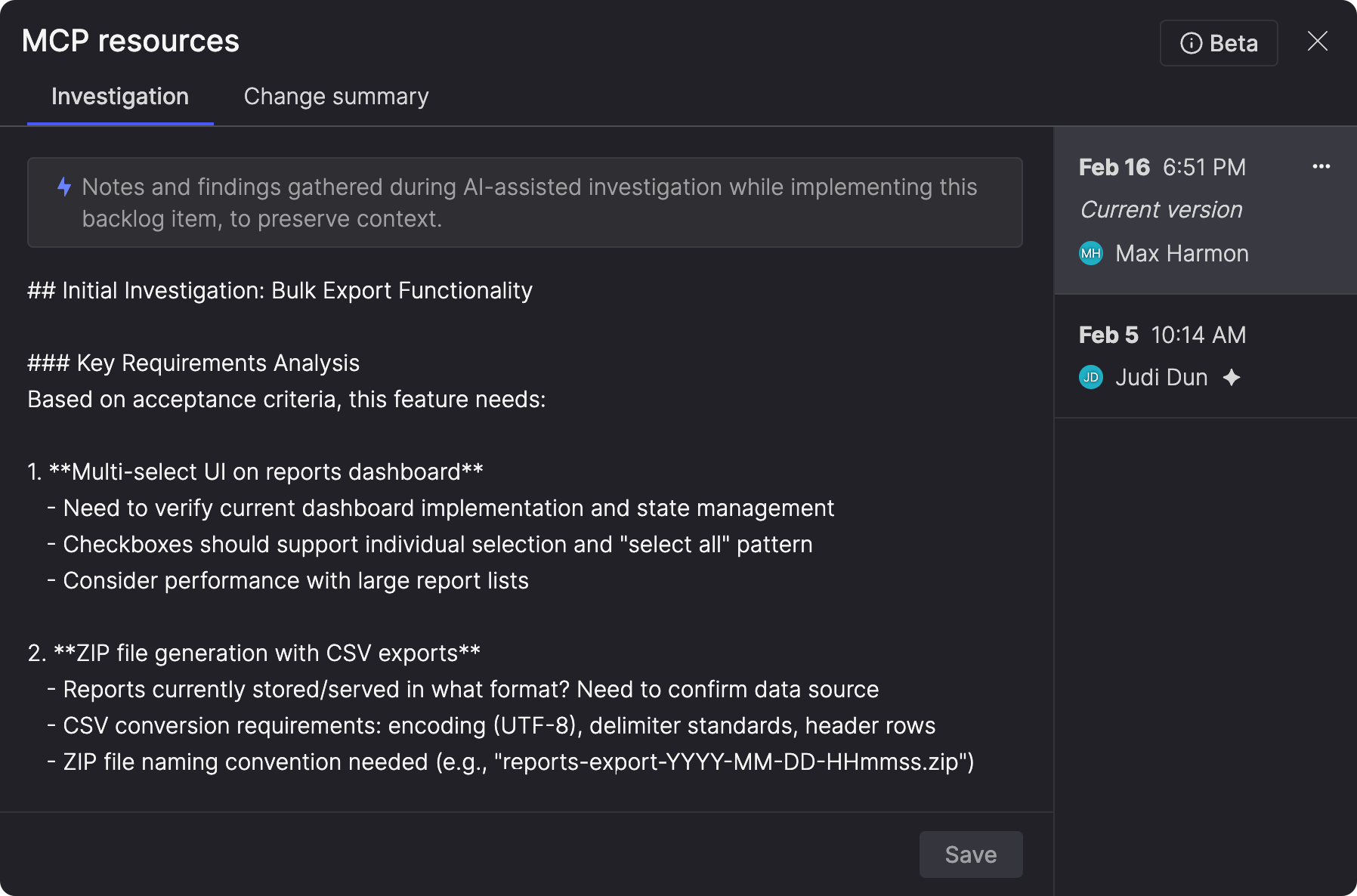
Both sections are versioned, so you can see how understanding evolved across multiple attempts. You can edit them manually in Atono, or let your AI coding assistant update them automatically through the Atono MCP server.
This is useful when work spans multiple sessions, tools, or people. Instead of relying on chat history that fragments or disappears, the context persists on the backlog item.
MCP resources are in beta. We'd love to hear what you think as you try it out. Learn more about MCP resources.
Usability improvements
We've made a handful of small improvements that smooth out daily workflows.
Clearer workflow icons
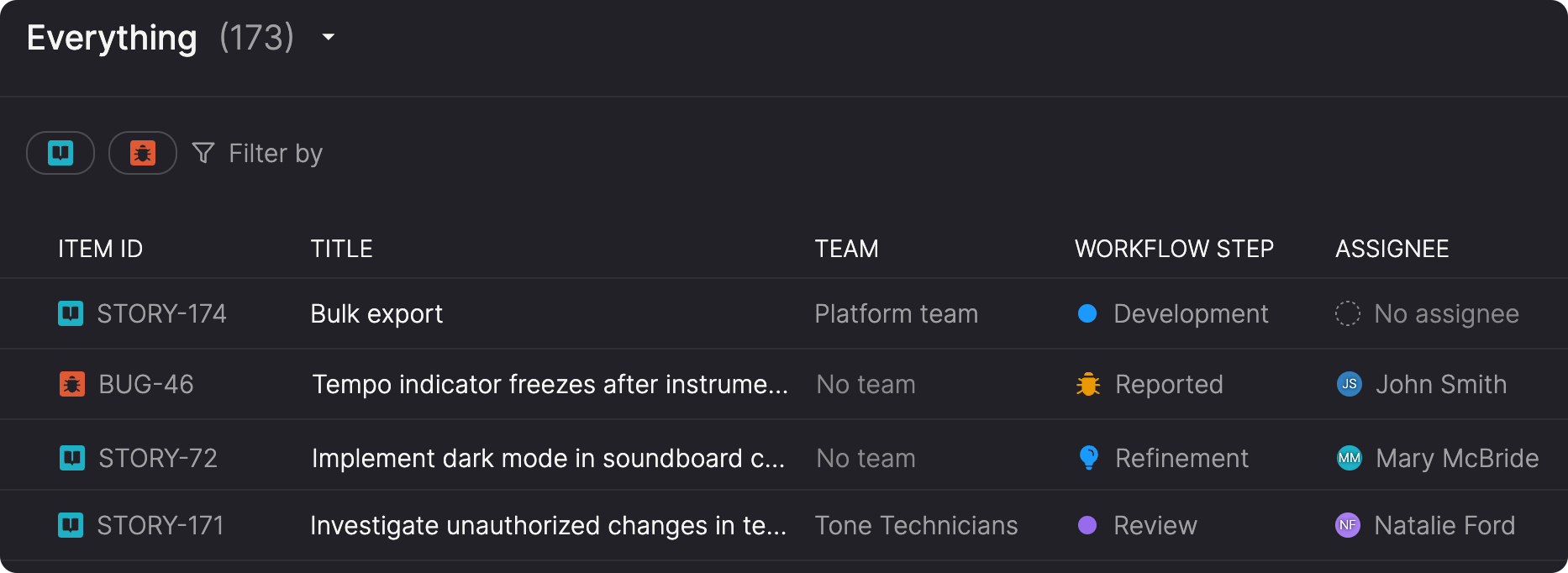
Know at a glance whether work is ready or still being refined. Story refinement and Bug triage now have distinct icons: a lightbulb for refinement, a bug for triage. This makes it clearer when an item is still being refined versus when it's in the regular workflow, helping you focus on work that's actually ready to be picked up.
Remember engagement preferences
Stop reconfiguring the same settings every time you look at engagement data. Engagement graphs throughout Atono now remember your display settings—view type, graph type, timeframe, and filters. Whether you're viewing feature engagement on a story or the top features graph across your workspace, your preferences stay consistent.
Streamlined story splitting
When you split a story, you can edit the user story statement directly in the split workflow. Define what each new story is for while you're actively thinking through the split.
Paste images directly
Share visual information faster. Paste images directly from your clipboard into a story or bug's additional notes or acceptance criteria. Atono automatically creates an attachment with a generated name, creates a thumbnail if appropriate, and adds an activity entry. No more saving screenshots to files, finding them in your downloads folder, and uploading them one by one.
What's next
We're working on new capabilities that aren't quite ready for general availability but show where Atono is headed. Here's what's in development:
Product knowledge
We're experimenting with a product knowledge feature that analyzes your help documentation and builds a shared vocabulary of key product concepts you can export and use as context for AI tools. Instead of guessing, AI tools can understand your product's language and how the pieces fit together.
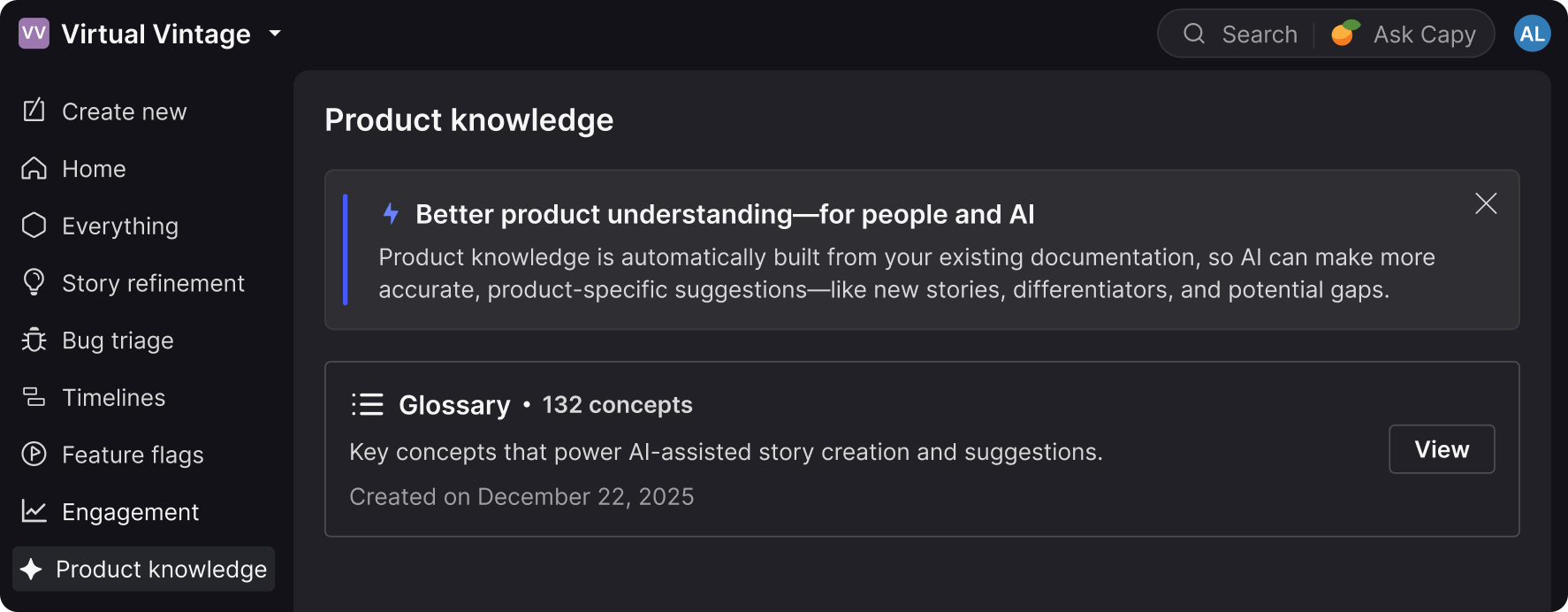
Early testers are exporting glossaries to use as context for AI coding assistants—helping with story refinement, documentation drafting, test scenario generation, and catching terminology inconsistencies. If you'd like early access to see how it can help your workflow, let us know.