

Release overview: July 28, 2026
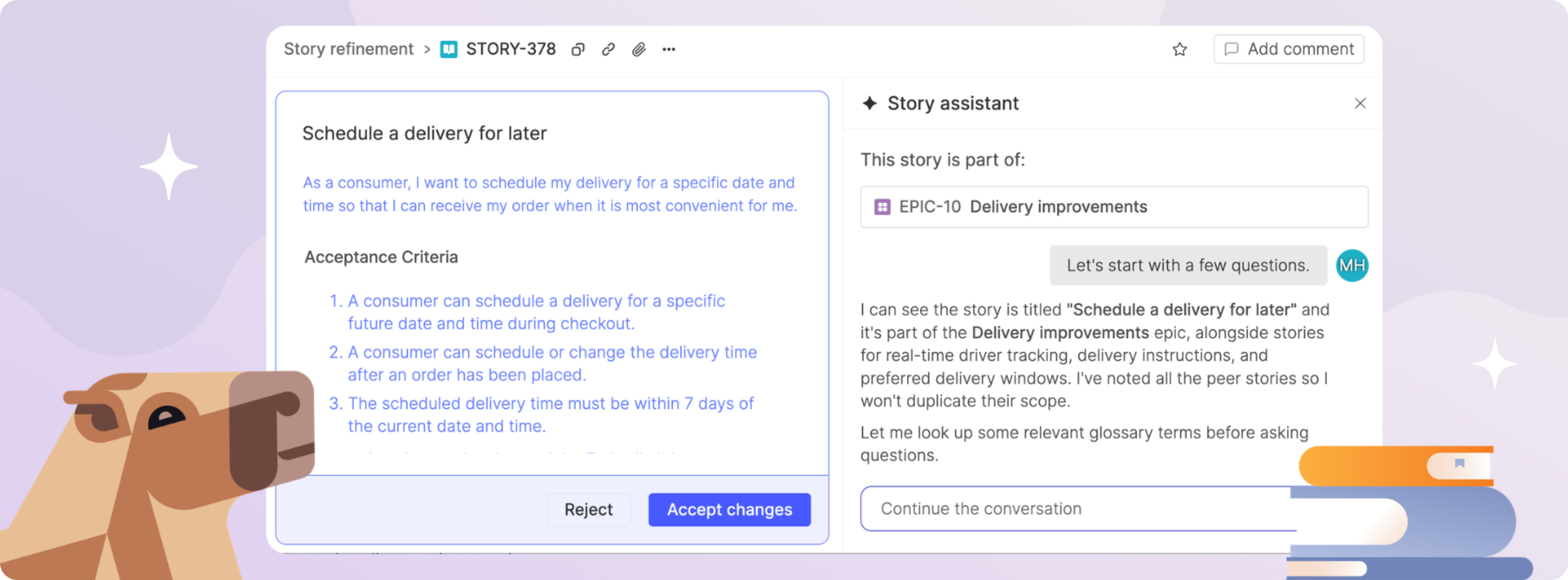
Back in June, we told you the Story assistant was coming this summer. Now it’s here, giving you a conversational way to turn ideas into well-formed stories grounded in your product’s own context. This release also brings tags to Atono, which you can apply to stories, bugs, and epics and use them to filter, search, and organize your backlog. Plus, two planning improvements let you add stories to epics in bulk and track how epics change over time.
Together, these changes shorten the path from idea to well-scoped story, give your team more flexibility in how it organizes the backlog, and provide a clearer record of how epics evolve over time.
In this release
- Talk through what you want to build with the Story assistant, which helps you develop user stories and acceptance criteria using your product glossary, epics, and design decisions, then stages its suggestions for review before they’re applied.
- Tag your work, apply tags to multiple items at once, and use them to filter and search stories, bugs, and epics across your workspace.
- Keep epics organized as work evolves with bulk-adding stories to an epic and a full epic activity history.
Read on for the full details, or jump ahead to the sections you're most interested in using the links below.
On this page
AI-assisted story authoring
As software development becomes more agentic, a good story needs more than a simple description of what to build. It also needs to reflect what’s already been decided, what’s out of scope, and how the work fits into the larger feature. The Story assistant brings that context into the authoring process, helping your team develop stories grounded in how your product works.
Talk through what you want to build
Open the Story assistant from any story and it’s ready with the context surrounding the work: the story’s current title and content, its epic and related stories, your product glossary, and any design decisions already recorded for the story. Start by describing the feature in your own words, or ask the assistant to help you define it through a guided conversation.
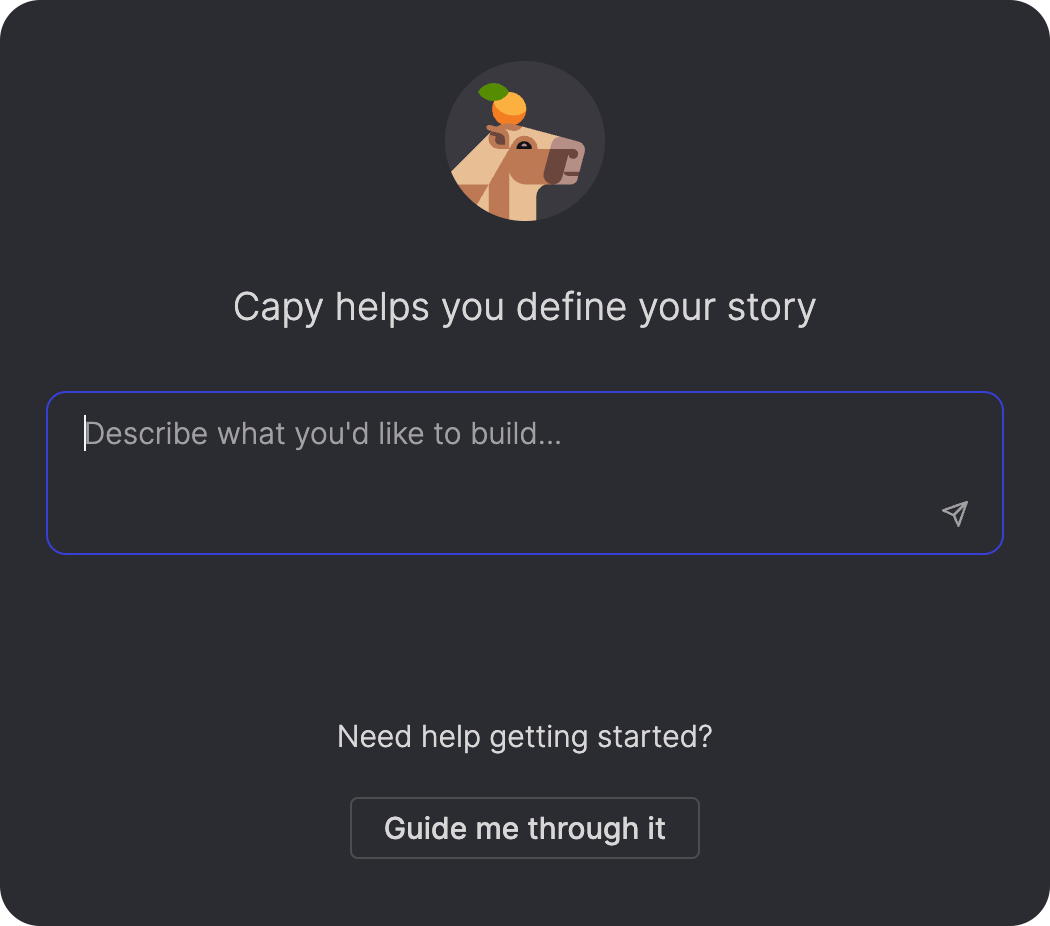
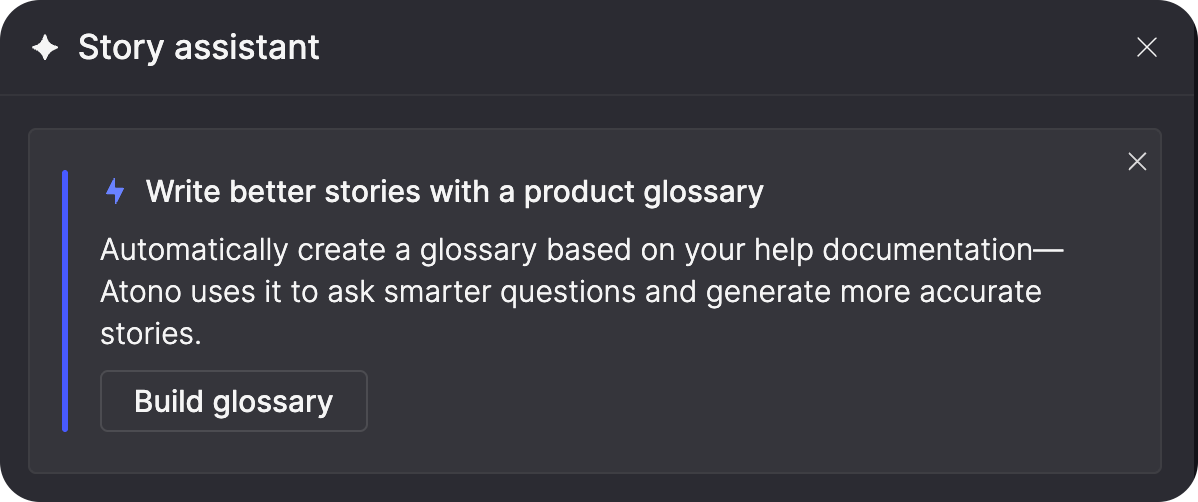
If your workspace doesn’t have a product glossary yet, the assistant lets you know and gives you a direct path to build one. Your glossary acts as a blueprint of your product, capturing its concepts, features, and how they relate. That gives the Story assistant a much deeper understanding of what you’re building, so it can ask sharper questions, spot important connections, and make suggestions grounded in your product rather than generic assumptions.
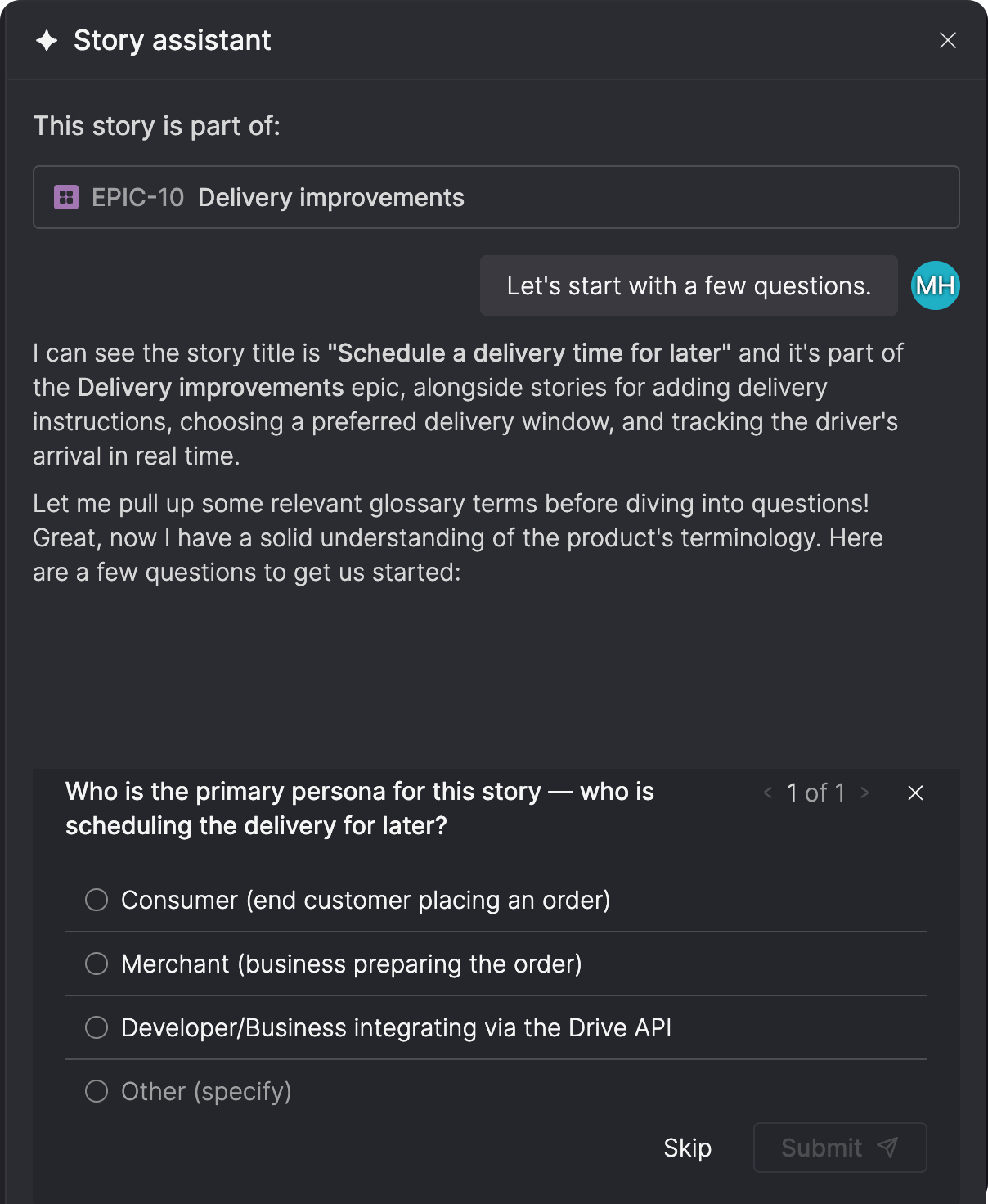
When the story belongs to an epic, the assistant also has the epic and its related stories available as context, helping it account for the broader goal and the work already planned. It can then guide you through a short set of questions to clarify what still needs to be defined, using suggested answers where possible and giving you space to add your own.
Turn the conversation into a story
As the conversation evolves, the Story assistant can turn what you’ve discussed into a user story shaped by your product context and, when applicable, the broader work in its epic. It draws on your workspace’s existing personas so the story stays consistent with how your team already describes its users, creating a new persona only when none fits. You can also generate more than one user story when the work needs to reflect multiple personas.
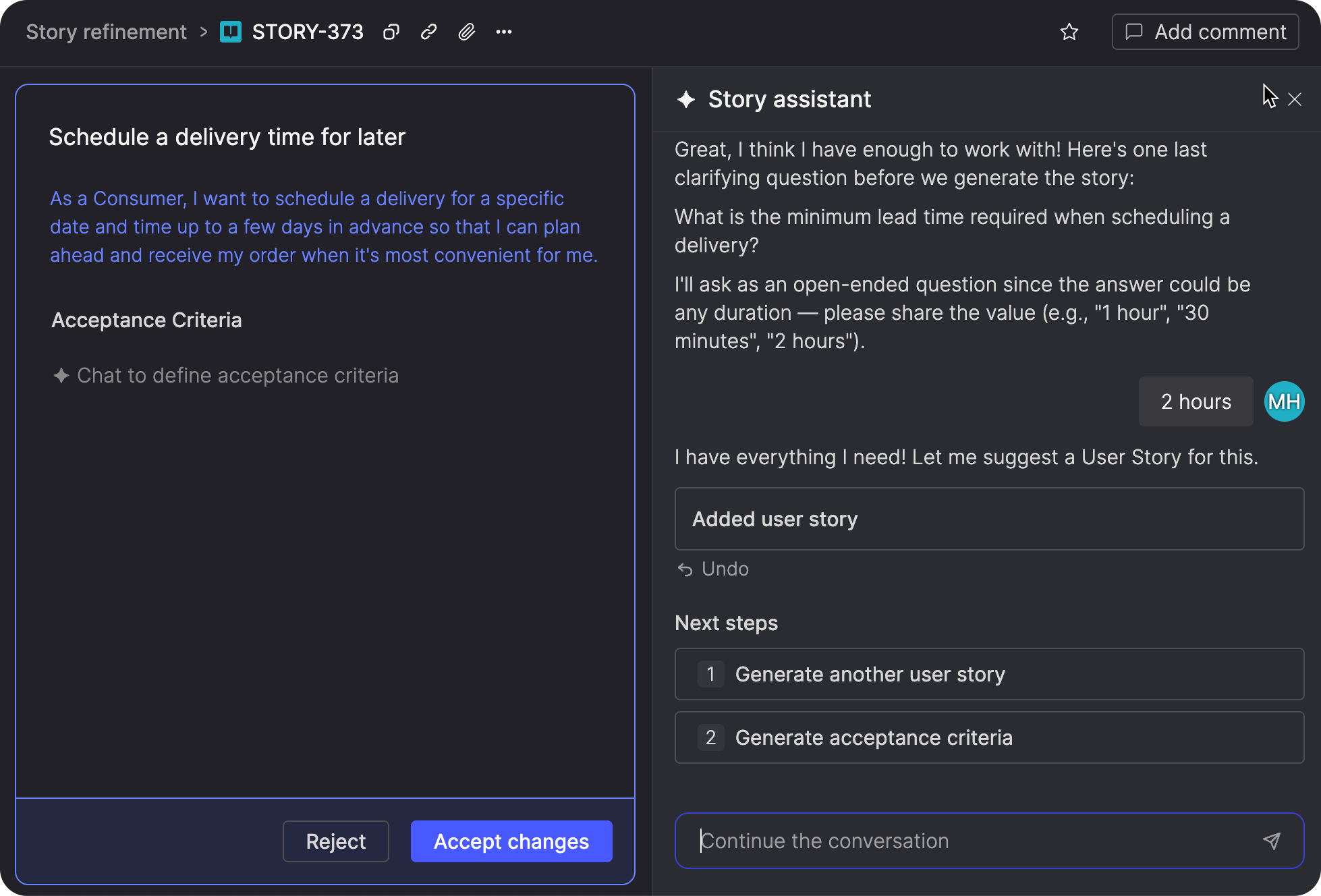
From there, you can generate the acceptance criteria. If the assistant needs more information to define what complete and correct work should look like, it asks additional questions before drafting them.
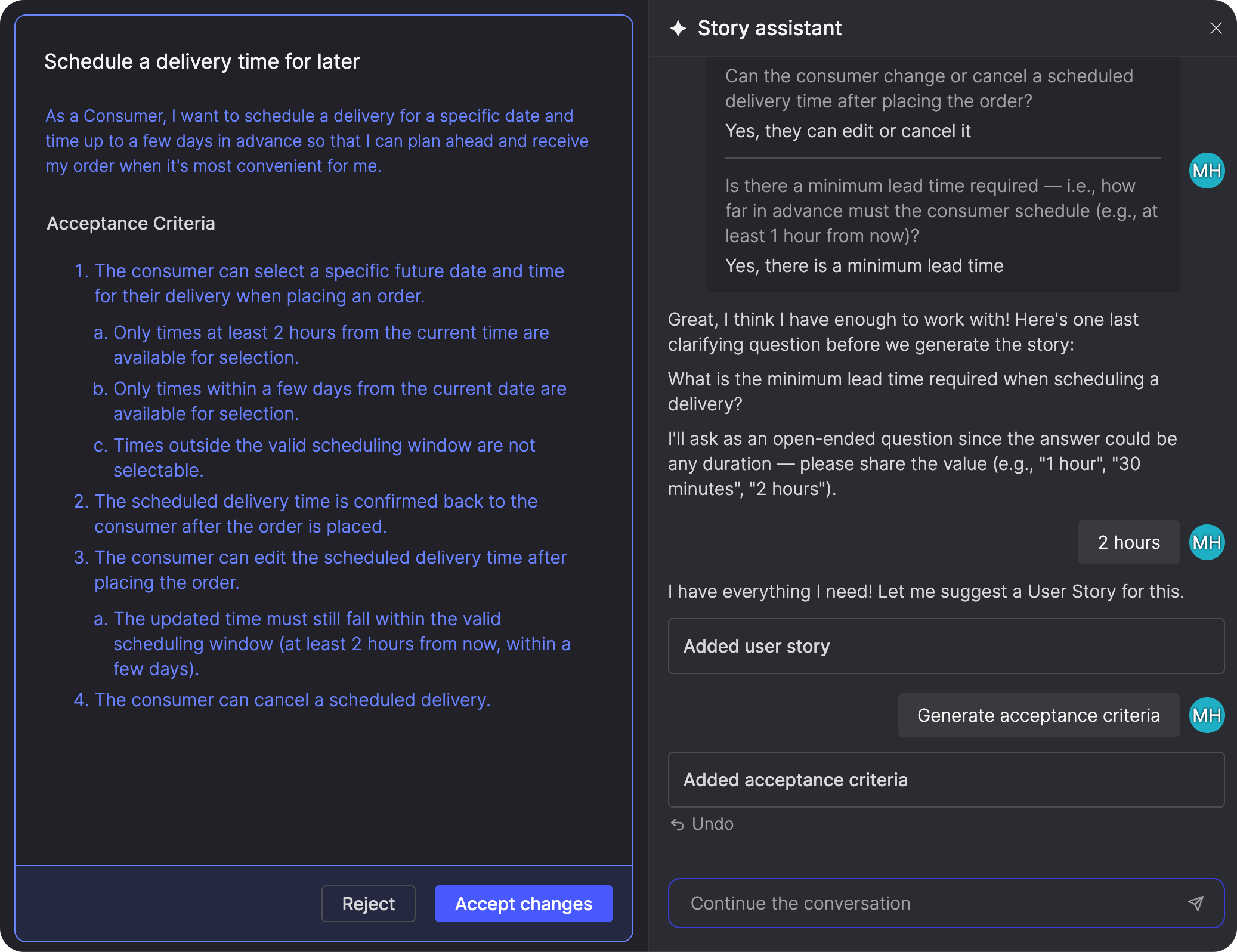
Your conversation is saved as you go, so you can close the Story assistant and continue where you left off later.
Refine before it's final
The Story assistant keeps generated content in a preview until you decide to apply it. New content is highlighted so you can compare it with what was already in the story, discuss further changes with the assistant, or edit the text directly. You can also undo an individual user story or acceptance criteria generation and restore it for a limited time if you change your mind.
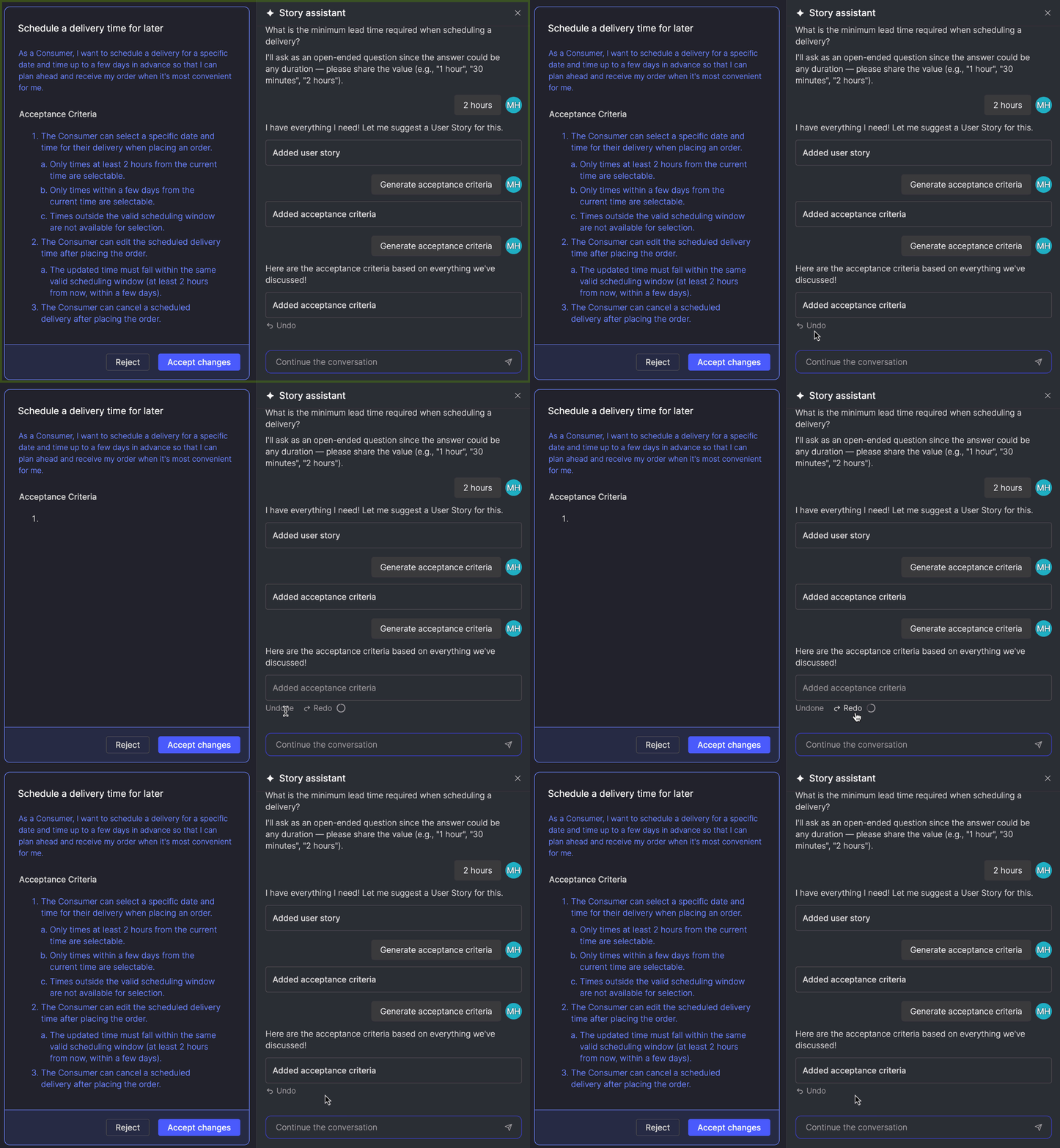
New suggestions build on what’s already staged, so you can continue refining the story without stopping to review every change as it appears. When you’re satisfied with the result, accept the complete set of changes to apply them to the story, or reject them to return to the current version.
Staged changes remain available if you close the Story assistant. If you navigate away from the story before applying them, Atono warns you that they’ll be lost.
Design decisions that emerge during the conversation become part of the story’s AI context, giving the Story assistant a lasting record of the rationale, scope, and trade-offs behind the work. It uses those decisions as the story evolves, and makes them available to other AI tools through Atono’s MCP server so the same context can inform coding, testing, and later implementation decisions.
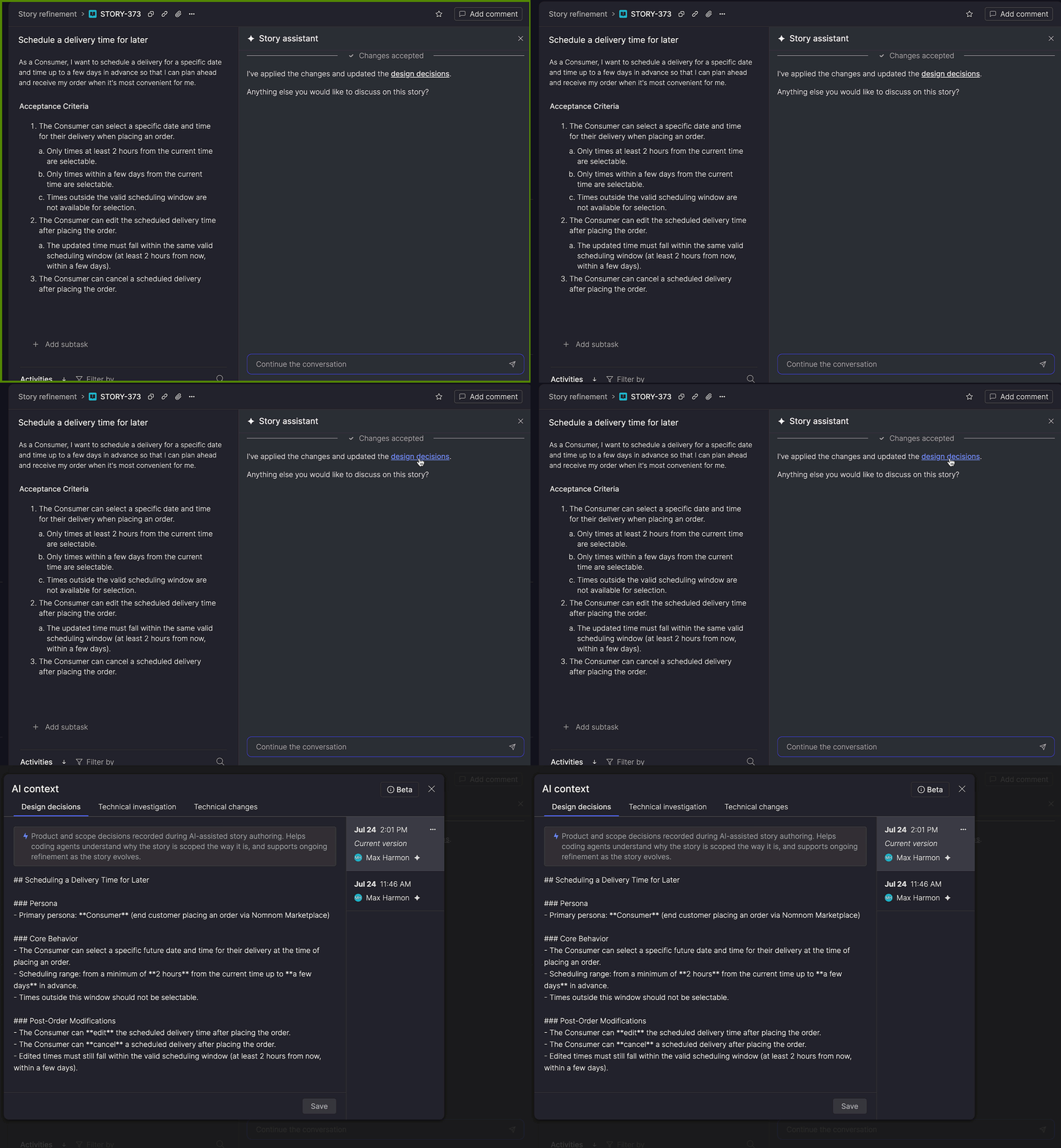
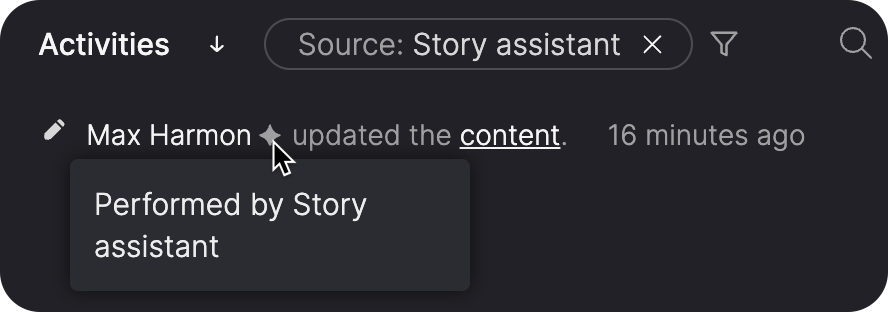
As with other changes in Atono, AI-assisted updates remain attributed to the person driving the conversation, preserving a clear record of who made the change. The sparkle ✦ icon shows that AI was involved, and you can hover over it to identify the source or filter the Activities list to see only Story assistant changes.
Learn more about the Story assistant →
Tag and organize your backlog
Every organization has its own ways of grouping and tracking work, whether by component, initiative, customer commitment, or internal classification. Tags let you apply that structure to stories, bugs, and epics, then use it to find and organize related work across your workspace.
Tag your work
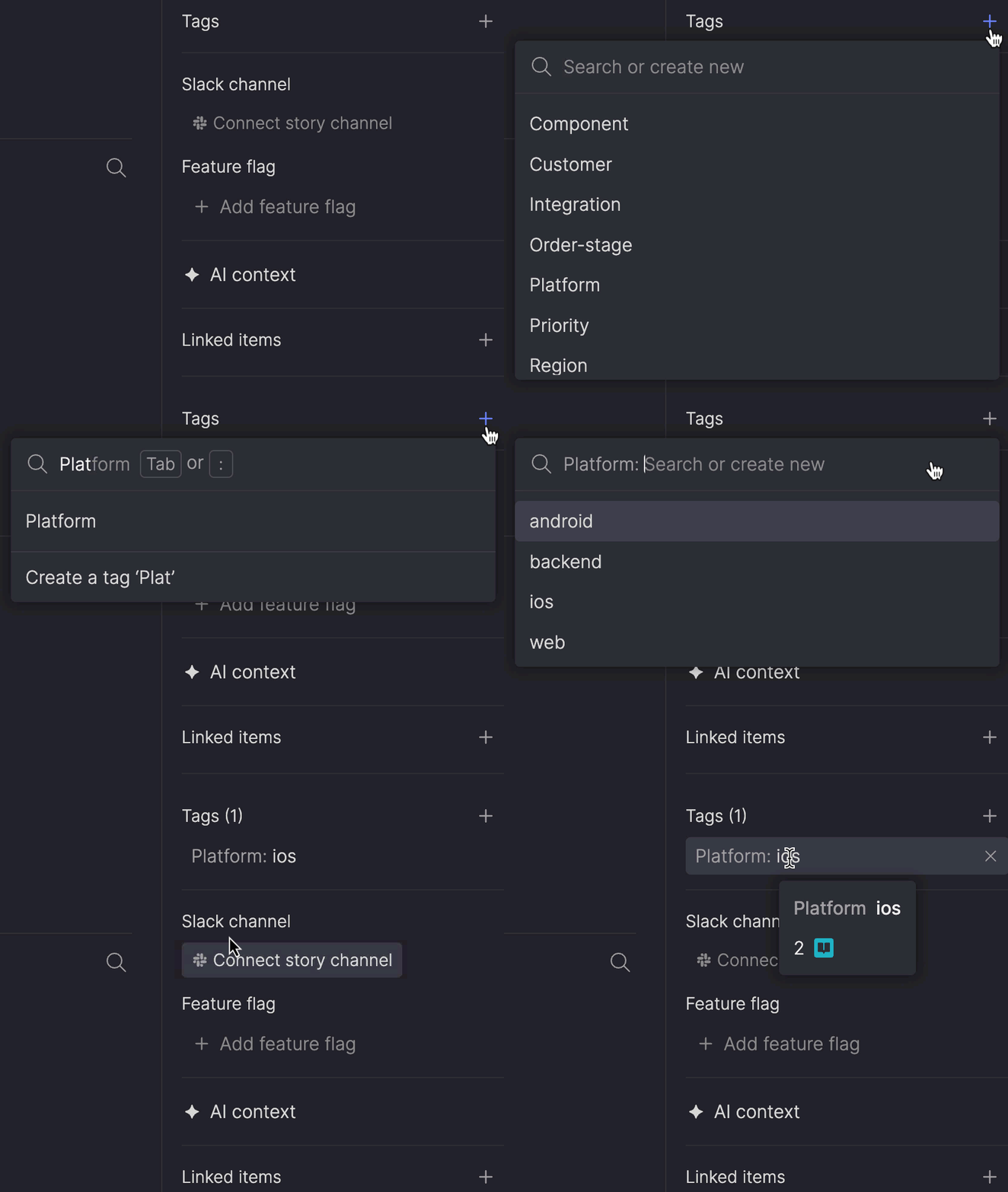
Add tags to any story, bug, or epic using a key and value, such as Component: api or Severity: high. As you type, Atono suggests matching keys and values, so you can reuse tags already in your workspace or create a new one on the spot.
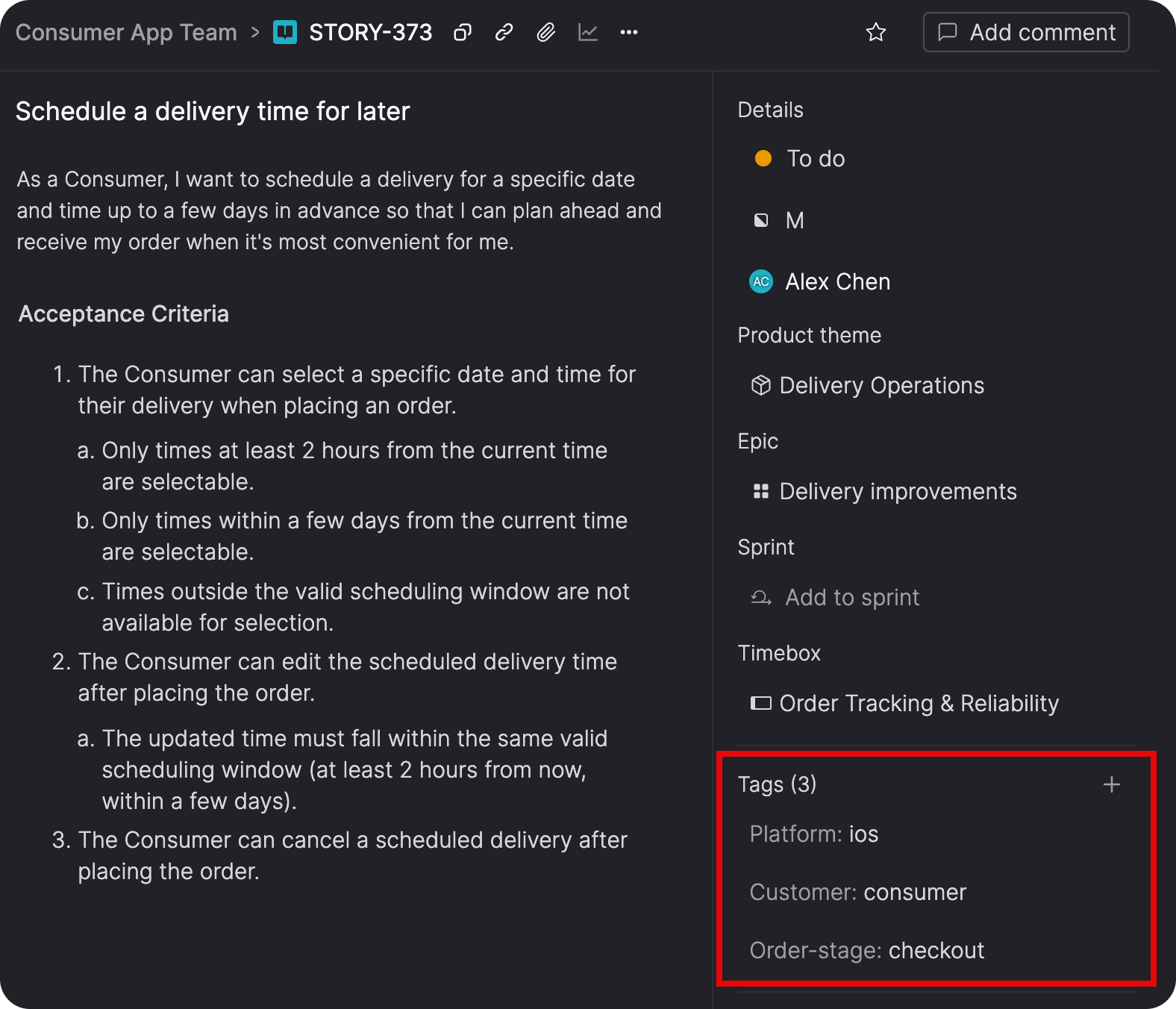
Applied tags appear directly on the item, keeping important context visible alongside the work.
Keep tag sprawl under control
As more people create and apply tags, Workspace Owners and Administrators can manage them centrally from the Tags page to keep the workspace’s tagging structure consistent. They can define tags in advance, clarify their purpose with descriptions, standardize names, and see how each tag is being used.
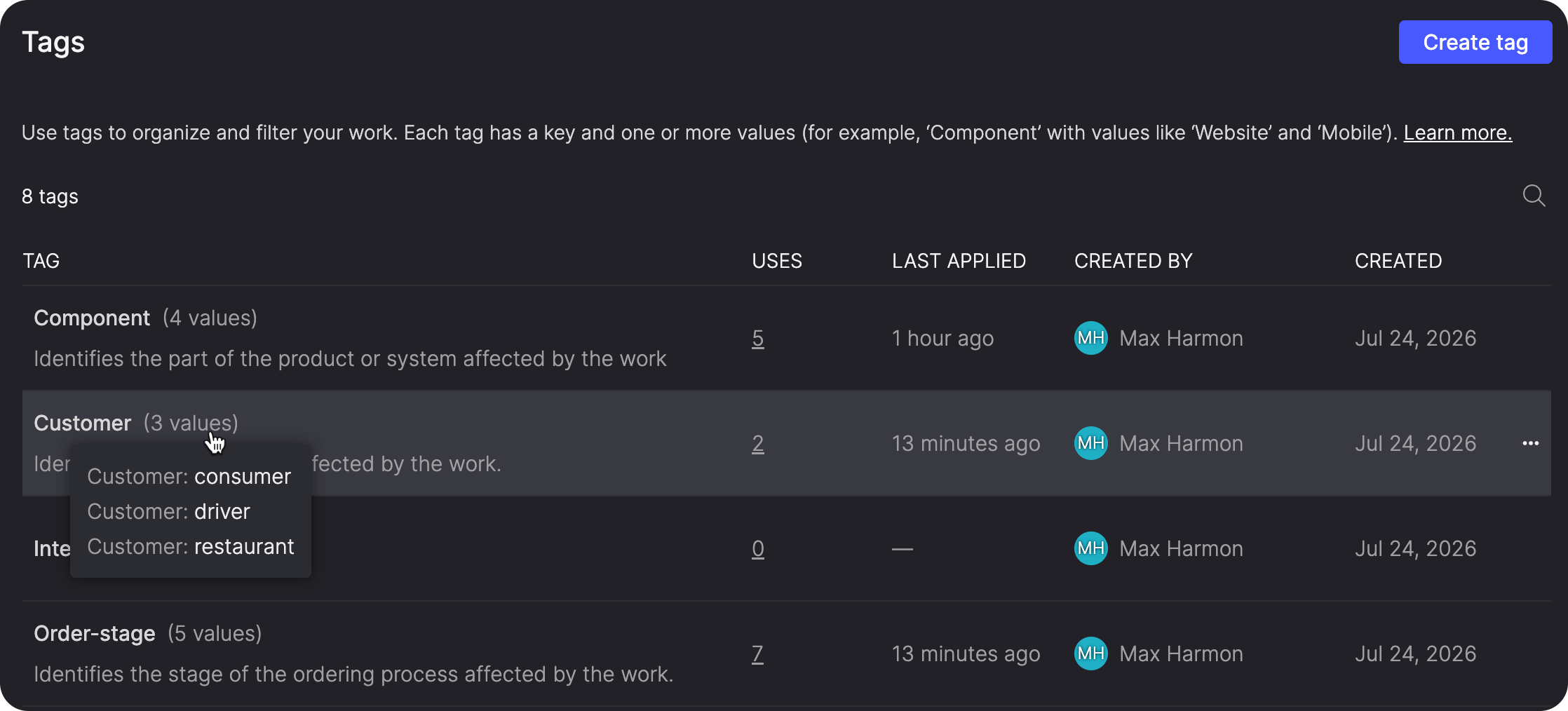
Search, sorting, usage counts, and creation details help you identify outdated or duplicated tags and understand how they’re being used. Before a key or value is deleted, Atono shows how many items will be affected.
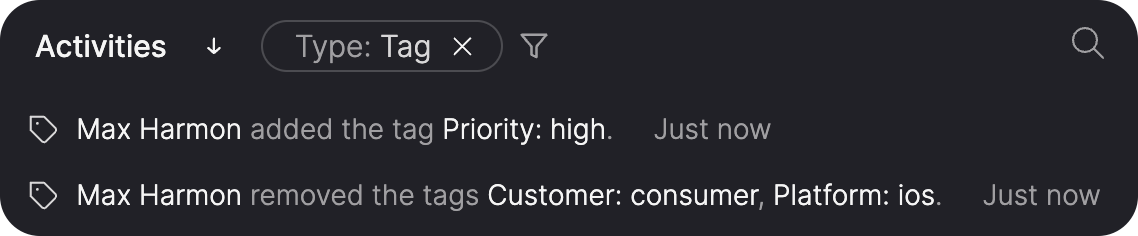
Tag changes are recorded in the Activities list for stories, bugs, and epics, so you can see when a tag was added or removed and by whom.
Find and act on tags at scale
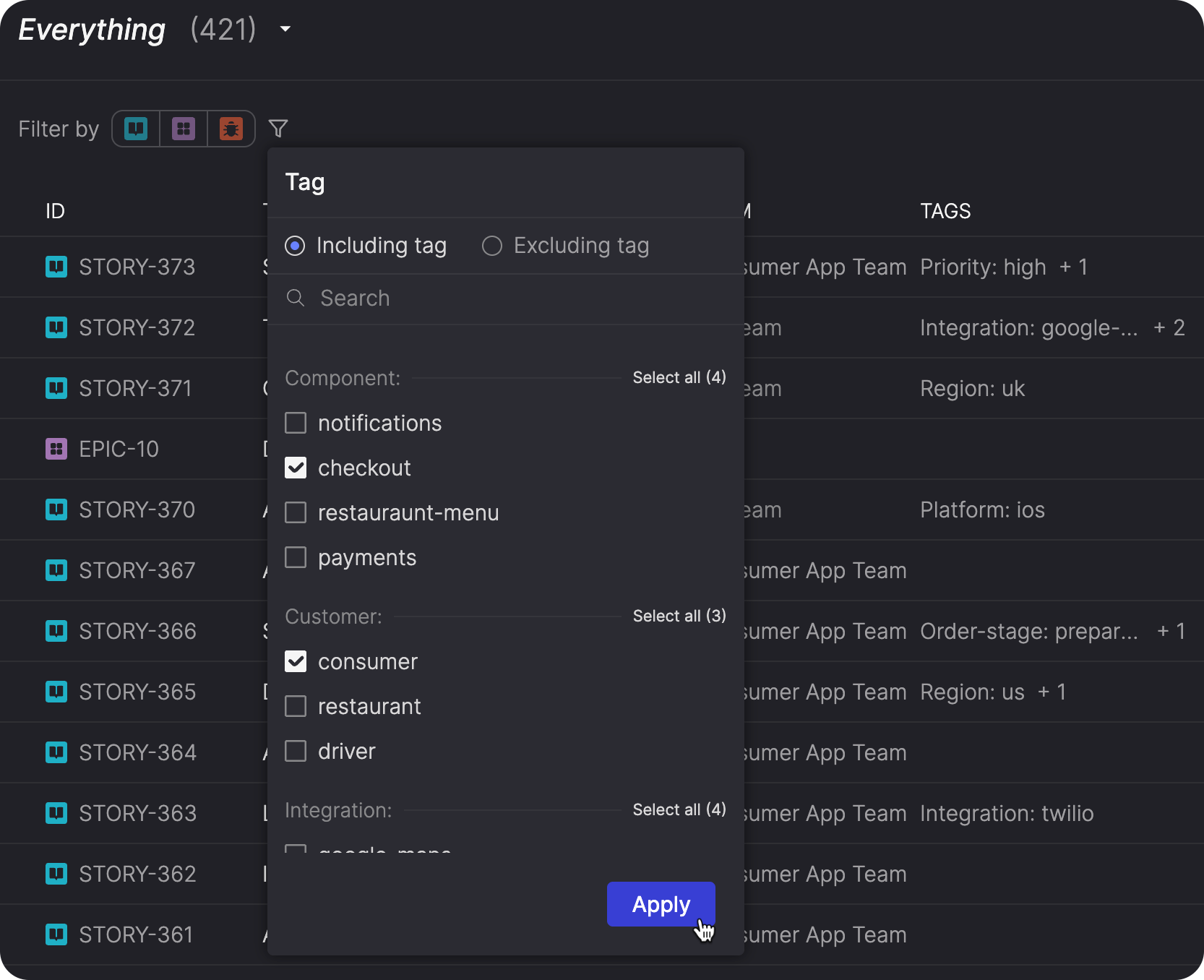
Use tag filters in the Everything view to narrow the list by key, by specific values, or by items that don’t have a particular tag. You can also display a Tags column to see applied metadata alongside the rest of the item details.
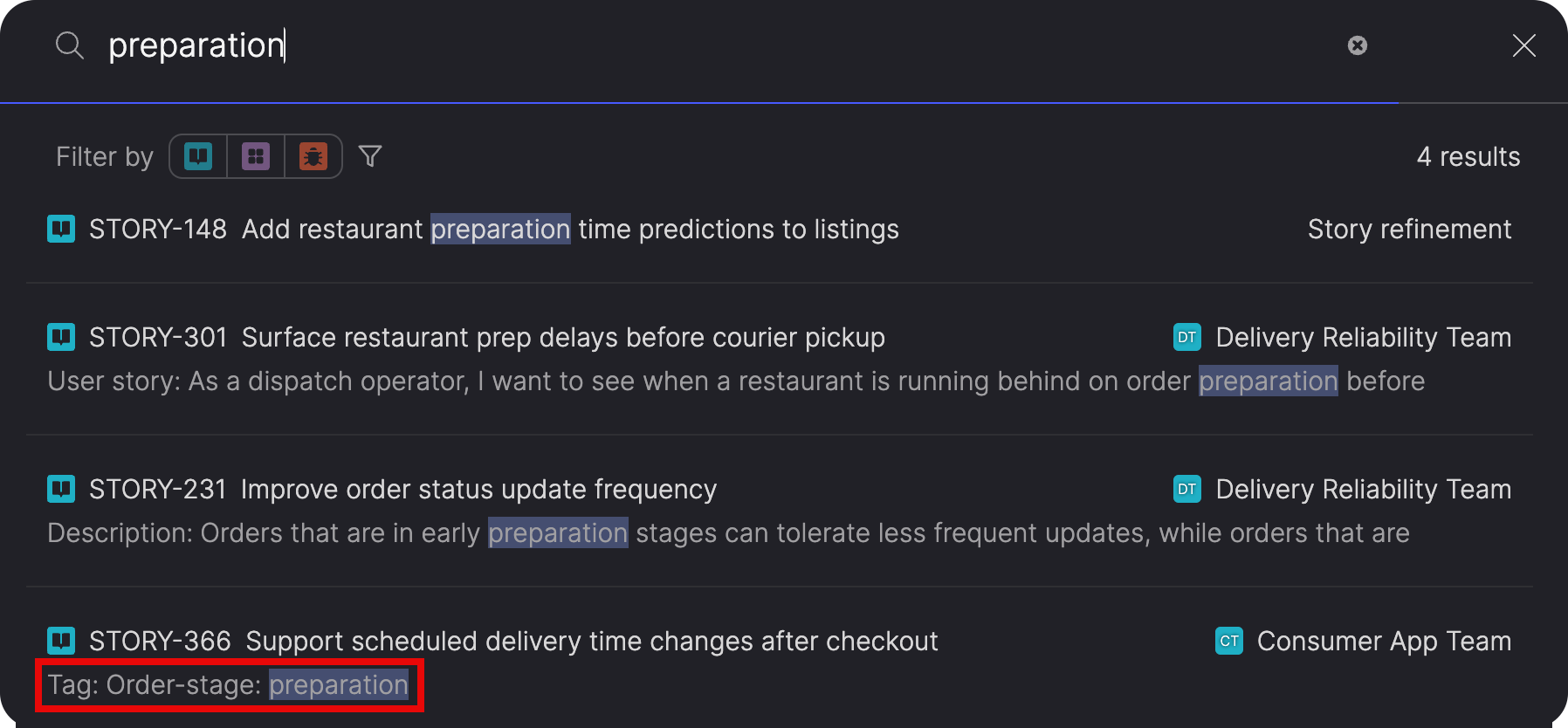
Tag values are included in search, so searching for a value can surface the stories, bugs, and epics that carry it.
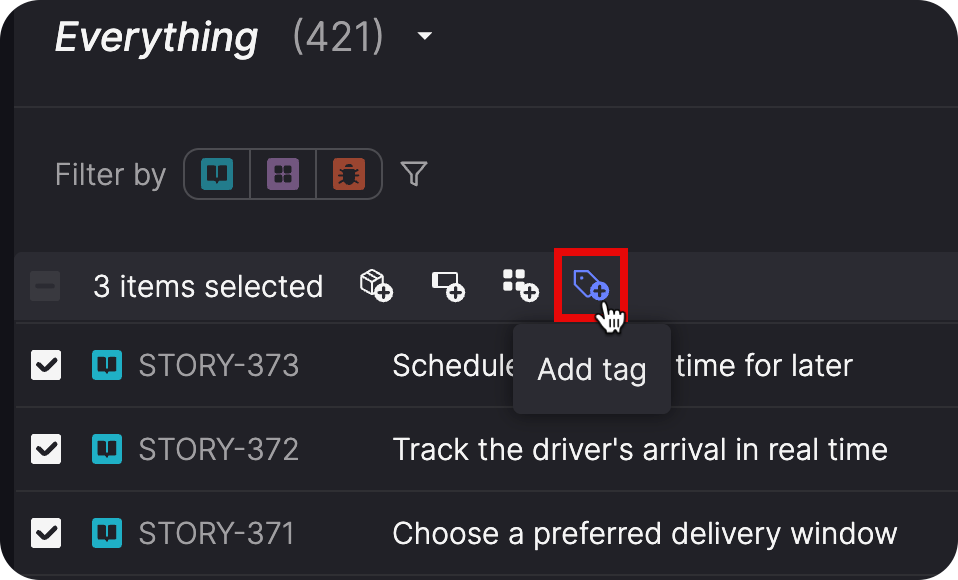
When the same metadata applies to several items, select them in the Everything view and tag them all at once. You can create a new key or value at the same time. If any selected items already use that key with a different value, Atono lets you know before replacing it.
This release lays the foundation for tags in Atono, with more ways to manage, apply, and explore tags coming soon.
Usability improvements
This release also adds two improvements for building out epics and keeping a clear record of how they change over time.
Add stories to an epic in bulk
When several stories belong to the same epic, select them in the Everything view and add them all at once instead of updating each story individually.
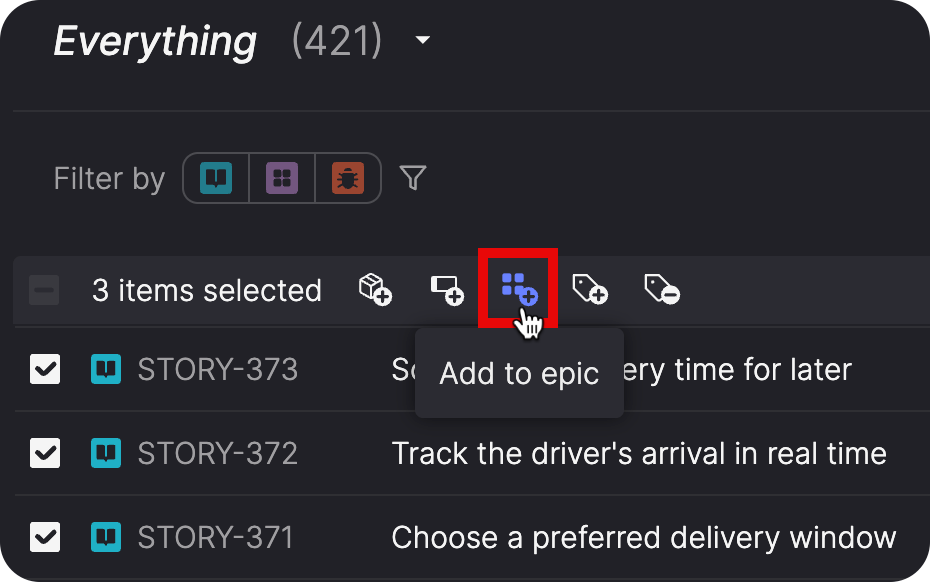
If any selected stories already belong to another epic, Atono lets you know before moving them. It also warns you if the addition would exceed the epic’s story limit.
See how an epic evolved
As an epic’s scope changes, its history can become harder to reconstruct. Epics now have a full Activities list, just like stories and bugs, so you can see what changed, when, by whom, and where the change came from.
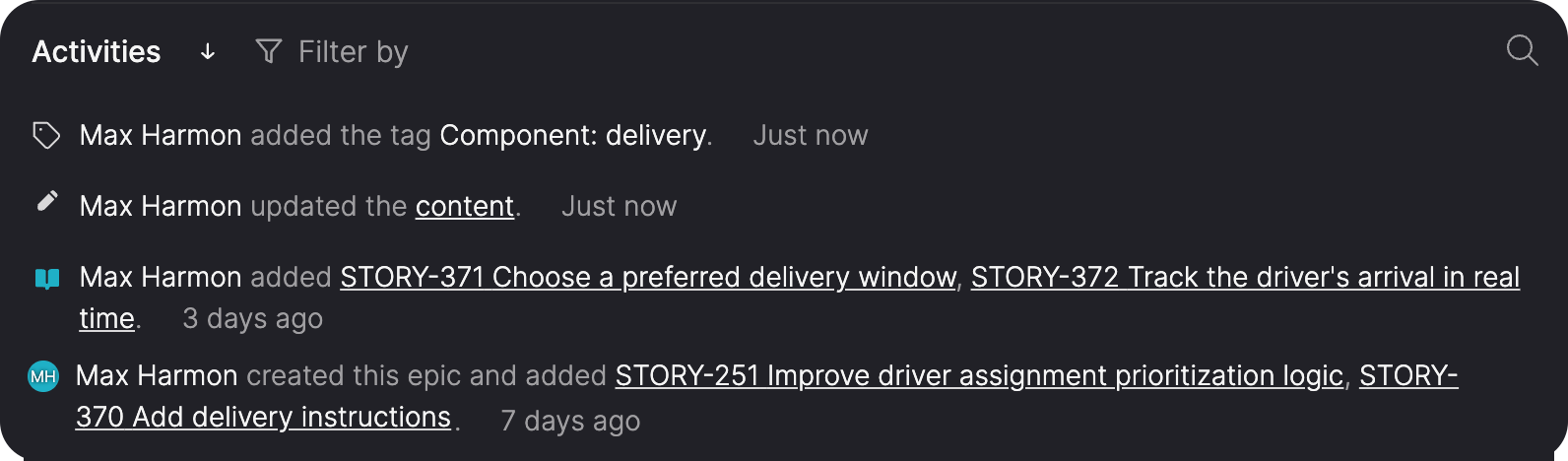
The Activities list tracks title and content updates, along with stories added to or removed from the epic. Version history also lets you review how the epic’s description and user stories changed over time and restore an earlier version when needed.