

Story assistant
Talk through what you're building, and let AI turn it into a well-formed story grounded in your product's context.
The Story assistant helps you turn a conversation about what you want to build into a clear story title, user story, and acceptance criteria. You can use it while creating a new story or open it from an existing story. It uses the information you provide along with relevant product context, including the story's epic, peer stories, product glossary, and design decisions when available.
You can describe the feature in your own words or let the Story assistant guide you through a set of questions. Suggested user stories and acceptance criteria aren't applied until you review and accept the changes.
Start a conversation
You can start with the Story assistant when creating a story or open it from an existing story.
Create a story with the Story assistant
- In the sidebar, click or hover over Create new.
- Select Create with AI.
- Describe what you'd like to build, then click Create.
Atono opens the story and Story assistant side by side and generates a title based on your description. The user story and acceptance criteria remain empty until they're developed through the conversation.
The Story assistant may ask clarifying questions or begin generating content directly, depending on the information you've provided.
If you navigate away while the Story assistant has suggested content that hasn’t been applied to the story, Atono asks you to confirm before leaving.
Open the Story assistant from an existing story
-
Open the story you want to work on.
-
In the story header, click Story assistant to open the conversation panel.
-
Choose how you want to begin.
- Enter a description of the feature or behaviour and send it.
- Click Guide me through it to answer a structured set of questions.
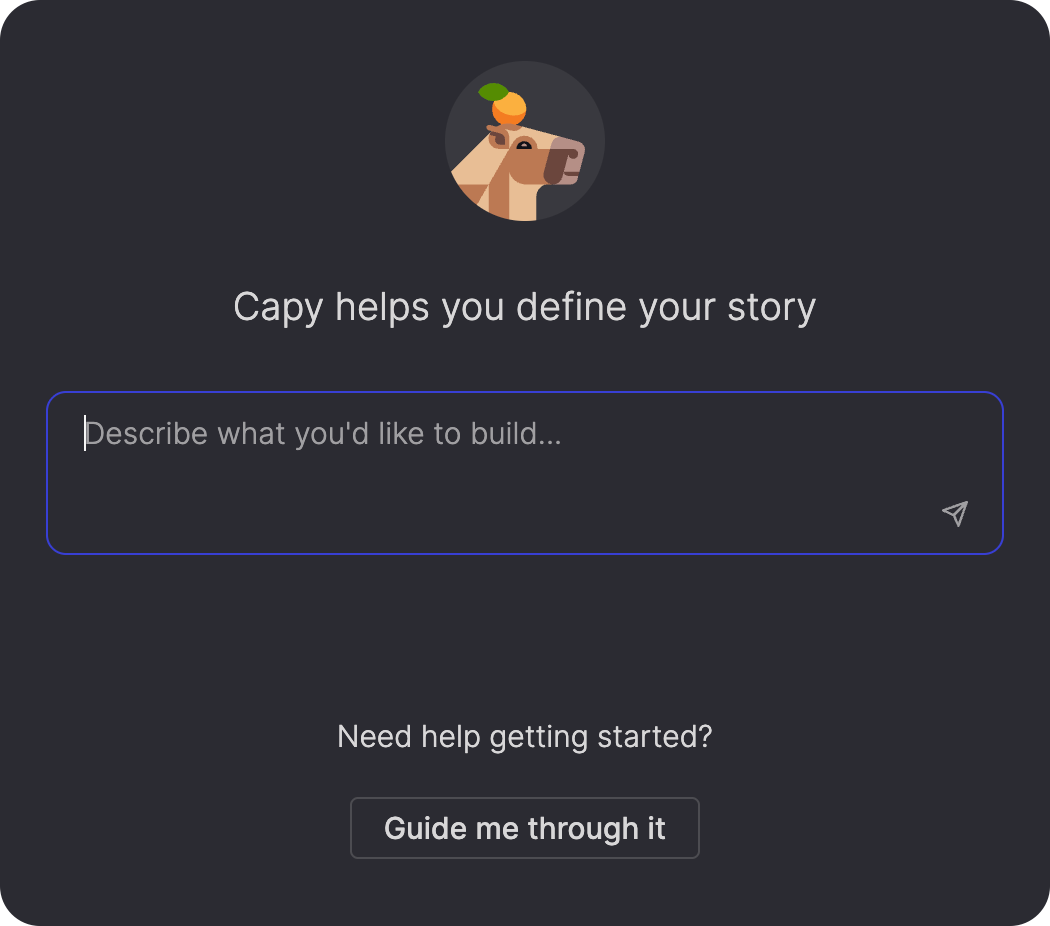
The Story assistant considers the information already on the story when starting the conversation. Its response may ask clarifying questions, suggest what to explore next, or build on an existing user story or acceptance criteria.
Product glossaryIf your workspace has not set up a Product knowledge Glossary, the Story assistant lets you know and provides a link to create one.
The glossary acts as a blueprint of your product, capturing its concepts, features, and how they relate. That gives the Story assistant a much deeper understanding of what you’re building, so it can ask sharper questions, spot important connections, and make suggestions grounded in your product rather than generic assumptions.
Use product context
The Story assistant can use information beyond the current conversation when generating suggestions.
- Epic and peer stories. If the story belongs to an epic, the Story assistant can use the epic’s goal and related peer stories.
- Product glossary. The Story assistant uses your workspace glossary to reflect your product’s language, relationships, and defined behavior.
- Design decisions. The Story assistant uses existing design decisions associated with the story as context.
The context available to the Story assistant depends on the story and the information available for the current task.
Reference other stories
You can reference an existing story by its story ID, for example, STORY-123. The Story assistant retrieves the story and uses its content as context for the current conversation.
When a story is retrieved, it appears in the conversation with its story ID and title. You can reference up to 10 stories in the same message. If you reference more than 10, the Story assistant retrieves the first 10 and lets you know that the limit was reached.
If a story can’t be found, the Story assistant lets you know which story ID couldn’t be retrieved so you can check it and try again.
Answer structured questions
The Story assistant may present questions as quick-pick cards instead of requiring a written response at every step.
- Each set includes a page indicator, such as
1 / 3. - Questions may allow one answer or multiple answers.
- Select Other to enter a free-text response.
- Use the back and forward controls to review or change your answers.
- Click Skip to move past a question without answering it.
- After you complete or skip the final question, your answers are submitted together and a read-only summary remains in the conversation.
You can close the question card at any time to continue the conversation using free text.
Refine story content
As the conversation develops, the Story assistant can help refine the story title, generate a user story, or generate acceptance criteria based on what you've discussed. You can continue the conversation to refine the suggested content or edit it directly in the preview before accepting it.
Update the story title
You can ask the Story assistant to update or rename the story title as the scope becomes clearer.
The Story assistant considers the current story and its product context before suggesting a new title. If the requested title does not fit the story’s scope or context, it may explain why and leave the title unchanged. The Story assistant may also suggest a title update when the conversation significantly changes the scope of the story.
When a title update is suggested, the new title appears in the preview with other suggested changes. You can continue refining it with the Story assistant or edit the title directly in the preview before accepting the changes.
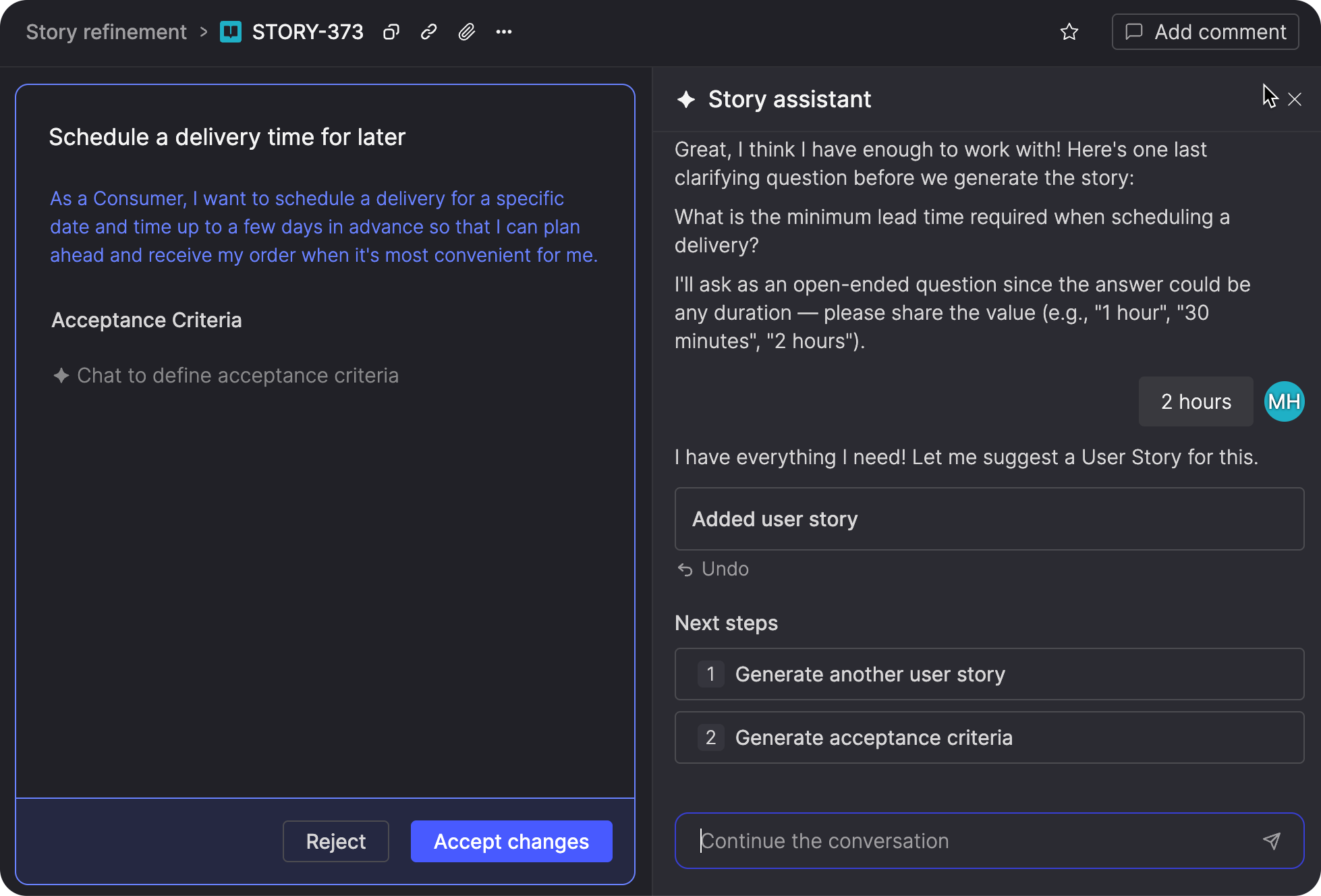
Generate user stories
The Story assistant uses personas defined in your workspace when they fit the conversation. When a different persona is needed, it can include one in the suggested user story and create it when you accept the changes.
If the conversation involves more than one persona, you can ask the Story assistant to generate an additional user story.
After generating a user story, use the options under Next steps to generate another one or continue to acceptance criteria.
Generate acceptance criteria
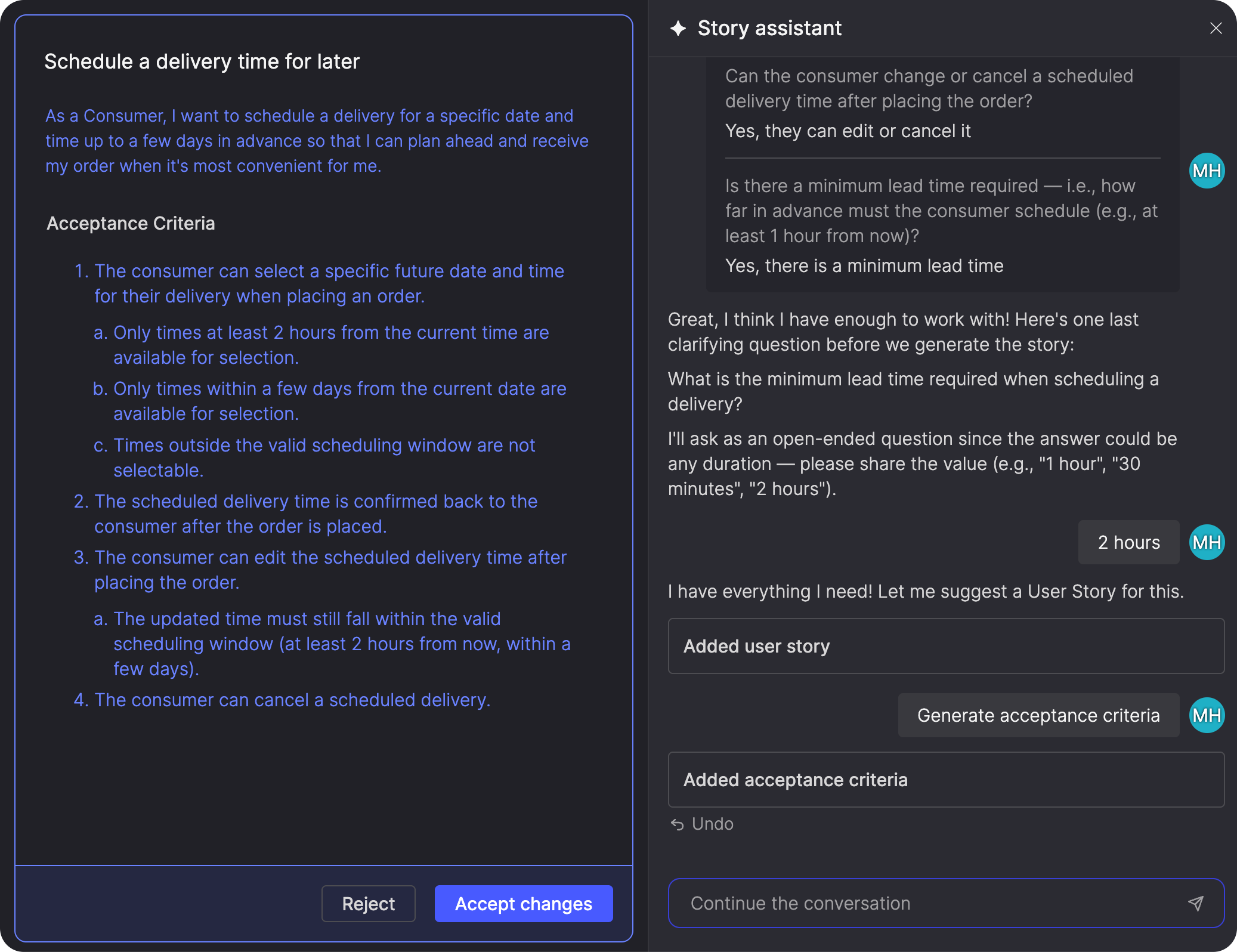
The Story assistant generates a complete suggested set of acceptance criteria based on the conversation and any criteria already on the story.
Its suggestions may add, rewrite, reorder, split, or remove criteria. Review the complete set before accepting or rejecting it.
Review and apply suggested changes
Suggested changes to your user story, acceptance criteria, or title appear in a preview over the story content. You can review and edit the suggestions before accepting them.
When the Story assistant updates suggested content, a message in the conversation identifies what changed (for example, Acceptance criteria updated). If it updates several fields in the same response, such as the title, user story, and acceptance criteria, the changes are grouped into a single summary (for example, Title, user story, and acceptance criteria updated).
While the preview is open, you can:
- Continue the conversation to ask the Story assistant to revise or build on the suggested title, user stories, acceptance criteria, or design decisions.
- Edit the suggested title, user story, or acceptance criteria directly.
- Click Show changes to review a detailed, read-only comparison of the suggested changes. For more information, see Review what changed.
- Click Accept changes to apply all suggested changes to the story.
- Click Reject to discard all suggested changes.
Review what changed
Click Show changes to see a detailed comparison between the current story and the suggested changes.
The comparison shows additions and removals across the story title, user story, and acceptance criteria. Removed content is shown with a red strikethrough, and added content is highlighted separately so you can see exactly what changed.
The comparison is read-only. To edit the suggested content, click Hide changes to return to the standard preview.
You can accept or reject the suggested changes from either view. After you accept changes, a confirmation appears and a divider is added to the conversation to mark where they were applied. If you reject the suggested changes, an Undo option remains available briefly.
Undo the latest AI change
The most recent AI change includes its own Undo option in the conversation. Use it to reverse that change without discarding everything else in the preview.
After you undo it, select Redo to restore it.
Undo is available only for the most recent AI change. It is no longer available after the Story assistant makes another change or you edit the suggested content directly.
Each change is also identified in the conversation, for example, Added user story or Updated acceptance criteria.
If you navigate away from the story while the preview contains unsaved changes, Atono asks you to confirm before leaving.
You can close the Story assistant panel without losing the suggested changes. The preview remains open on the story.
Capture design decisions
As rationale, tradeoffs, and scope decisions come up in the conversation, the Story assistant can add them to the story’s design decisions when you accept the suggested changes.
You can also ask it to save a specific decision. It confirms what was saved and which story it was added to.
See what the Story assistant changed
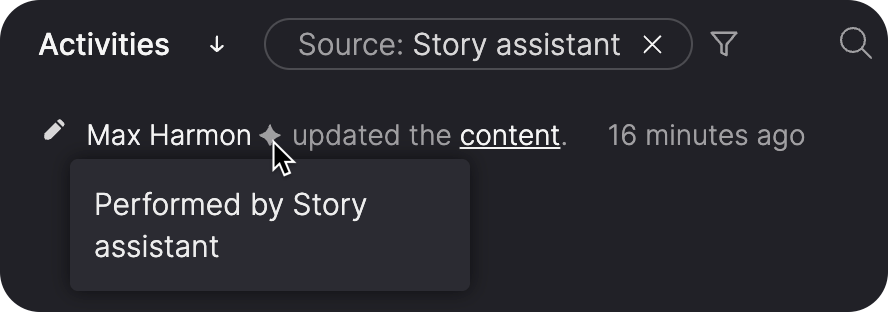
Changes made with the Story assistant remain attributed to the user who initiated them. A sparkle (✦) icon appears next to the user’s name, and its tooltip identifies the change as Performed by Story assistant.
You can also filter the Activities list by Source: Story assistant to view only changes made with the assistant. For more information, see Filter activities.
Long conversations and errors
In longer conversations, the Story assistant may summarize earlier messages to preserve context. A marker in the conversation shows where the summary begins.
If the Story assistant can't respond, an error appears in the conversation and your message stays in the message field, so you can send it again as-is or edit it first. If the problem continues, click summarize the conversation to replace the conversation so far with a single summary and continue from there. The summary appears at the top of the conversation, and any suggested changes in the preview remain available to accept or reject.
Updated 19 days ago