

Release overview: November 3, 2026
As AI becomes more involved in building software, the quality of what it starts with matters more. Well-defined stories, shared product knowledge, and access to the decisions behind the work help both teams and AI agents build the right thing.
This release introduces Story review, which helps you find and resolve problems in a story before development begins. The Atono MCP server is now hosted for you, making it simpler to connect your AI tools to Atono, and QA analysis carries testing context across agents and sessions. We're also expanding tags with multiple values, team scoping, and more control over how they're managed.
In this release
- Find and fix issues in a story. Run a story review to surface problems by severity, then have the Story assistant suggest changes or reject findings that don't apply.
- Connect AI tools to Atono in a few clicks. Add the Atono MCP URL to your AI tool and authorize the connection. No Docker install or API key required.
- Power your agentic QA workflows. A new QA analysis tab in AI context lets agents record testing risks and coverage considerations, so the next agent can pick up where the last one left off.
- Shape tags around how your teams work. Allow multiple values for a tag, scope tags to a team, and control who can create new ones.
Read on for the full details, or jump ahead to the sections you're most interested in using the links below.
On this page
- Review stories before development begins
- Connect AI tools with the hosted MCP server
- Share test planning with QA analysis
- Organize work with more flexible tags
- Usability improvements
Review stories before development begins
Writing and reviewing a story call for different perspectives, even when you use AI for both. Story review provides that second perspective, examining the whole story for gaps, inconsistencies, and potential problems.
It checks whether the story is clear, complete, well scoped, and testable. It also considers your product's context, looking for conflicts with your Glossary, the story's epic and its other stories, or decisions already recorded on the story. That helps you catch issues that could otherwise lead to questions, rework, or unexpected behavior during implementation.
Run a story review
Open Story review from the Story assistant menu in the story header to run a review, or start one from the Story assistant chat.
Each finding describes the issue, how serious it is, and a suggested direction for addressing it. For example, a review might point out that a new filter doesn't follow the filter behavior described in your Glossary, or that an acceptance criterion conflicts with another story in the same epic.
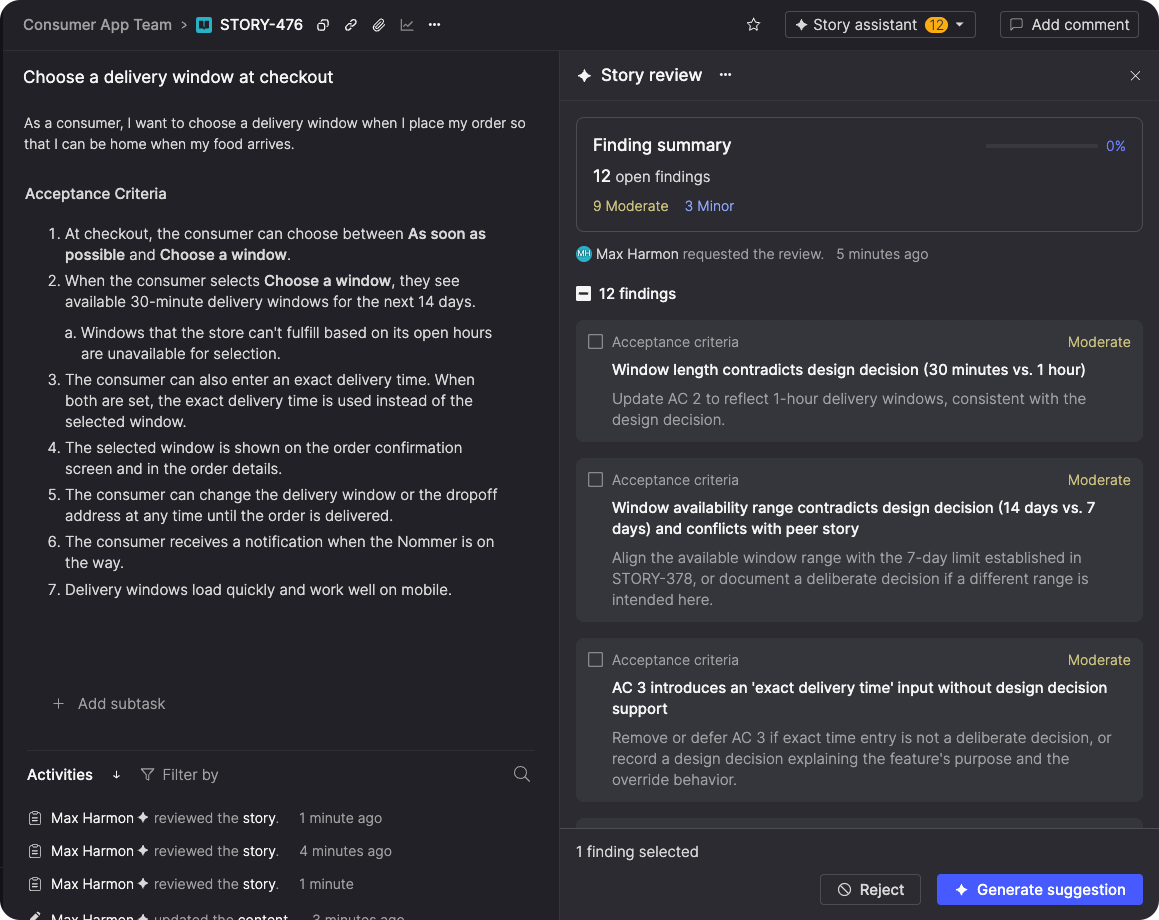
Reviews are shared, so everyone who can view the story sees the same findings.
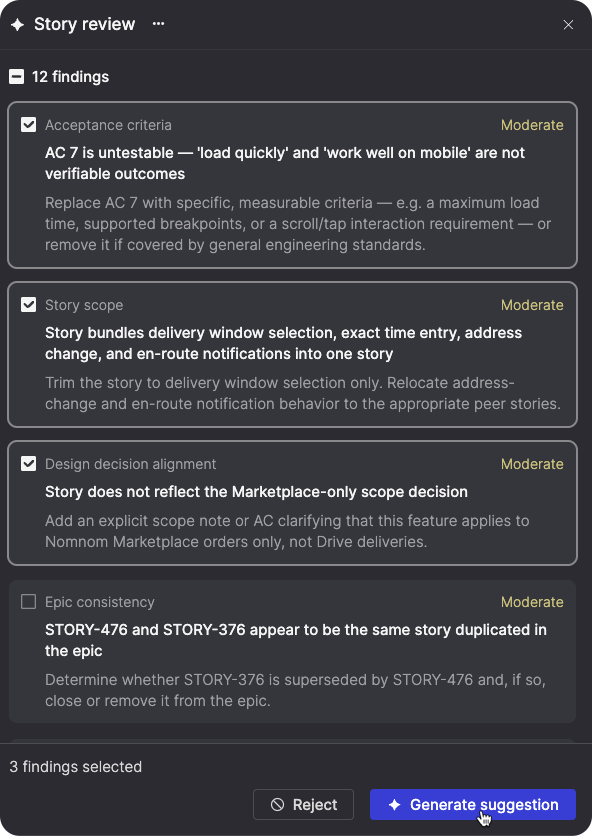
Act on one finding or several
Select one or more findings and have the Story assistant generate suggested changes to address them, while keeping the rest of the story as close to the original as possible.
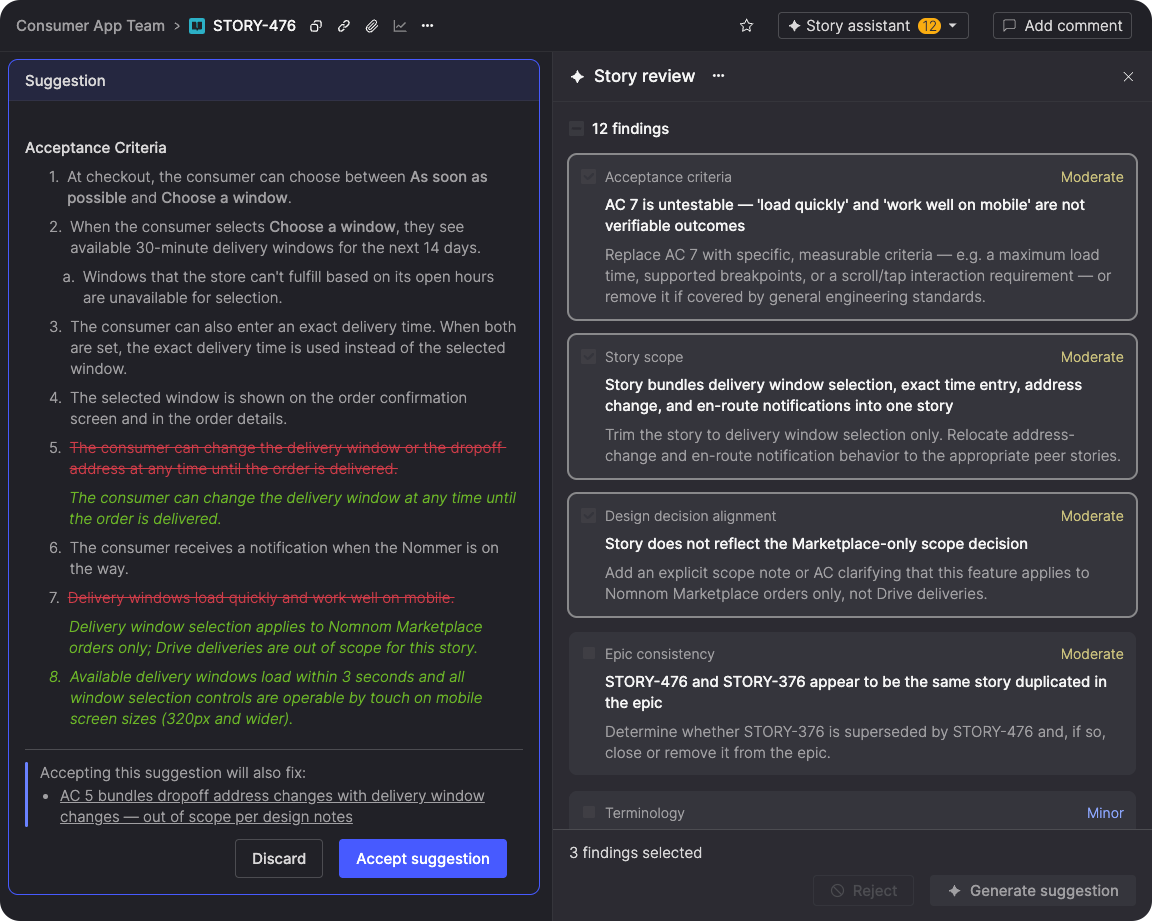
You can see exactly what would change before you accept a suggestion. If it would also resolve other open findings, you'll see which ones, so a single change can address several issues at once.
You can also reject findings that don't apply, and they won't be raised again if you refresh the review.
Keep reviews current
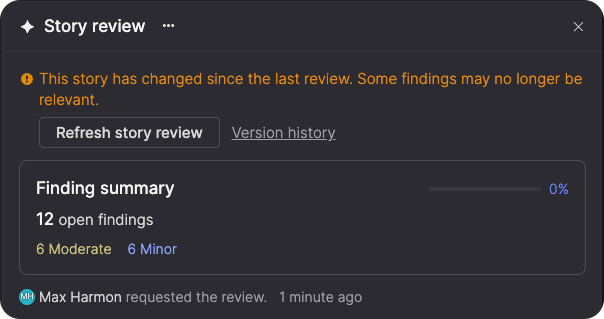
If a story changes after a review, Atono flags the review as potentially out of date. You can refresh it to check the updated story, identify new issues, and see which previous findings no longer apply.
Learn more about story review →
Connect AI tools with the hosted MCP server
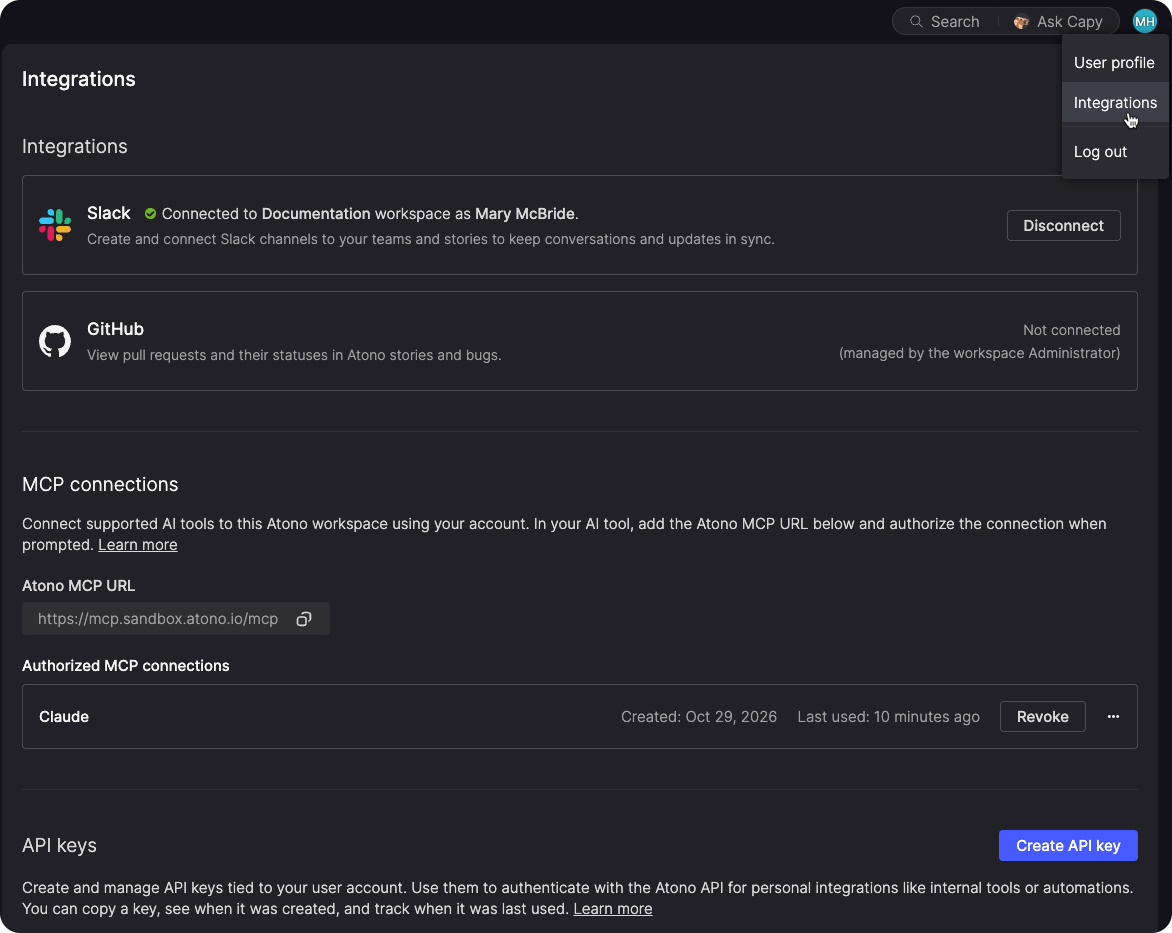
The Atono MCP server is now hosted for you, so you can connect AI tools like Claude and Cursor to your workspace without installing Docker or managing an API key. Once connected, your AI tools can work with your stories, bugs, epics, and product knowledge, so they're working from the same context as your team.
Connect with a URL
Copy the Atono MCP URL from the Integrations page into a supported AI tool, then sign in to Atono and authorize the connection. You can use your workspace's usual sign-in method, including SSO.
Each connection acts on your behalf, only in the workspace you authorized, so an AI tool can only see and do what you can in Atono. Any changes it makes appear in the item's Activities list under your name, marked as performed by the MCP server.
Manage integrations in one place
The new Integrations page brings your personal integrations, like Slack, together with your API keys and MCP connections. It also shows the status of workspace integrations like GitHub, which Administrators continue to manage in workspace settings.
You can also manage the AI tools you've connected from the Integrations page. Each connection shows when it was created and when it was last used. Rename a connection to tell similar tools apart, or revoke it to remove its access immediately.
Learn more about the Atono MCP server →
Share test planning with QA analysis
AI context now includes a QA analysis tab for stories and bugs, where testing tools and coding agents can record what should be tested, potential risks, and edge cases to cover.
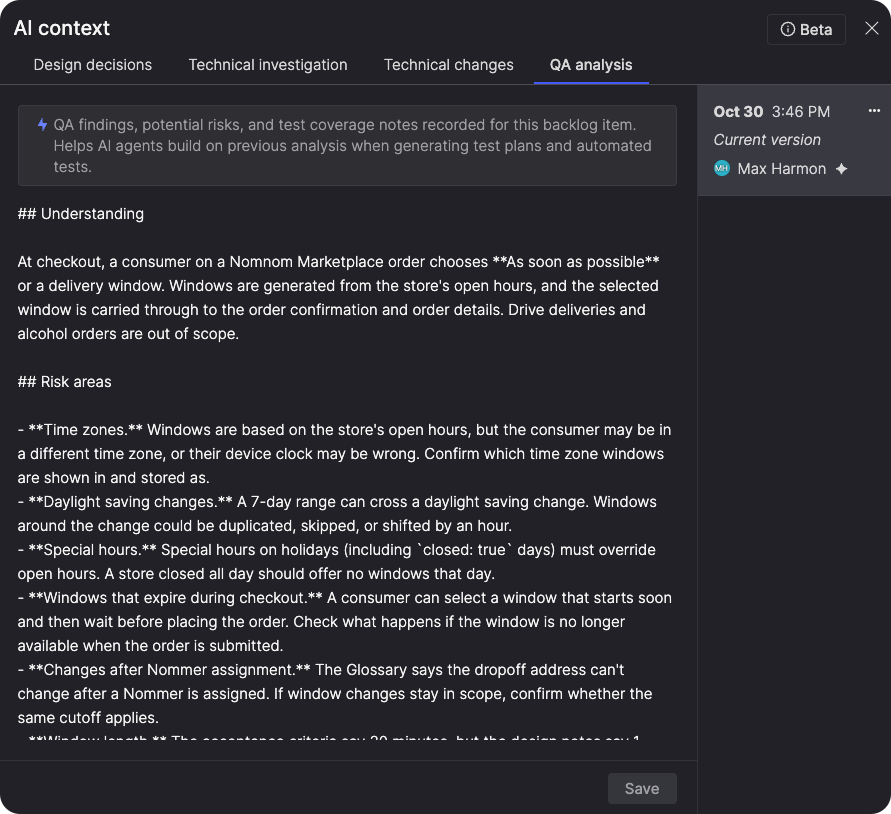
Any agent working on a story or bug through the Atono MCP server can read the existing QA analysis and add to it. For example, if one agent analyzes a story and identifies risky scenarios, another agent writing an automation spec can start from that analysis, then add any new edge cases that testing turns up. You can also view and edit QA analysis in Atono.
QA analysis preserves the reasoning behind test coverage, so the next person or agent can build on it instead of starting over.
Organize work with more flexible tags
Tags now fit more of the ways your organization classifies work. A tag can hold more than one value, tags can be limited to a single team, and new controls help keep the tag list consistent as it grows.
Apply more than one value
Workspace Owners and Administrators can now set a tag to allow multiple values, so you don't have to choose just one when several apply. For example, a story that touches both the web and API components can have both values under a single Component tag.
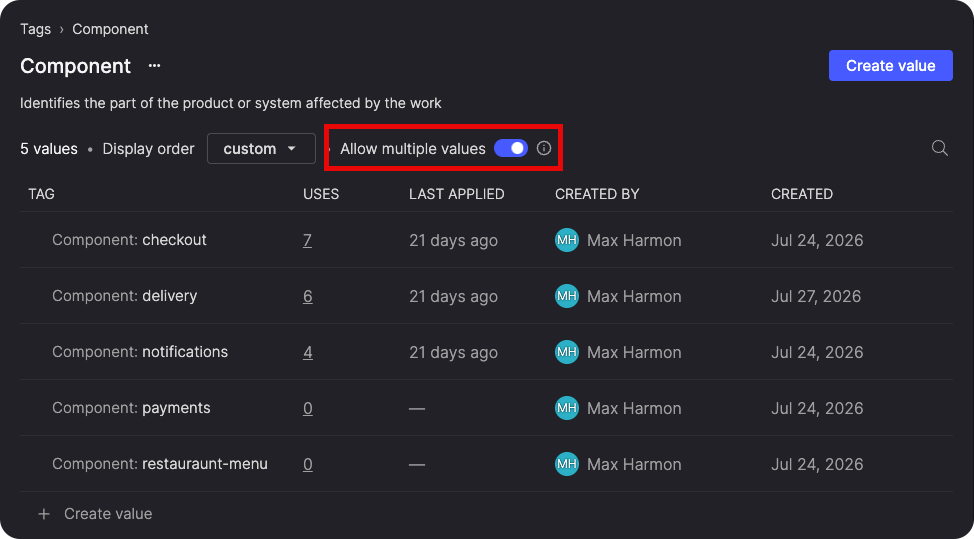
By default, a tag still allows only one value per item. That works well for tags like Priority, where an item should only ever have one value at a time.
Scope tags to a team
Available soon
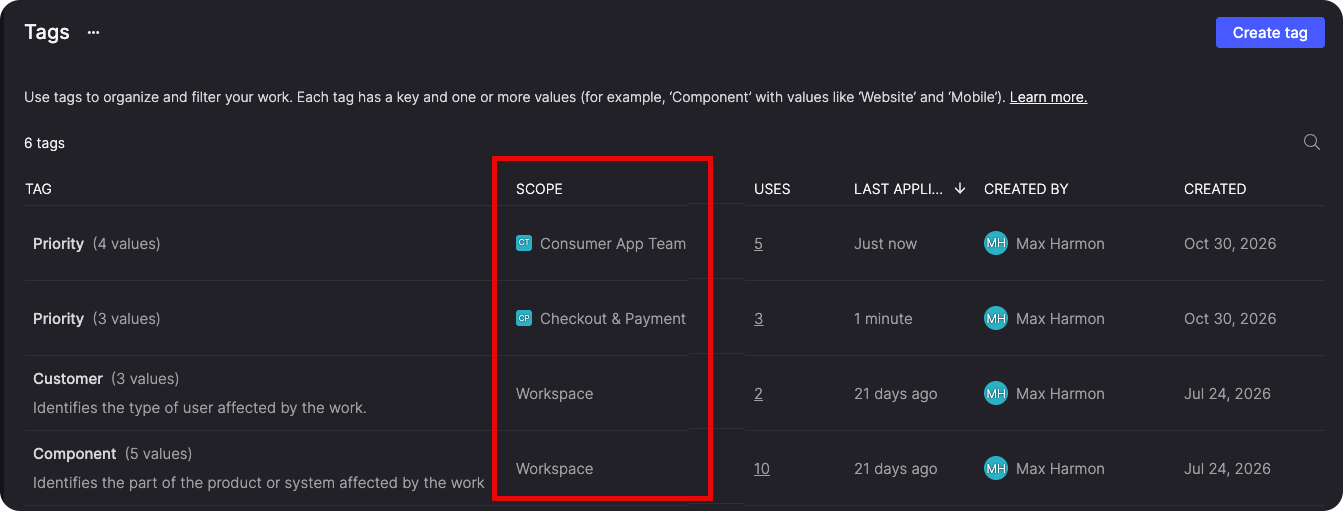
Every tag now has a scope, which helps you avoid tag sprawl as more teams use tags. Workspace tags are available across the workspace, so reporting stays consistent across teams. Team tags are only available on items in a specific team's backlog, so a team can use tags that suit its own work without adding to the workspace-wide list. For example, one team's Priority tag might use Low, Medium, and High, while another team's uses P0 through P3.
See every item with a tag
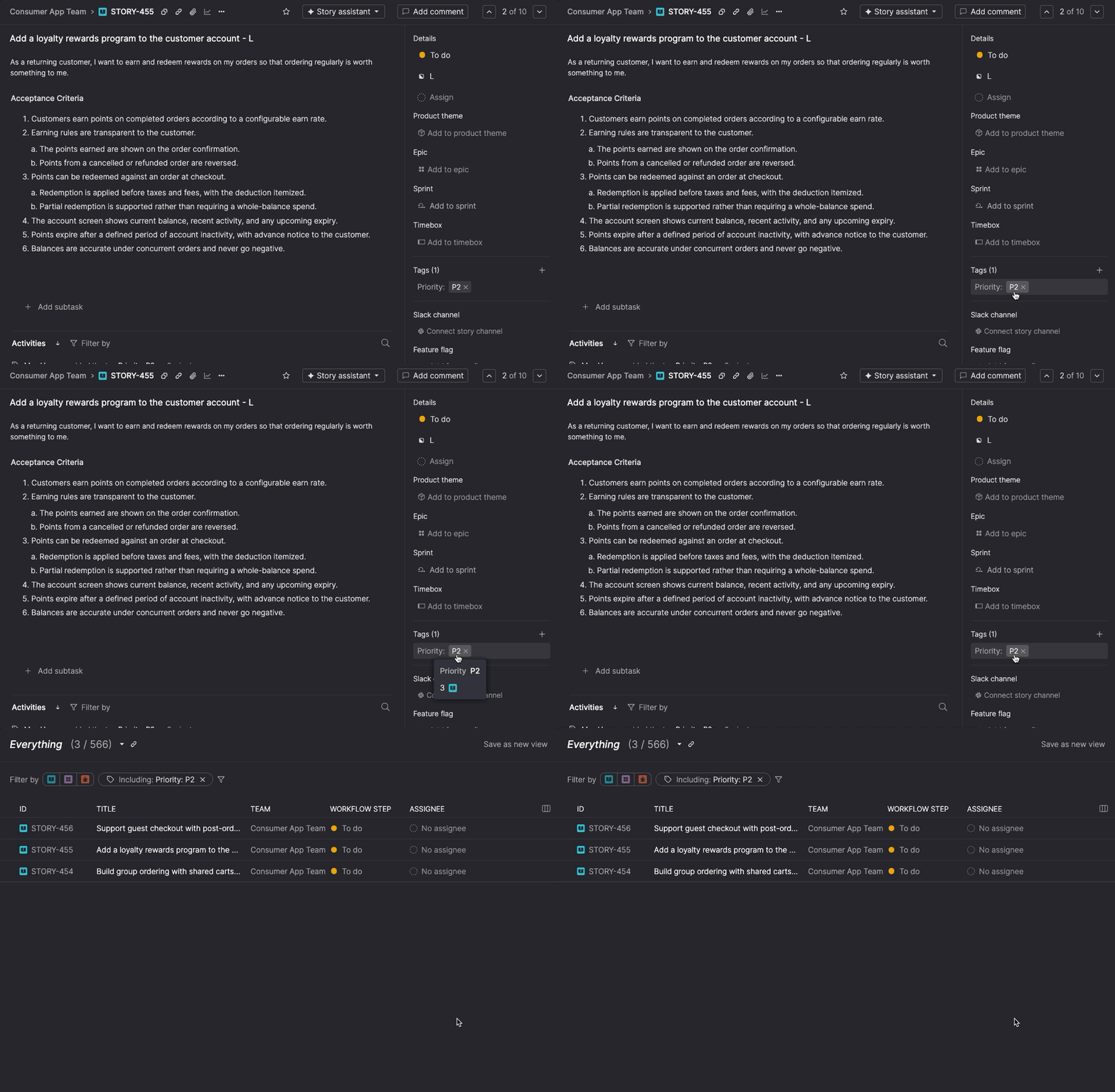
Click a tag on a story, bug, or epic to open the Everything page filtered to every item with the same tag. It's a quick way to see all the work for a particular component or customer, or to check how widely a tag is being used.
Remove tags in bulk
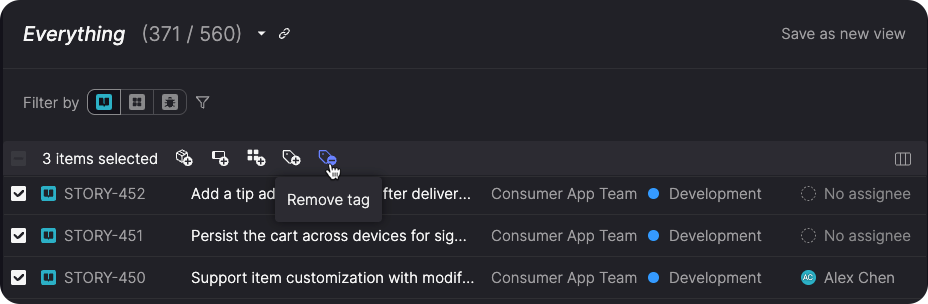
You can now remove a tag from several items at once on the Everything page. That makes it easier to fix tags applied by mistake, or to clear out a value that no longer applies, like when a project wraps up.
Keep tags organized
As more teams use tags, keeping them consistent matters more. When you create a new key or value, Atono suggests similar ones that already exist, which helps avoid near-duplicates like Frontend and front-end. Workspace Owners and Administrators can also restrict who creates new keys and values, and choose the order a tag's values are suggested in.
Usability improvements
We've also made a few improvements to everyday work in Atono.
Find work by contributor
Available soon
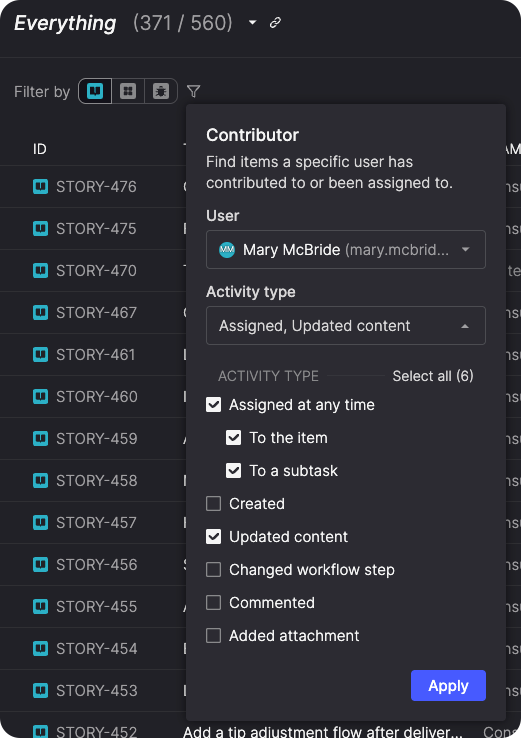
The new Contributor filter on the Everything page helps you find work you've been involved in, or see how someone else has contributed, even if they weren't assigned to the item.
Choose a user, then the kinds of activity you want to include: creating an item, updating its content, commenting, adding an attachment, changing its workflow step, or being assigned to it or one of its subtasks at any time.
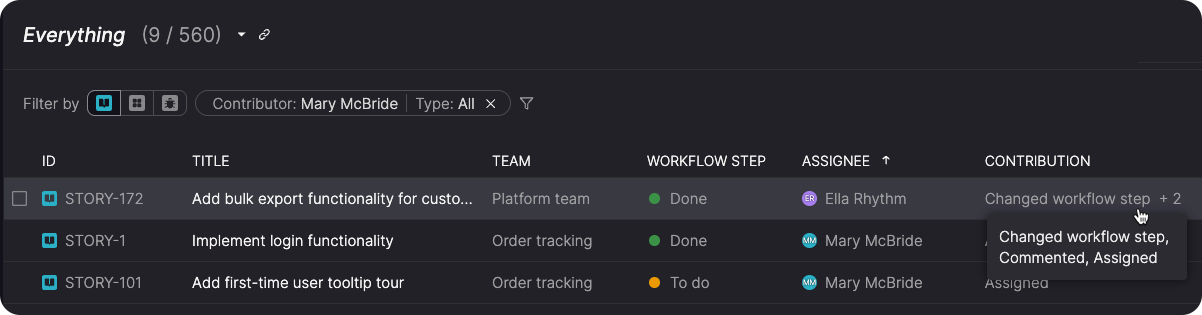
A new Contribution column shows how that person was involved with each item, and you can include the filter in saved and shared views.
Browse attachments in a gallery
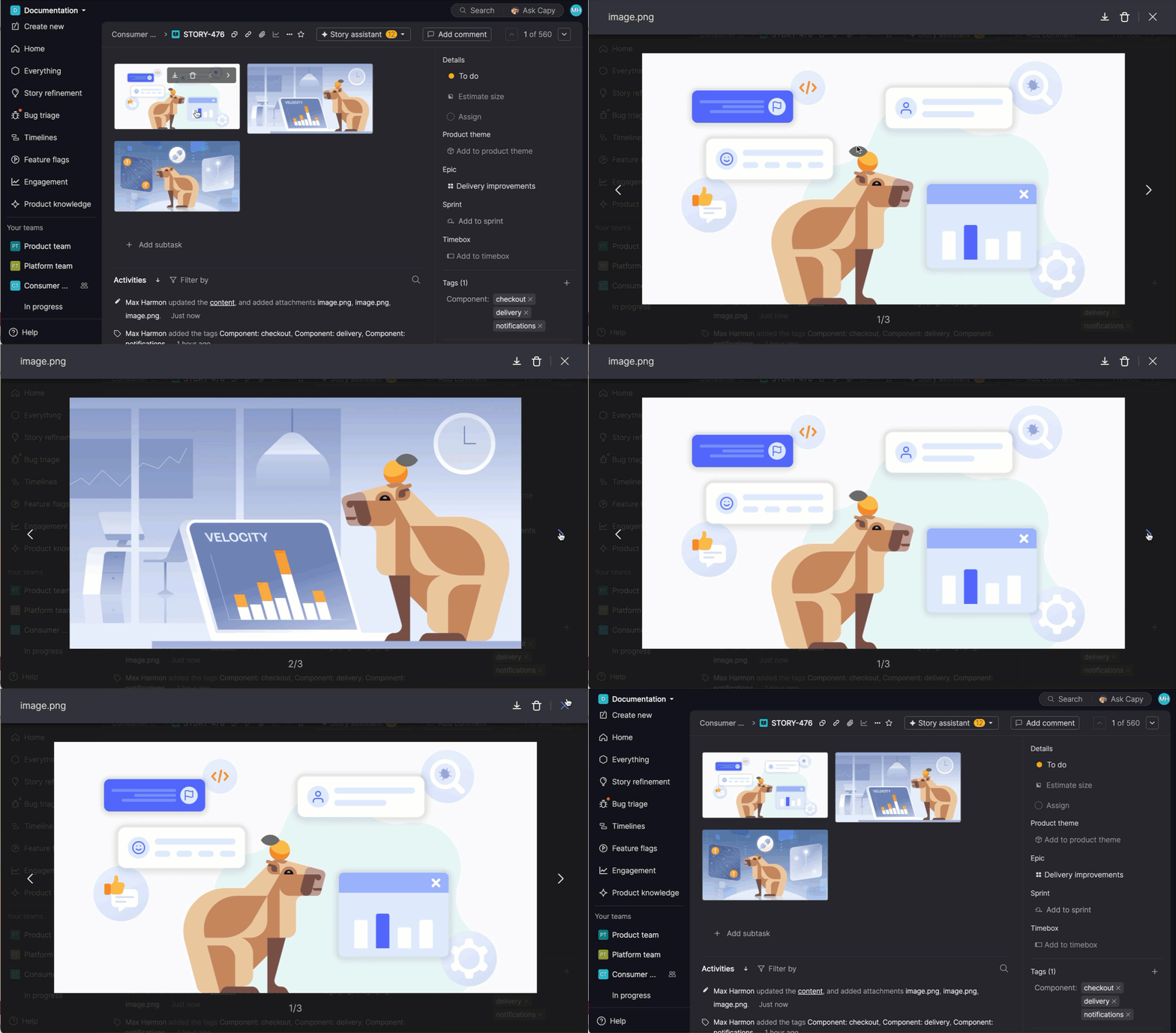
Click an attachment on a story, bug, or epic to open it in a gallery, then move through the rest of that item's attachments. Attachments on an acceptance criterion in a story open in a gallery of their own, so the mockups for that behavior stay together.
Learn more about attachments →
More features for working with epics
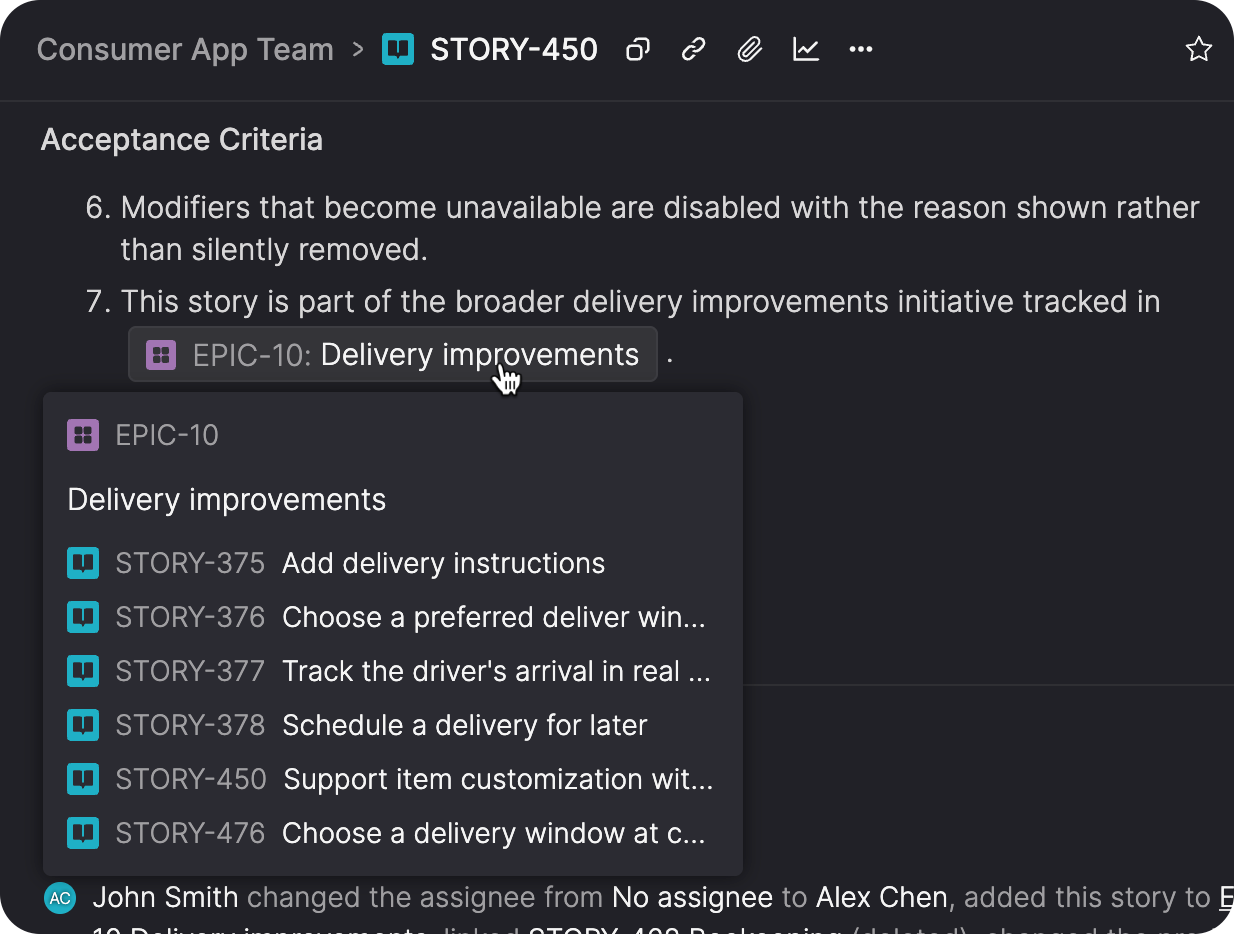
Epics now support more of the everyday features you already use with stories and bugs. Type an epic handle like EPIC-123 into any item's content or comments, and it becomes a link with a hover card.
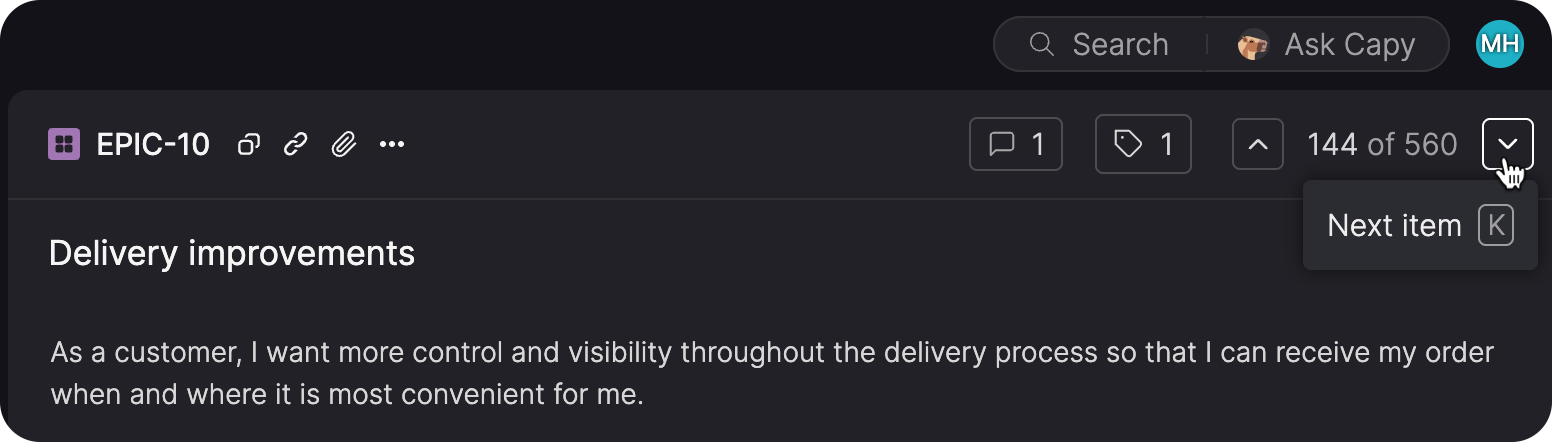
When you page through items from the Everything page, epics are now included in the previous and next navigation, so you can move through all your results in order.
Until next time
That's it for the November 3 release. We hope you enjoy it, and we'll see you next time!