

Story refinement
Capture ideas and prepare stories before assigning them to a team.
The Story refinement backlog helps product managers capture ideas and prepare stories for future work before assigning them to a team. It's a shared space accessible to everyone in your workspace, ensuring collaboration and visibility across teams.
While anyone can contribute ideas, product managers typically use this space to refine and organize stories to make sure they meet the necessary criteria to move forward to a team's backlog.
Access the Story refinement backlog
In the side menu, click Story refinement.
Story refinement workflow
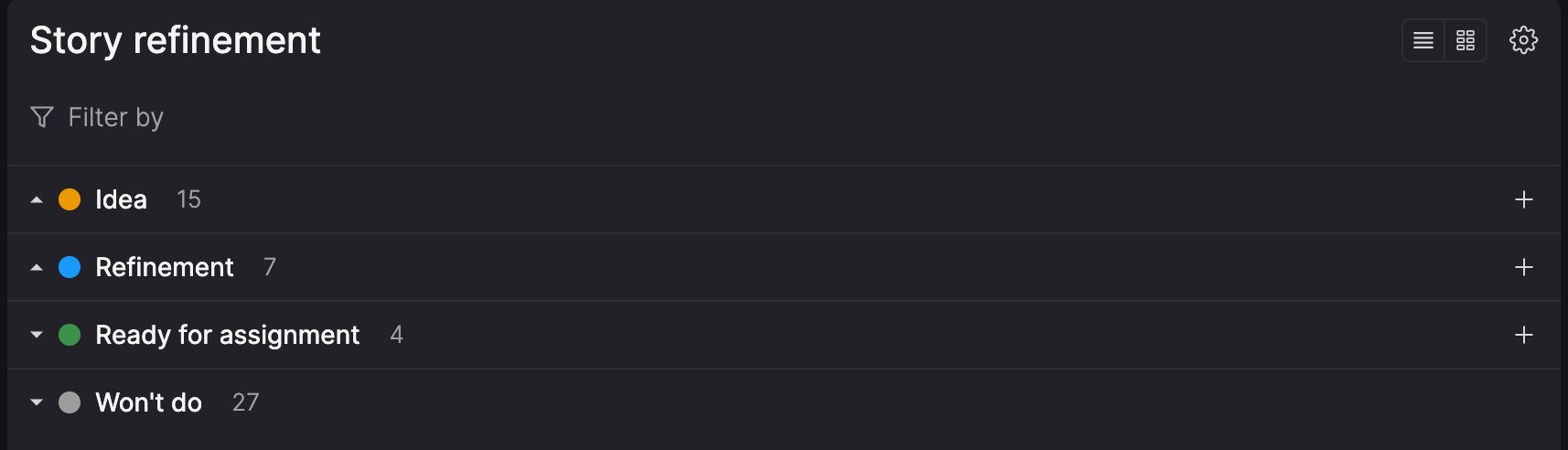
The Story refinement backlog has a fixed workflow with the following steps. While you cannot customize these steps, they provide a structured approach to preparing stories for assignment.
Workflow steps:
- Idea: Use this step to capture initial concepts or rough ideas that need further exploration.
- Refinement: Flesh out stories, ensuring they include enough detail to be actionable. Add details like product themes, timeboxes, or feature flags, and collaborate with other to finalize requirements.
- Ready for assignment: Queue fully specified stories so they're ready to be assigned to a team backlog. This ensures teams can start work immediately after assignment.
- Wont do: Move stories here if they're no longer relevant or have been deprioritized. This helps maintain clarity and avoid clutter in the backlog.
Manage the backlog
The Story refinement backlog provides tools to organize and prepare stories effectively.
Views and layout
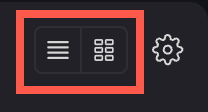
The backlog supports two views:
- List view: Displays stories in a straightforward list format for quick navigation and management.
- Board view: Organizes stories into a Kanban-style workflow, similar to the team backlog board. Refer to the team backlog topic for more details about using board view.
Use the icons in the backlog header to switch between views.
Display timeboxes and product themes
In each view, you can decide whether to display the product themes and timeboxes associated with each item. Whichever view you're in, click the Settings (gear) icon and select or clear the checkboxes for which properties you'd like to display for the items. There are separate controls for list and board view.

Filter the backlog
Focus on specific stories by applying filters to organize and prioritize effectively.
You can filter the backlog to focus on specific stories, helping you organize and prioritize them effectively.
Available filters
| Filter | Description |
|---|---|
| Assignee | Filter by the user the story is assigned to, or 'No assignee'. |
| Product theme | Filter by selected product themes, or 'No product theme'. |
| Timebox | Show only the stories that are within the selected timeboxes, or stories with 'No timebox'. |
Add new stories to the backlog
- In the Story refinement header, click Create new.
- This opens a draft version of your story that partially overlays your screen, allowing you to navigate to other pages in the Atono web interface while working on your draft.
- If you minimize the draft window, the sidebar displays a badge on 'Create new' to indicate you have an unsaved draft. You'll need to open and save the draft before you can create another new item.
- Even if you refresh your browser or sign out, your draft will be there when you return
- Provide the title, user story, ACs, and any additional notes or context you want to include in the freeform section at the end.
- Click Create.
You can also add stories directly to workflow step by clicking the plus (+) icon in the step header. New stories are added to the bottom of a step, but can be dragged to a new position. You can add new stories to any workflow step, except Won't do.
Right-click for more actions
Right-click any story to open quick actions for organizing and preparing work. These actions help you manage and prioritize stories as they move through refinement steps.
You may see options like:
- Create before - create a new story directly before the selected item.
- Create after - create a new story directly after the selected item.
- Duplicate - create a copy of the story, including its title, description, and other details.
- Delete - permanently remove the story from your workspace (confirmation required).
Manage stories
For more details on managing stories and their properties, see the Stories help guide.
This backlog focuses on planning rather than active work, so the following are not tracked here:
- Sizing
- Estimated completion dates
- Cycle time
- Staleness indicators
Assign stories to a team
When a story is ready for development, assign it to a team backlog.
- In the Story refinement backlog, click the story to open it.
- In the story details side panel, click Add to team backlog.
- Search for and select the team.
Once a story is assigned to a team, it's removed from Story refinement and added to the bottom of the 'To do' category of the team's backlog.
If a story is ever unassigned to a team, it becomes available at the bottom of the 'To do' step in Story refinement.
Updated 3 months ago