

Feature engagement
Understand how your features are being used—without leaving your workflow.
Feature engagement shows how people use a feature based on real usage events like clicks, taps, or other tracked actions.
When usage tracking is set up, Atono adds a graph to the story so you can see how often the feature is used, where that usage comes from, and how usage changes over time. This can help you confirm adoption, compare usage across customers or environments, and spot features that aren’t being used as expected.
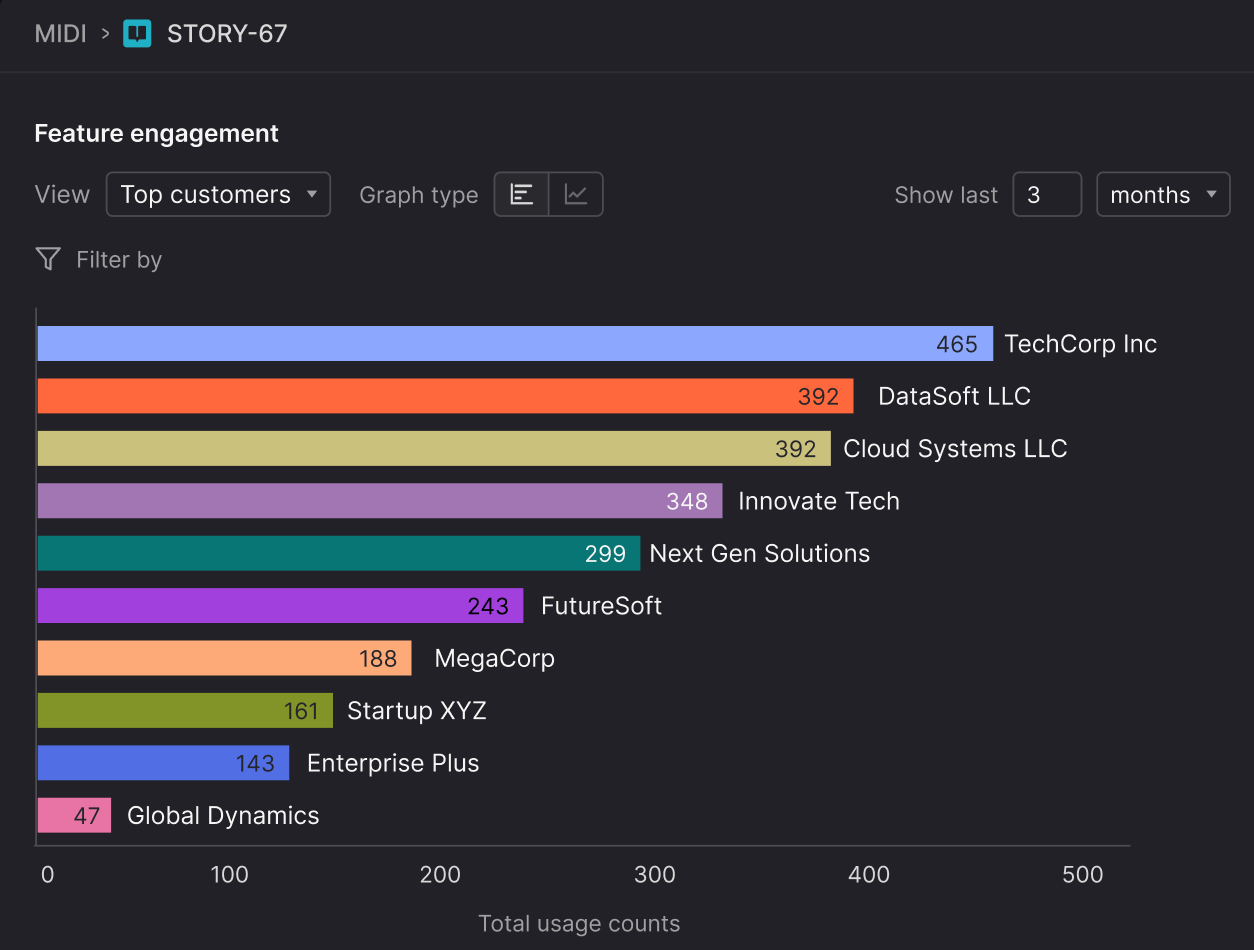
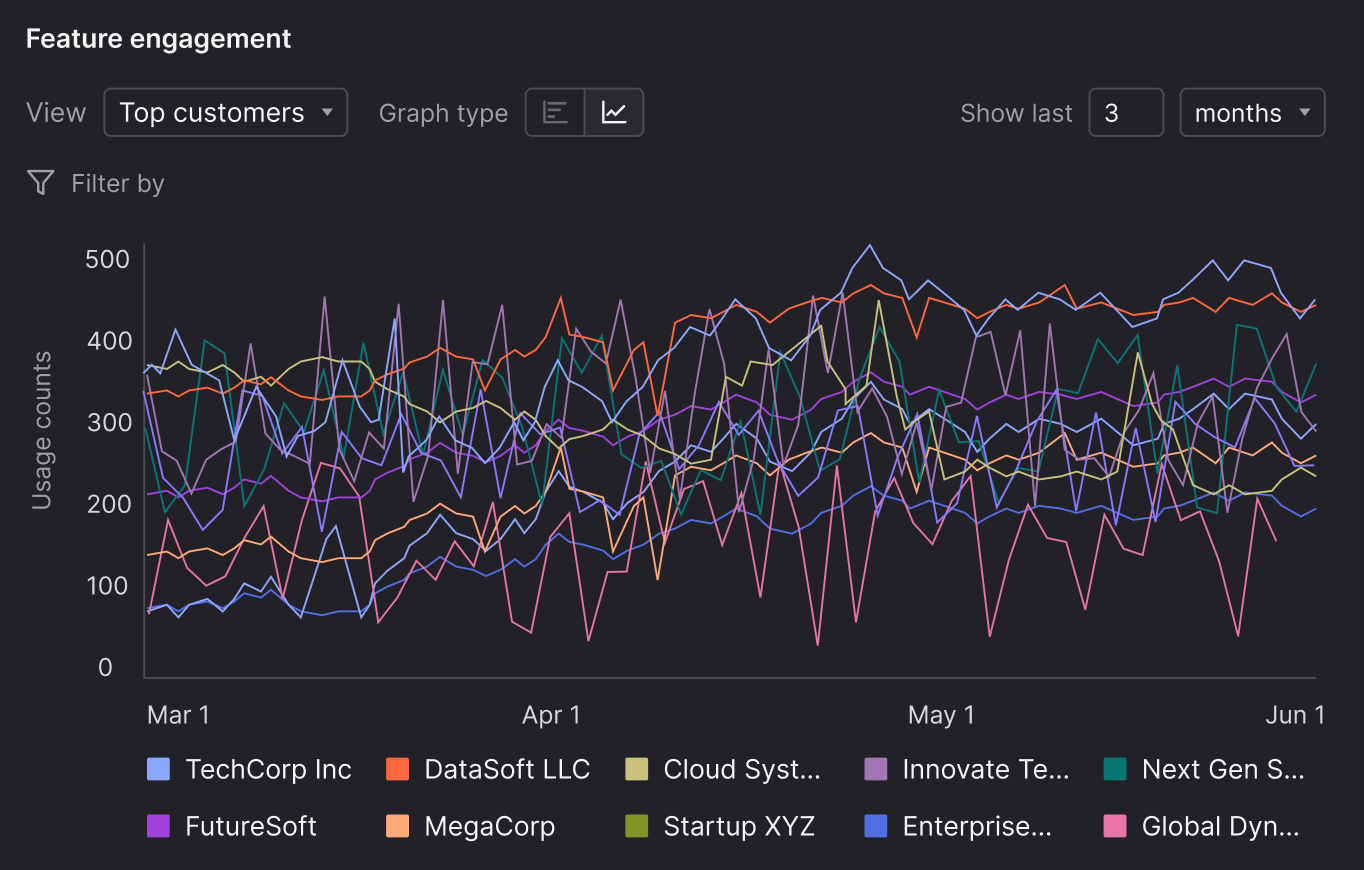
By default, the graph opens in the Top customers view and displays a bar chart, showing up to the 10 customers with the highest recorded usage for that feature. Use the Graph type control to switch between a bar chart for total usage and a line graph for usage trends over time.
Usage tracking requiredTo show usage data, your application must have the Atono SDK installed and initialized. A developer can track feature usage by adding tracking calls to your application’s code.
Product managers, QA, or other non-developers can instead map clicks to stories with the Atono Chrome extension. The Web or React SDK must already be installed and initialized, but mapping clicks does not require additional code changes.
To display usage by customer, usage events must include a customer value. Events without a customer value appear as Unknown.
For SDK setup and implementation details, see the Atono SDK documentation.
View the usage graph
Click the Feature engagement (graph) icon in the story header.
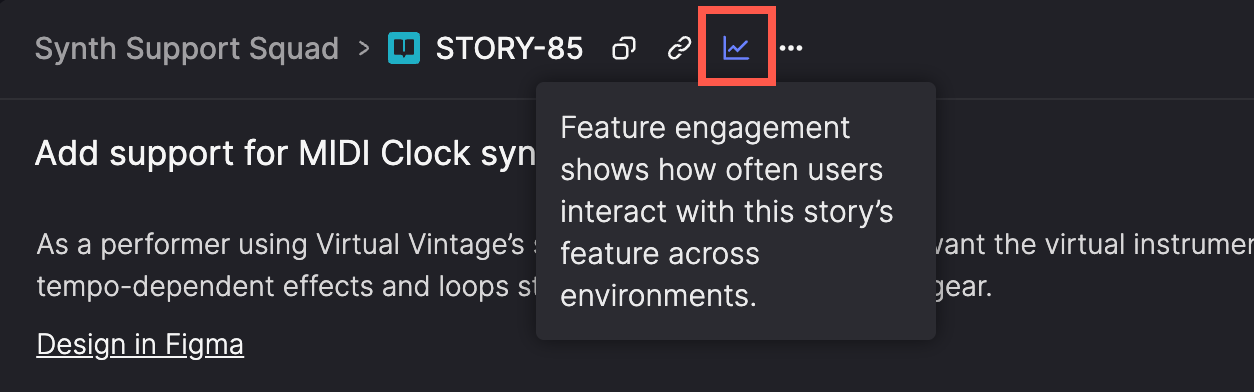
The graph is available for any story that:
- Is assigned to a team
- Is in a workflow step categorized as 'In progress' or 'Done'
Graph placement
- While a story is in progress, the Feature engagement graph appears below the acceptance criteria and any attachments.
- Once the story is moved to a workflow step categorized as 'Done', the graph moves to the top of the story for easier reference.
Hide feature engagement
You can hide the feature engagement section in a story if you don’t want to see it. This only affects your own view—usage tracking continues and no data is deleted.
- In the Feature engagement section header, click Settings.
- In the Feature engagement dialog, click Hide feature engagement.
Showing or hiding the graph is a personal preference and doesn't affect other users.
Usage data is still collected while tracking is active, even if the graph is hidden.
Interpret the graph
The Feature engagement graph shows how usage of a story's feature changes over time. Depending on the selected view and graph type, you can compare usage by customer or environment.
Top customers
When you first open the graph, it defaults to the Top customers bar chart. This ranks the 10 customers with the highest recorded usage for the selected time period and filters.
If usage data doesn’t include a customer attribute, those events appear as Unknown. This ensures all tracked activity is still represented, even if it isn’t linked to a specific customer. You can hide the Unknown series from the legend if you’d rather focus on attributed data.
If no customer attribute is configured in your SDK, you’ll see No customer attribute beneath the graph. Usage is still recorded and displayed as Unknown until customer tracking is set up.
The graph remembers your selected view, graph type, timeframe, and filters for each story. When you reopen the story, the graph appears in the same state you last used. Settings are saved per user and don’t affect anyone else.
Choose the view
Use the View toggle to change what the graph compares:
- Top customers — usage for up to 10 customers, ranked by usage (default).
- Environments — usage across environments such as sandbox, test, or production.
Toggling off a customer or environment hides that line from the graph but doesn’t replace it with another. At least one line must remain visible.
Choose the graph type
Only available in the Top customers view.
Use the Graph type toggle to switch between a bar chart and a line graph.
The bar chart is the default and shows total usage counts for up to 10 top customers over the selected time period. Switch to the line graph to view usage over time.
View usage details
Only available in Environments view.
Hover over the graph to see usage counts for a point in time or date range.
A vertical line will appear to highlight the selected period, along with a breakdown of usage counts by environment, customer, or location (depending on your filters).
Adjust the timeframe
Use the dropdown above the graph to show data for any period between 1 and 60 months. The graph’s resolution adjusts automatically based on the selected range:
- For timeframes under 1 year, the graph shows daily usage counts
- For timeframes over 1 year, the graph shows weekly usage counts
To keep the graph easy to read, Atono limits the total number of data points (up to ~400).
Filter the graph
Available filters depend on which view you're in:
| View | Available filters | Description |
|---|---|---|
| Top customers |
| Focus on how customers use the feature across specific environments and locations. |
| Environments |
| Compare adoption across environments while narrowing to certain customers or regions. |
Filter by environment
Available when in the Top customers view.
Show or hide usage from specific environments by toggling them in the legend below the graph. You can select multiple environments to compare them. The default view shows the last environment listed on the Environments page.
Filter by customer
Available when in the Environments view.
Filter usage by one or more customers. Enter values or pick from suggestions based on reported usage. For more information, see the Customer attribute operators table.
Operators:
- is / is not: exact match to a single customer attribute
- contains / does not contain: partial match to a customer attribute
- is one of / is not one of: match against multiple attributes
Filter by location
Available in both the Top customers and Environments view.
Filter usage by location. Enter or select continent, country, subregion, or state/province names. For more details, see the Location attribute operators table.
Operators:
- is in: include selected locations
- is not in: exclude selected locations
Stop collecting new usage
Stop usage tracking when a story no longer represents an active or relevant feature, or when you want to prevent new data from being recorded going forward.
Common reasons include:
- The feature was removed, replaced, or significantly redesigned.
- Tracking was temporary (for validation or experimentation) and is complete.
- Usage was mapped incorrectly and needs to be fixed.
- You want to keep historical usage without collecting new data.
Stopping usage collection does not delete existing usage data. Historical counts remain visible in the feature engagement graph unless you explicitly clear them.
How you stop usage tracking depends on whether it was configured in code or with the Atono Chrome extension.
Usage tracked in code
A developer must update or remove the usage tracking in your application's code. For details, see the Atono SDK documentation.
Usage tracked with mapped clicks
Mapped click actions from the Atono Chrome extension can be removed directly from the story.
- Open the story in the Atono web app.
- In the Feature engagement section, click Settings.
- The dialog lists any actions that were mapped through the Atono Chrome extension. Each mapping includes:
- Mapped by - who created the mapping.
- Mapped on - the date and time the mapping was created.
- HTML attribute - the identifier the extension uses to track the element.
- Select the checkbox beside one or more mapped actions.
- Click Delete actions to remove the selected mappings, or Delete actions (all) if everything is selected.
Removing a mapping:
- Stops new usage from being collected for that action.
- Does not delete previously recorded usage.
Clear usage data
Reset the graph when you want a fresh baseline—after a major change, refactor, or to clear out irrelevant data. Clearing usage data removes all past counts for everyone who can view the story. This action is permanent and can't be undone.
If tracking is still active, new usage will appear as soon as users interact with the feature again—whether events are being recorded in your code or captured through mapped clicks in the Atono Chrome extension.
- In the Feature engagement section header, click Settings.
- Select Clear data.
- In the Clear usage data dialog, confirm by clicking Clear usage data, or click X to cancel.
Clearing data does not modify or delete any mapped actions. To stop collecting new usage from extension-based mappings, remove those actions. To stop collecting SDK-based usage, a developer must update the application code.
Updated 4 days ago