

Scrum: Backlog
Plan sprints and organize upcoming work before it moves into execution.
The Scrum backlog is where product owners and Scrum teams plan upcoming work before it moves into execution. For Scrum teams, the backlog is organized around sprints—allowing you to prioritize work, schedule items into iterations, and manage what’s coming next.
Once work is committed to a sprint and moves into execution, it appears on the In progress page.
Backlog management and sprint permissionsIf Backlog management is enabled for this team, only backlog owners can create, edit, reschedule, or delete sprints, or add and remove stories from sprints.
What's included
The Backlog shows a Scrum team's current, upcoming, and past sprints, including their dates and total story points. Unscheduled items appear below all defined sprints, ready to be assigned to future sprints.
Releases represent key delivery milestones defined by a date. When enabled, they appear in the backlog to show how work aligns with upcoming delivery points. For more details, see Releases.
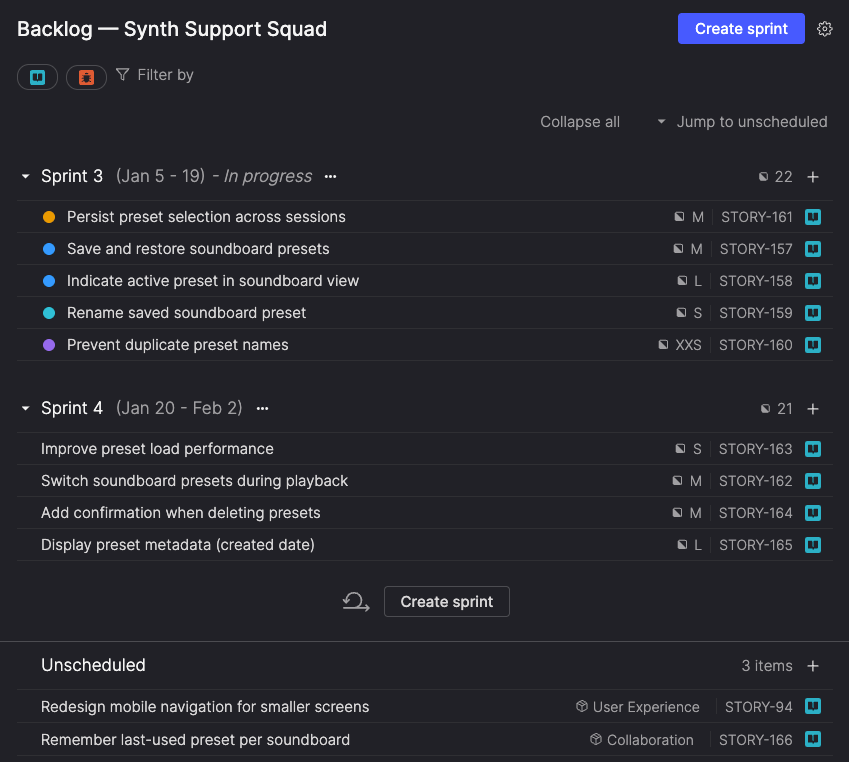
The Backlog contains the items assigned to the team, which may be stories or bugs, depending on the type of work being planned.
Each item shows key details, such as:
- Item type and ID
- Title
- Workflow step (represented by a colored icon)
- Optional settings (for more details, see Backlog settings):
- Product themes
- Pull requests
- Risk rating (bugs only)
- Story size (stories only)
- Timeboxes
Completed sprints are hidden by default and can be revealed from the top of the backlog.
If no sprints are defined yet, the backlog appears as a simple prioritized list.
Projected sprint capacity
Sprint headers show total story points for each sprint. For future sprints, this includes planned vs projected totals.
- Planned is the total story points currently scheduled in the sprint.
- Projected is the expected total story points based on recently completed sprints, and is used as a baseline to show how full the sprint is.
This helps you see whether a sprint is under capacity or over capacity during planning.
If planned work exceeds projected capacity, the planned story point total appears in orange. Hover over the sprint total to view the percentage filled and additional details, including estimated completion timing when over capacity.
For active and past sprints, headers show the actual total story points only.
Projected totals appear after the team completes at least two sprints.
Access the Backlog
You can open a team’s backlog from the Your teams section of the sidebar if you're a member of that team.
- Click a team name to expand its menu.
- Select Backlog to open the planning page for that team.
A separate team icon next to the team’s name opens the Team overview, where you can see members, stakeholders, and other administrative information.
Backlog settings
Choose which item details to display in the list.
- Click the Settings (gear icon) menu in the header.
- Select or clear the checkboxes to control what's displayed for each item:
- Product themes – which product theme each item belongs to.
- Pull requests – any linked GitHub pull requests (requires the GitHub integration).
- Risk rating – the bug's risk on a scale of 1 to 25, with 25 representing the highest risk
- Story size – the story's estimated shirt size, from XXS to XXL.
- Timeboxes – which timebox the item is included in. Timeboxes are highlighted when an item's sprint ends after the end date of its timebox.
- Select or clear the checkbox to control whether Releases are displayed on the backlog. For more details, see Releases in Scrum backlogs.
Manage the backlog
Backlog activities are commonly shared across Scrum roles. Product owners typically focus on prioritization and backlog readiness, while Scrum teams focus on sprint planning and execution. Teams may assign responsibilities differently.
Filter the backlog
Use filters to narrow the backlog to items that match specific criteria, such as ownership, timebox, or update date. Filtering the backlog helps product owners and Scrum team members focus on relevant work during planning, refinement, or review.
- Use the icons at the top of the page to choose whether to show Stories, Bugs, or both. At least one must be selected to display any items.
- Click Filter by at the top of the backlog.
- Select one of the available filters and fill in any required details.
- Click Done.
- Repeat steps 2-4 to add additional filters as needed.
The list updates to display only items matching criteria from all filters.
For multi-select filters, items matching any of the selected values are included. For example, selecting multiple users in the Assignee filter includes items assigned to any of those users.
Active filters appear at the top of the backlog.
To remove a filter, click the X on the filter tag or adjust the filter settings.
Available filters
| Filter | Description |
|---|---|
| Assignee | Filter by the user the item is assigned to, or 'No assignee'. |
| Product theme | Show items within selected product themes, or 'No product theme'. |
| Timebox | Show items within selected timeboxes, or 'No timebox'. |
| Created* | Set a date and time range for when items were created. |
| Last updated* | Set a date and time range for when items were last updated. |
*When using the Created andLast updated filters, you can specify absolute or relative date ranges and include the time of day to narrow your search further. For details, see Filtering by date and time.
Create a sprint
Scrum teams create sprints to define the scope and timeframe for upcoming work. You can create one sprint or a series of sprints at the same time.
If Backlog management is enabled, only backlog owners can create sprints.
Create a single sprint
- In the backlog header or below your list of sprints, click Create sprint.
- The Create sprint dialog opens to the Single sprint tab by default.
- Enter a unique Name for the sprint.
- If the previous sprint's name ends with a number (for example,
Sprint 3) Atono suggests the next number (Sprint 4). - If this is the first sprint, the default name is
Sprint 1.
- If the previous sprint's name ends with a number (for example,
- Optionally, add a description.
- Set the sprint's Start date and End date.
- The default, the sprint begins the day after the previous sprint ends and lasts two weeks.
- As you adjust the dates, the dialog shows the number of weekdays in the sprint.
- Dates already covered by existing sprints are greyed out and can't be selected. Once you choose a start date, the end date is constrained to the range before the next existing sprint begins.
- Optionally, add stories and bugs to the sprint. You can also add them later from the backlog or sprint calendar.
- Click Create sprint.
Multiple sprints
- In the backlog header or below your list of sprints click Create sprint.
- Select the Multiple sprints tab.
- Enter a unique First sprint name.
- If the previous sprint's name ended with a number (for example,
Sprint 3) Atono suggests the next number (Sprint 4). - If this is the first sprint in the backlog, the default name is
Sprint 1. - Atono names the remaining sprints sequentially based on the first sprint's name.
- If the previous sprint's name ended with a number (for example,
- Set the Sprint duration in weekdays or weeks. The duration applies to each sprint in the series.
- Select the Start date for the first sprint.
- Dates already covered by existing sprints are greyed out and can't be selected.
- Enter the Number of sprints to create.
- Review the Preview of sprints to be created, and then click Create sprints.
Sprint scheduling constraints
- Sprints can’t overlap. Sprint dates are bounded by the sprints immediately before and after them.
- You can leave gaps between sprints, but sprints are typically scheduled consecutively
Changing sprint scopeIf you change the scope of a sprint that's in progress, you'll see warning that the burndown chart will be updated to reflect the change.
View sprint details
You can access a sprint's details from the Backlog or by editing it on the Sprint calendar.
The Sprint details dialog lets you:
- View and edit the sprint's start and end dates, including the number of weekdays in the sprint.
- View all included items, with details such as Item ID, title, and workflow step.
- View the sprint’s planned vs projected total story points, helping you confirm whether the sprint is within capacity.
- Add or remove stories or bugs from the sprint.
Projected totals appear after the team completes at least two sprints and update automatically as stories are added, removed, or resized.
Edit a sprint
If Backlog management is enabled, only backlog owners can edit sprints.
- Click the ellipsis (...) icon next to the sprint name.
- Select View sprint details.
- Update the sprint's dates or included items.
- To edit the sprint's name or description, click the ellipsis (...) icon next to the sprint name and select Edit sprint details.
- Click Done.
Expand and collapse sprints
Focus on what matters by collapsing sprints you're not actively planning:
- Click the arrow next to a sprint name to collapse or expand it.
- Use Collapse all or Expand all in the header to manage all sprints at once.
- When dragging an item onto a collapsed sprint, it automatically expands.
Use the Jump to unscheduled shortcut at the top of the page to quickly navigate to items that aren't assigned to any sprint.
View past sprints
Scrum teams can browse completed sprints directly from the Backlog to review historical work and understand how the product has evolved over time.
Past sprints are hidden by default. To view them:
- At the top of the backlog, click View previous sprint.
- Each click reveals the next most recent completed sprint.
- Repeat as needed to continue browsing further back in time.
You can collapse and expand revealed past sprints to focus on specific time periods while keeping historical context available.
Add items to the backlog
Adding items to the backlog ensures upcoming work is visible, prioritized, and ready for future sprint planning. This is typically led by the product owner, with input from the Scrum team.
Items categorized as Won't do are not displayed in the Backlog.
Create new items on the backlog
Create unscheduled items
To create a new item that isn’t yet assigned to a sprint:
- Use Create new in the main left-hand navigation to create a story or bug in the To do workflow step and assign it to the team. The item appears at the bottom of the Unscheduled section of the team’s backlog.
Create items in a sprint:
- Click the + icon in the sprint header.
- Select Story or Bug.
- Fill out the draft and click Create. The item is added to the bottom of the sprint.
Shortcuts for creating storiesThere's also a few shortcuts for creating stories in the Unscheduled section or future sprints:
- At the top: Hover at the top of the list until the quick-add bar appears, then click + Create story at the top.
- Before or after an item: Right click an item and choose Create before or Create after to insert a new story in that position.
- At the bottom: Hover at the bottom of the list until the quick-add bar appears, then click + Create story at the bottom.
Press Enter after providing the story tile to quickly add more stories in a row, then fill in the details later.
Add existing items
You can move an existing item from Story refinement, Bug triage, or another team to your backlog, typically during backlog refinement or planning.
- Open the item.
- In the details panel, click the Team field and select the team you want to assign the item to.
- Optionally, in the details panel, click Add to sprint to select which sprint to add the item to. (If you skip this step, the item will be available from the Unscheduled section of the team's backlog.)
For teams with backlog management enabled, backlog owners are responsible for adding stories to the backlog. Team members can create and manage bugs regardless of this setting.
Backlog owner is a team-specific role and may not map directly to scrum roles.
Add items to sprints
If Backlog management is enabled, only backlog owners can move stories between sprints or add and remove stories from a sprint.
During sprint planning, Scrum teams assign backlog items to specific sprints to define what will be delivered.
Drag and drop:
- Drag an item from the Unscheduled section into a sprint.
- Drag an item from one sprint to another.
- Items can be positioned anywhere within a sprint to set priority.
When moving an item into a future sprint, the current sprint, or Unscheduled, Atono moves it to To do if it isn’t already there. A notice explains this before the move is applied.
Via sprint detail view:
- Click the ellipsis (...) icon next to the sprint's name and select View sprint details.
- Use the search box to find and add items to the sprint.
- Click the X icon next to an item to remove it from the sprint.
Directly from the item:
- Open the item you want to assign to a sprint.
- In the details panel, click Add to sprint and select which sprint to add the item to. Or click Create new sprint to add the item to a new sprint.
Reorder items
Reordering items reflects backlog priority, which is typically maintained by the product owner.
- Drag and drop: Click and drag an item up or down within its sprint or the Unscheduled section.
- Move to top: Right-click an item and choose Move to top to bring it to the top of its section.
You can't reorder items while filters are applied. Clear filters first to adjust priority.
Right-click actions
Right-click any item in the backlog for quick actions:
- Create before - Create a new item directly before the selected item.
- Create after - Create a new item directly after the selected item.
- Move to top - Move the selected item to the top of its section.
- Duplicate - Create a copy of the item, including its title, description, and other details.
- Delete - Permanently remove the item from your workspace (confirmation required).
Remove or reassign items
When priorities or ownership change, items can be reassigned or removed from a backlog to ensure the right team owns the work.
If the destination team has Backlog management enabled, you must have the backlog owner role on that team to assign a story to it.
If an item no longer belongs to a team, you can remove it from the backlog.
Remove an item from a backlog
- Open the item and click the team name in the side panel.
- Select No team.
- In the Unassign from team dialog, confirm by clicking Unassign from team, or X to cancel
Bugs unassigned from a team appear in Bug triage, while stories unassigned from a team move to Story refinement. This ensures they remain visible and ready for reassignment.
If you want to permanently remove an item from the workspace, you can delete it.
Assign an item to a different backlog
- Open the item and click the team name in the side panel.
- Select a new team.
- In the Change backlog dialog, confirm your choice by clicking Change backlog or click X to cancel.
Reset size estimatesWhen reassigning a story, the original team's size estimate is removed. This allows the new team to resize it based on their own processes and capacity, ensuring accurate planning.
Rename a sprint
If Backlog management is enabled, only backlog owners can edit sprints.
- Click the ellipsis (...) icon next to the sprint name.
- Select View sprint details.
- Click the ellipsis (...) icon next to the sprint name and select Edit sprint details.
- Update the sprint name or description.
- Click Done.
Delete a sprint
Scrum teams can delete sprints that are no longer needed during planning.
- Click the ellipsis (...) icon next to the sprint name.
- Select Delete sprint.
- In the Delete sprint dialog, confirm by clicking Delete sprint.
When you delete a sprint, all items in it move to the top of the Unscheduled section of the backlog, retaining their order.
Updated 3 months ago