

Sprint calendar
View and manage all of a team's sprints on a calendar.
The Sprint calendar gives Scrum teams a clear, long-term view of their sprints—past, active, and upcoming. It’s designed to support sprint-based planning by showing how work is scheduled over time, helping teams understand upcoming stories, deadlines, and capacity at a glance.
When you open the Sprint calendar, it displays a visual schedule of sprints for the current quarter. You can scroll and zoom to adjust your view.
Each sprint displays its name, the number of stories or bugs included, and its story point totals. Future sprints also show projected capacity when available.
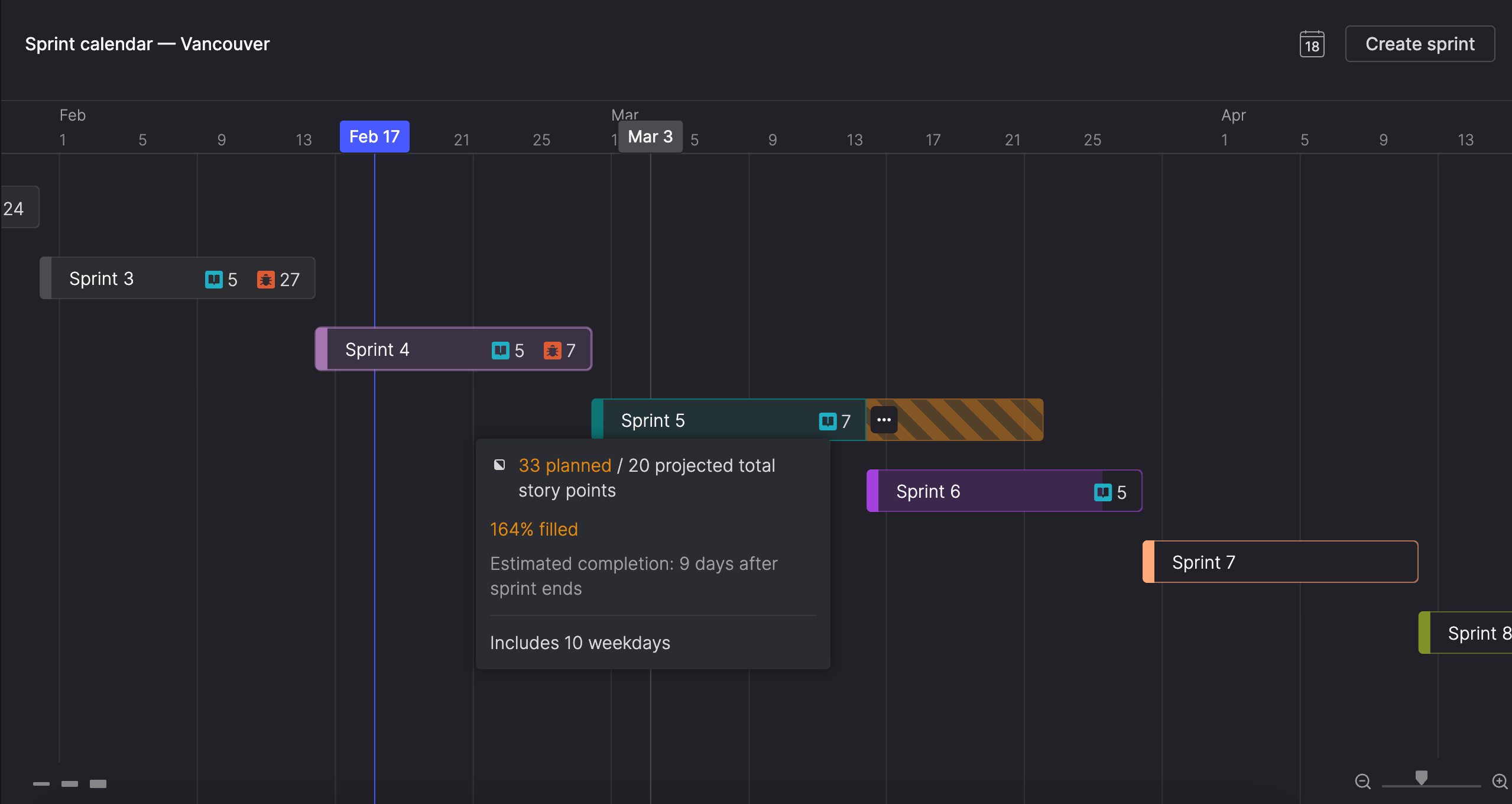
The Sprint calendar is designed specifically for Scrum teams and sprint-based planning. While it looks similar to a Timeline, it shows only sprints for a single team. It also follows Scrum-specific rules, such as preventing overlapping sprints, to support velocity-based planning.
Access the Sprint calendar
You can open your scrum team's Sprint calendar from the side menu:
- Under Your teams, click a team name to expand its menu.
- Select Sprint calendar.
The Sprint calendar is available only for teams configured with a Scrum workflow.
Using the Sprint calendar
Scroll through the calendar
You can explore the Sprint calendar in several ways:
- Horizontally: Drag the calendar or swipe on a mouse or trackpad.
- Vertically: Use a mouse wheel or swipe on a mouse or trackpad to move through the sprint list.
- Return to today: Click the calendar icon at the top of the calendar.
Adjust zoom levels
Tailor your view to suit your planning needs:
- Zoom in to focus on short time spans, such as a few days.
- Zoom out to see the big picture, with up to five years displayed at once.
You can adjust zoom by:
- Pinching on a trackpad.
- Scrolling with the mouse wheel while holding the Ctrl (Windows) or Command (Mac) key.
- Using the zoom controls in the bottom-right corner.
Your zoom level is remembered across Sprint calendars.
Adjust sprint height
Changing a sprint's height affects everyone viewing the Sprint calendar.
To view more or less detail:
- Adjust a single sprint: Hover over its bottom edge and drag the resize handle to make it taller (up to three lines) or shorter.
- Adjust all sprints: Use the height controls in the bottom-left corner of the calendar to set all sprints to one, two, or three lines.
Understanding sprint capacity and projection
When velocity projection is available, future sprints on the Sprint calendar display a capacity bar within the sprint. This bar represents how much work the team is likely to complete based on historical velocity.
As you add work to a future sprint, the bar fills to show how much of that projected capacity is being used. If planned work exceeds projected capacity, the sprint shows where work is expected to finish and highlights the excess.
Projection is based on your team’s historical velocity and updates automatically as sprint contents change.
When projection appears
Velocity projection is shown only after at least two sprints have been completed. Until then, future sprints appear without capacity indicators.
How projection is calculated
Projected capacity is calculated using the average velocity of completed sprints, converted to a daily rate. For each future sprint, that daily average is multiplied by the number of calendar days in the sprint (including weekends).
As stories are added, removed, resized, or moved between workflow steps, projected capacity updates in real time.
How projection is displayed
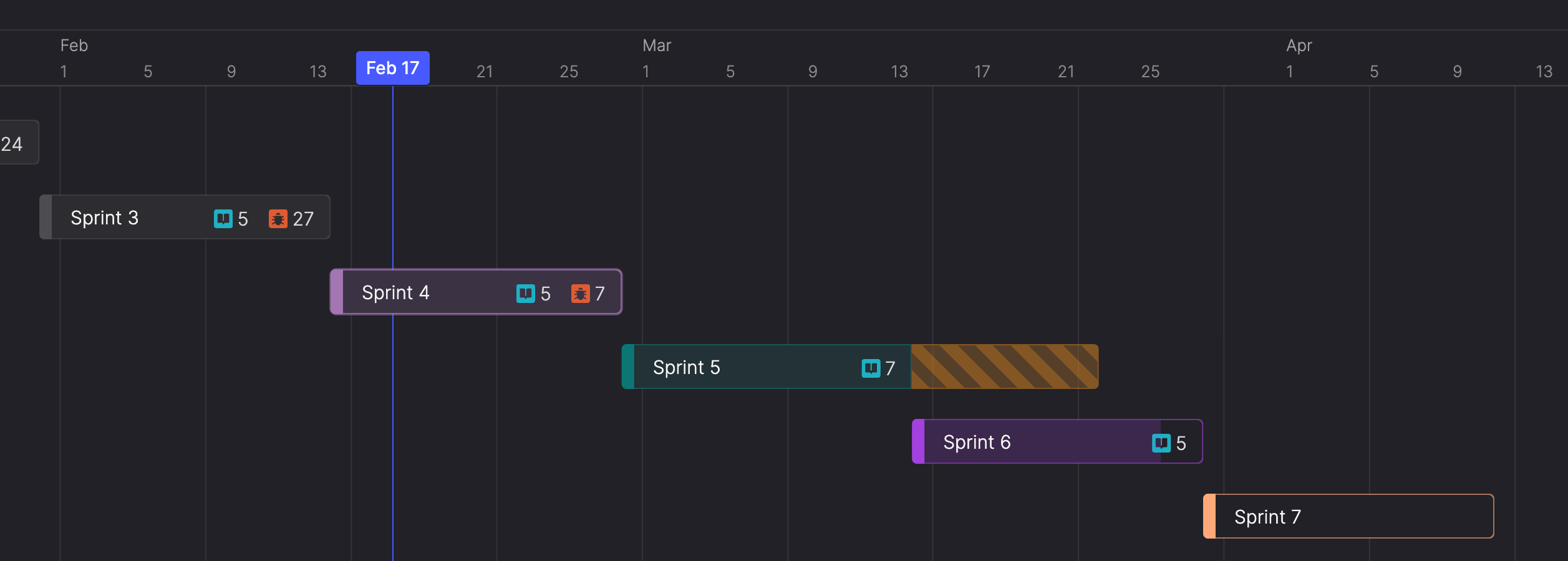
Completed and active sprints
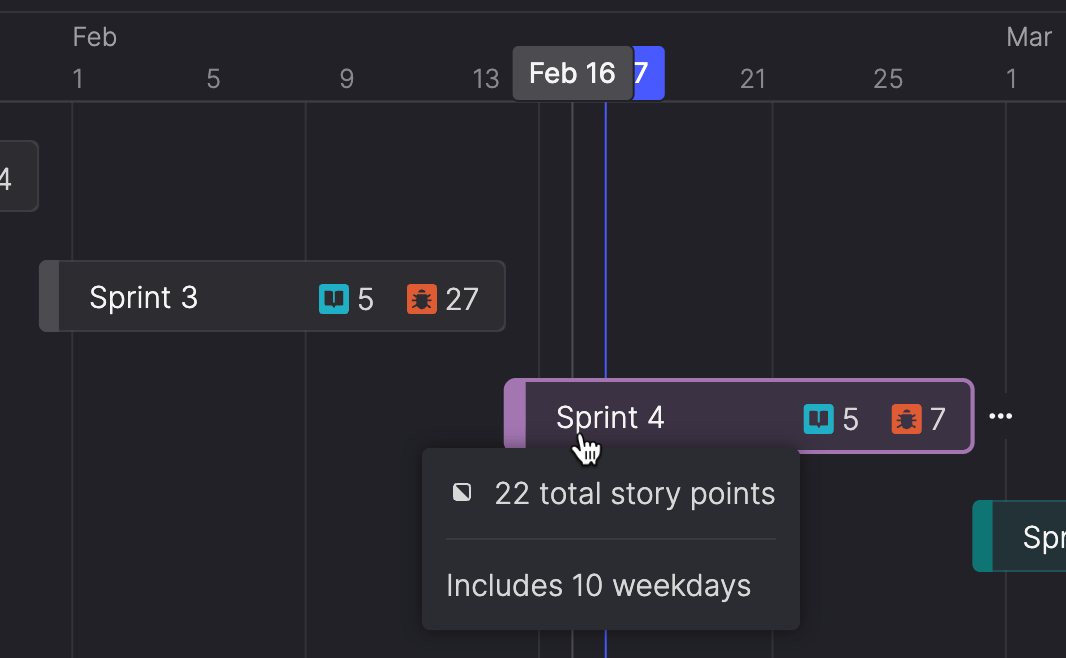
Completed and active sprints show only actual story points and don’t display a capacity bar. Completed sprints appear in grayscale, while the current sprint is visually emphasized as In progress.
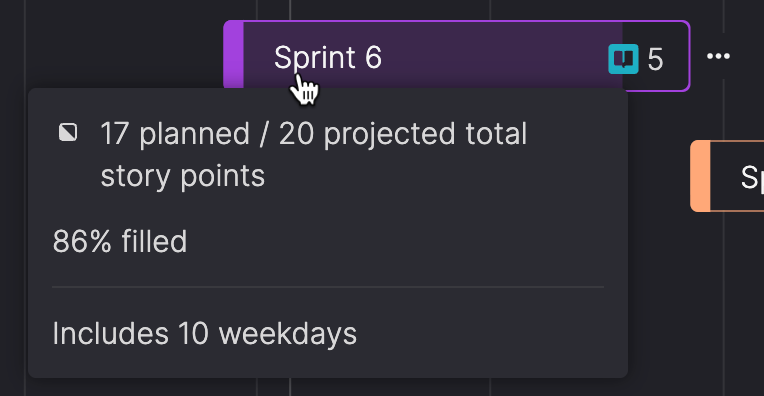
Future sprints include a capacity bar that fills as work is added. When planned work fits within projected capacity, the bar ends within the sprint’s duration.
Capacity bars align to whole calendar days, so their visual length may differ slightly from the percentage shown in tooltips.
Over-capacity sprints
When planned work in a future sprint exceeds projected capacity, the calendar shows where the sprint is expected to finish based on velocity. Any work beyond that point appears as an overfill segment, making it clear that the sprint is likely to run past its planned end.
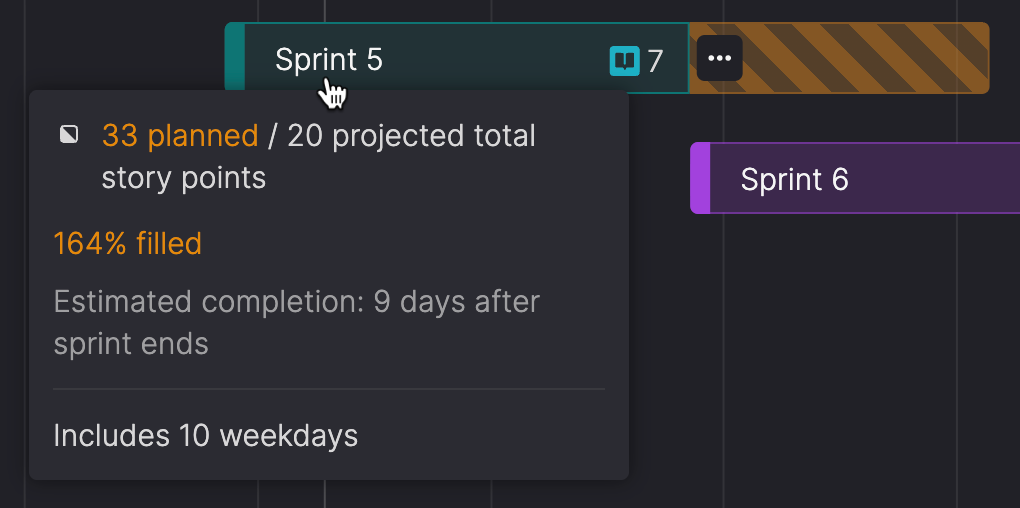
If the sprint’s duration is extended, projected capacity increases accordingly. When planned work fits within that capacity, the overfill indicator is removed.
View items in a sprint
Hover over the story or bug icon in a sprint to preview a list of items, including their:
- Item ID
- Title
- Current workflow step
To see the full list of items in a sprint or manage its contents, open the sprint’s details. For more information, see View sprint details.
Create and manage sprints
You can create and manage sprints directly on the Sprint calendar or from the team’s Backlog. Changes made in one view are reflected in the other.
All sprints created on the Sprint calendar are automatically associated with the current team.
Sprint permissions with Backlog managementIf Backlog management is enabled for this team, only backlog owners can create, edit, reschedule, rename, or delete sprints, or add and remove stories from sprints.
Create a sprint on the calendar
If Backlog management is enabled, only backlog owners can create sprints.
Create a sprint using the dialog
- On the Sprint calendar, click Create sprint.
- Follow the steps to create a single sprint or a series of sprints, as described in Create a sprint.
Create a sprint by double-clicking
You can also create a sprint directly on the Sprint calendar by double-clicking the date where you want the sprint to start. The sprint starts on the date you clicked and ends two weeks later, or the day before the next sprint starts—whichever comes first. It’s created in the row closest to where you clicked.
A default name is suggested based on the most recently created sprint, with the next consecutive number added. The sprint name is automatically selected so you can edit it immediately if desired.
You can only create a sprint in an empty area of the calendar—sprints can’t overlap.
View sprint details
You can access a sprint's details by editing it on the Sprint calendar or by viewing its details on the team's Backlog.
The Sprint details dialog lets you:
- View the sprint's start and end dates, including the number of weekdays in the sprint.
- View all included items, with details such as Item ID, title, and workflow step.
- Add or remove bugs from the sprint.
- View the sprint's planned vs projected total story points.
- View the burndown chart for active and completed sprints.
- If you have permission, edit the sprint’s dates, name, or description, and add or remove stories from the sprint.
Edit a sprint
If Backlog management is enabled, only backlog owners can edit sprint details or contents.
- On the Sprint calendar, hover over the sprint you want to edit and click the ellipsis (...) icon.
- From the menu, select Edit sprint.
- Update the sprint's dates or included items.
- To edit the sprint's name or description, click the ellipsis (...) icon next to the sprint name and select Edit sprint details.
- Click Done.
You can also rename a sprint directly on the calendar (for more details, see Rename a sprint).
Move and resize sprints
If Backlog management is enabled, only backlog owners can move or resize sprints.
You can also adjust a sprint’s dates directly on the calendar.
- Move a sprint: Drag the sprint left or right on the timeline to change its start and end dates.
- Resize a sprint: Drag the start or end edge of a sprint to shorten or extend its duration.
Sprint scheduling follows Scrum-specific rules to keep sprints sequential and non-overlapping.
Sprint scheduling rules
Sprint dates are constrained to maintain a clear, sequential schedule:
- Sprints can’t overlap with other sprints for the same team.
- You can’t drag a sprint’s start date earlier than the end date of the previous sprint.
- You can’t drag a sprint’s end date later than the start date of the next sprint.
- You can move an entire sprint along the timeline as long as it doesn’t overlap another sprint.
These rules ensure consistent, velocity-based planning.
Change a sprint's color
Sprints are assigned a default color when created, but you can change their color to make them easier to distinguish.
- Hover over a sprint.
- Do one of the following:
- Click the ellipsis (...) icon next to the sprint and select Change color.
- Click the colored edge of the sprint.
- Select a color from the palette.
Color changes are visible to everyone viewing the Sprint calendar. You can't change the color of a completed sprint.
Rename a sprint
If Backlog management is enabled, only backlog owners can rename sprints.
- Hover over a sprint.
- Click the ellipsis (...) icon and select Rename sprint.
- Edit the name of the sprint directly on the calendar.
You can also rename a sprint when you edit a sprint's details.
Delete a sprint
If Backlog management is enabled, only backlog owners can delete sprints.
- Hover over a sprint.
- Click the ellipsis (...) icon and select Delete sprint.
- In the confirmation dialog, click Delete sprint.
Updated 3 months ago