

Releases
Track key delivery dates across timelines and backlogs.
Releases represent key delivery milestones and are defined by a date. They help teams understand how work aligns with planned delivery points and can be visualized across timelines and backlogs.
Releases are global across your workspace. Once created, a release can be added to multiple timelines and referenced from team backlogs.
Because releases are global, any changes to a release are reflected everywhere that release is used.
Managing releases
You can create, add, and manage releases from timelines.
From a timeline, you can:
- Create a new release
- Add an existing release
- Rename a release
- Reschedule a release
- Remove a release from the current timeline
- Delete a release
Release names must be unique across the workspace.
Create a new release
Release names must be unique within the workspace and less than 100 characters in length.
At the top of the timeline
- Click Add release in the timeline header.
- In the dropdown that appears, click + Create a new release.
- In the Create release dialog, enter a Name for the release.
- In the Date field, use the calendar picker to select a date for the release.
- Click Create release, or click X to cancel.
On a timeline
- Hover over the top of the timeline and click the plus (+) icon that appears.
- Enter a Name for the release.
- Click Create release, or click X to cancel.
The release will appear on the timeline at the date where you created it.
Add an existing release to a timeline
- Click Add release in the timeline header.
- In the dropdown that appears, select one or more releases from the list.
The next 10 upcoming releases, based on release date, are shown automatically in the dropdown. Use the search field to find other releases.
Any selected releases are added to the current timeline.
Rename a release
- On a timeline, right-click the release and select Edit.
- Update the Name field.
- Click Update details, or click X to cancel.
You can also hover over the release name and click the pencil icon to rename it inline.
Reschedule a release
- On a timeline, right-click the release and select Edit.
- In the Date field, use the calendar picker to select a different date.
- Click Update details, or click X to cancel.
You can also drag a release left or right along the timeline. The release snaps to gridlines and timebox boundaries based on the current zoom level.
Rescheduling a release updates its date across all timelines and backlogs where the release is included.
Remove a release from a timeline
On a timeline, right-click the release and select Remove from timeline.
The release remains available in the workspace and can be added back to the timeline at any time.
If the release is only included in the current timeline, you'll have the option to delete the release instead.
Delete a release
- On a timeline, right-click the release.
- Select Delete release.
- In the Delete release dialog, click Delete release to permanently delete the release from all listed timelines, or click X to cancel.
Deleting a release removes it from all timelines and backlogs where it is used.
Releases in team backlogs
Releases can be surfaced in team backlogs to help with planning and prioritization. How releases appear depends on the methodology used by the team.
The same release can be used across multiple timelines and backlogs.
Show or hide releases
You can toggle the display of releases in a team backlog.
- Open the team backlog.
- Click the Settings (gear icon) menu in the header.
- Select or clear the Releases checkbox.
Releases in Scrum backlogs
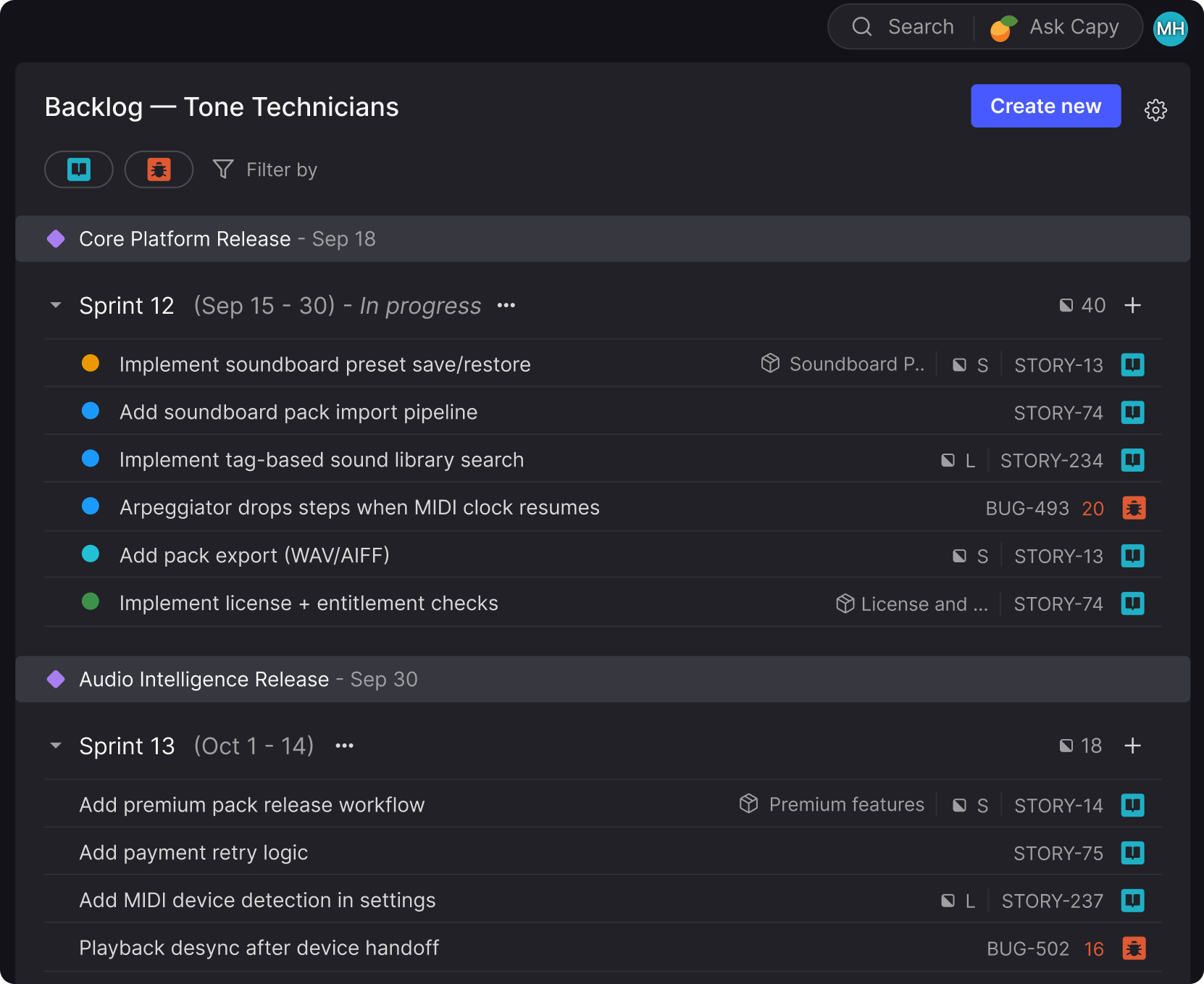
In Scrum backlogs, releases show where delivery milestones fall relative to sprints.
When releases are enabled:
- Each release is shown as horizontal rows between sprints.
- Releases are placed after the sprint they fall within.
A release is shown after the sprint whose end date is on or before the release date.
Releases in Kanban backlogs
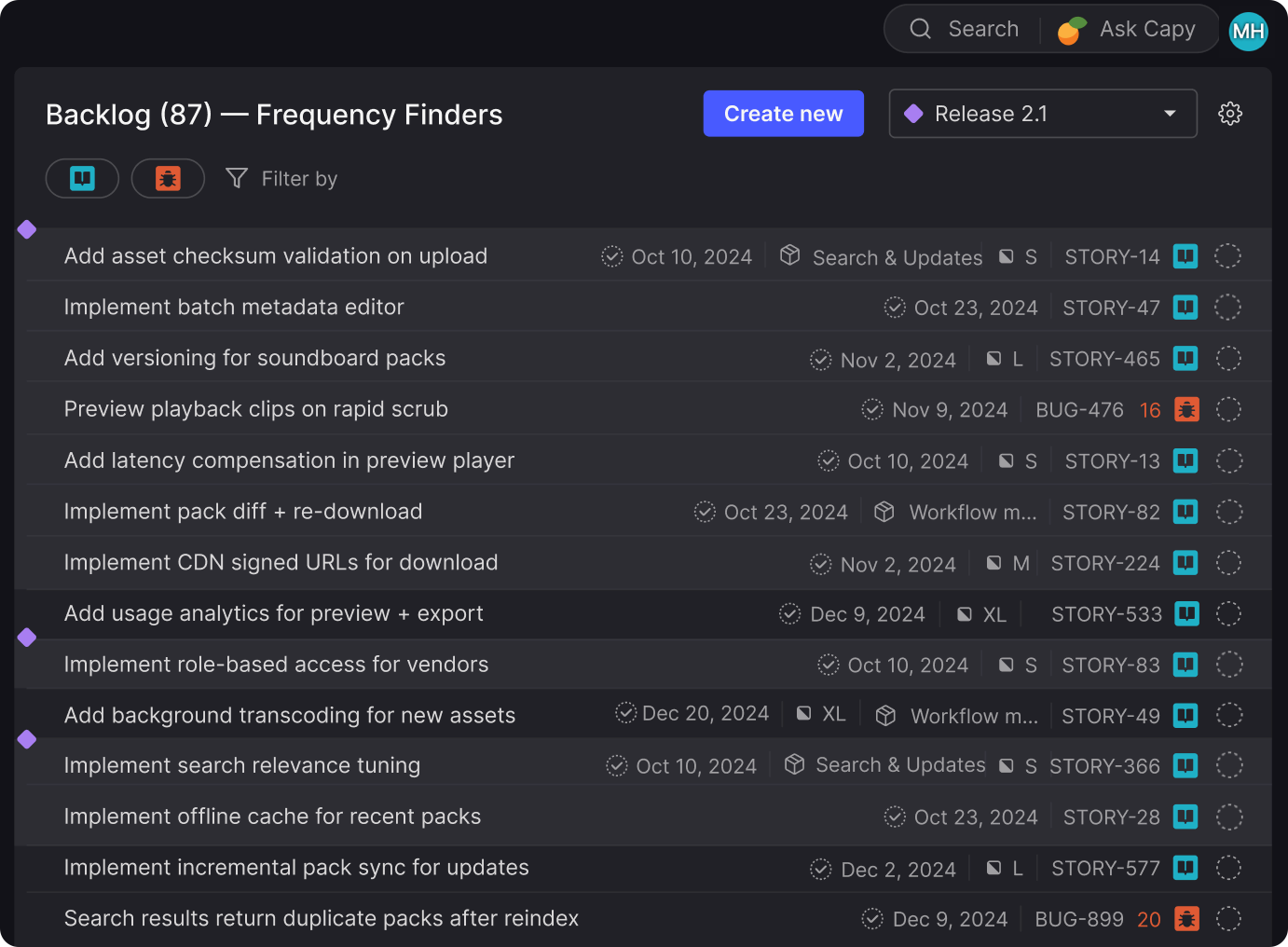
In Kanban backlogs, you select a single release to highlight items projected to complete within that release window.
Select a release
- Open a Kanban team backlog.
- In the header, use the release dropdown to select a release.
When a release is selected:
- Items expected to complete by the selected release are highlighted.
- The highlighted range updates as items are reprioritized.
Items are highlighted if their estimated completion date falls after the previous release and on or before the selected release date.
Updated about 1 month ago