

Scrum: In progress
Track and manage your Scrum team's work during the active sprint.
The In progress page shows all stories and bugs in your team's active sprint. For Scrum teams, this view is focused entirely on sprint execution—helping the team move work through workflow steps and track daily progress toward sprint completion.
Planning work happens in the Backlog. Once work is committed to the active sprint, it appears here.
What's included
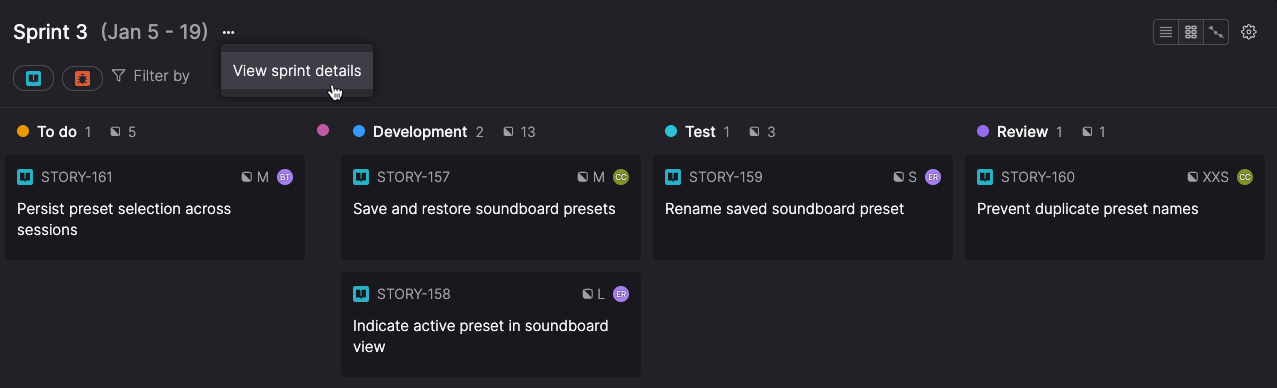
The In progress displays the active sprint and its duration. It offers list and board views, showing stories and bugs included in the sprint with key details for each item, including:
- Item type and ID
- Title
- Assigned user
- Staleness indicator (for items taking statistically longer than expected in a specific workflow step)
- Optional settings (for more details see List and board view settings):
- Product themes
- Pull requests
- Risk rating (bugs only)
- Story size (stories only)
- Timeboxes
- Total story points (shown by default)
Click any item to open its full details and take actions like updating workflow steps, changing assignees, or adjusting size or risk ratings.
You can switch between list and board view depending on how your team prefers to track work. Your selected view applies across all team pages until you change it, keeping your experience consistent as you move between teams.
Access the In progress page
You can open a scrum team’s In progress work from the Your teams section of the sidebar.
- Click a team name to expand its menu.
- Click In progress to open the page of active work for that team.
A separate team icon next to the team’s name opens the Team overview, where you can see members, stakeholders, and other administrative information.
Working in the In progress view
This section covers how to view, organize, and focus on work during an active sprint.
Views and layout
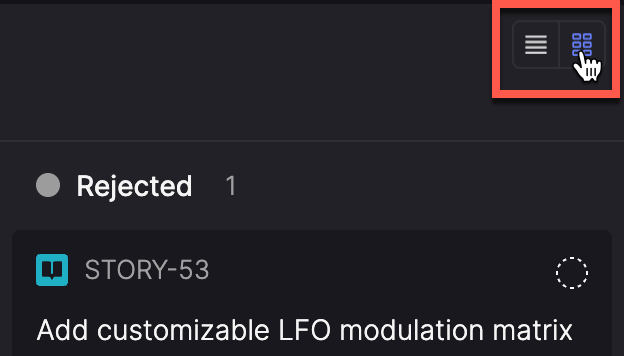
Switch between views depending on how your team prefers to track work. Use the icons in the In progress header to switch views.
- List view organizes items by workflow step in a vertical list.
- Board view displays items in columns by workflow step.
Your selected view applies across all team pages until you change it.
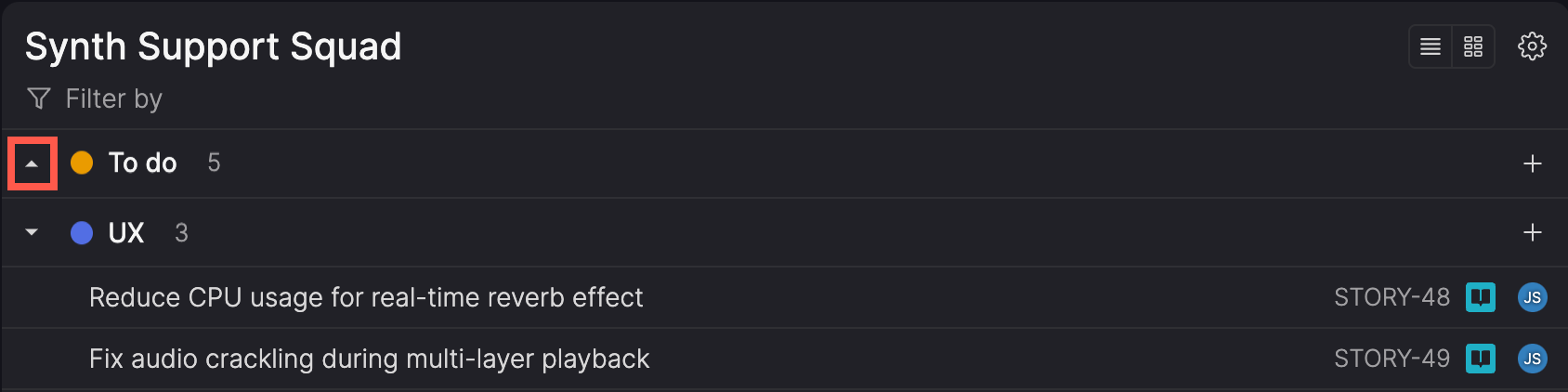
In both list and board views, you can collapse or expand steps to keep things manageable:
- List view: Click the arrow next to the colored circle in the section header.
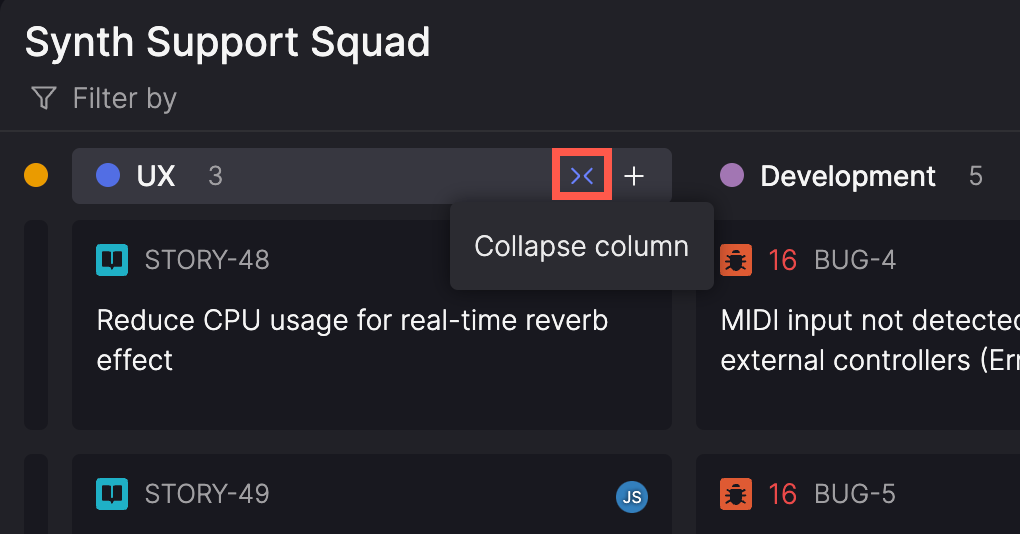
- Board view: Hover over a step name and click the collapse (><) icon.
Collapsed steps appear as a compact summary. Hover to see item counts, or click to expand again.
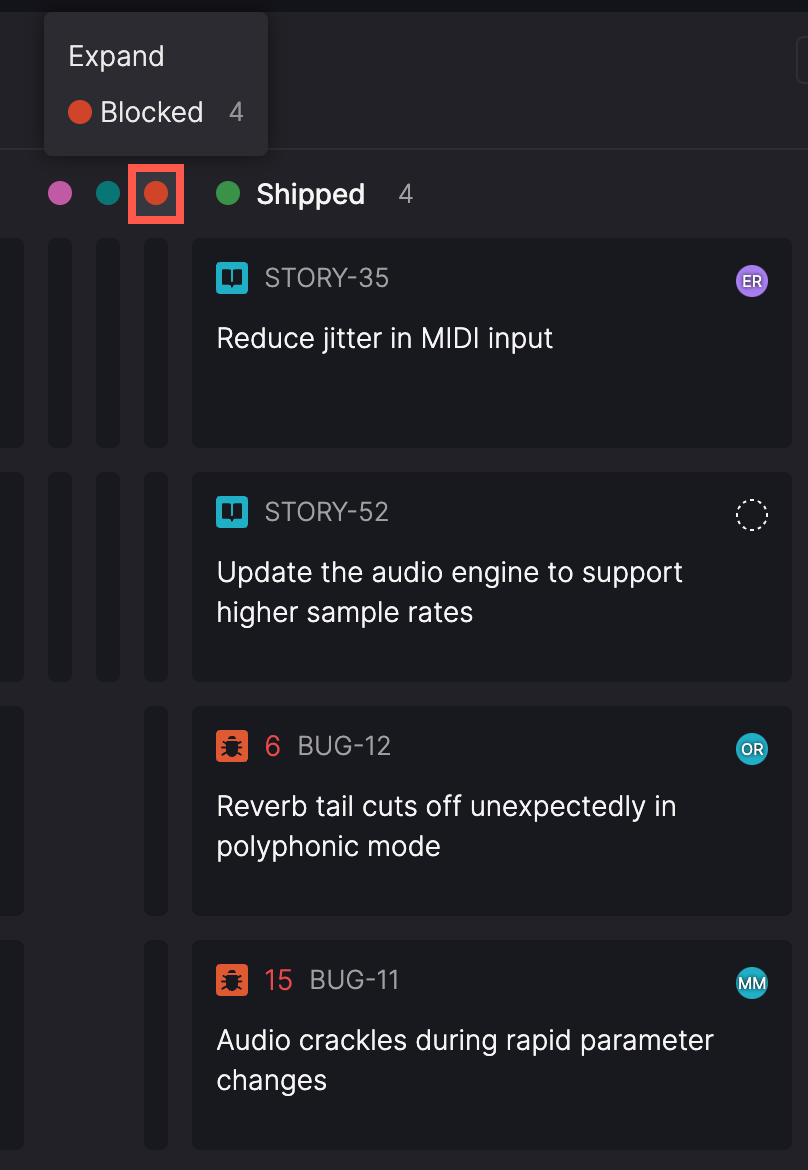
For example, collapse sections like 'To do' and 'Done' when focusing on active work to reduce distractions. Expand them later to review completed or upcoming items.
View the burndown chart
Track your active sprint's progress using the burndown chart.
Click the burndown chart icon in the header, next to the List and Board view icons.
The burndown chart shows story points remaining over time, with a guideline for ideal progress and a projection based on your current pace. For details on interpreting the chart, see Burndown charts.
List and board view settings
You can choose which item details to display in list or board view. These settings can be configured separately for each view.
- Open In progress in either list or board view.
- Click the Settings (gear icon) menu in the header.
- Select or clear the checkboxes to control what's displayed in that view:
- Product themes – which product theme each item belongs to.
- Pull requests – any linked GitHub pull requests (requires the GitHub integration).
- Risk rating – the bug's risk on a scale of 1 to 25, with 25 representing the highest risk
- Story size – the story's estimated shirt size, from XXS to XXL.
- Timeboxes – which timebox the item is included in.
- Total story points – The combined (Fibonacci) size of all visible stories in a workflow step based on your current view and filters.
Filter work in progress
Use filters to narrow the In progress page to items that match specific criteria—for example, stories assigned to a particular user, or bugs updated within a certain timeframe.
- Use the icons at the top of the page to choose whether to show Stories, Bugs, or both. At least one must be selected to display any items.
- Click Filter by at the top of the page.
- Select one of the available filters and fill in any required details.
- Click Done.
- Repeat steps 2-4 to add additional filters as needed.
The list or board updates to show only items matching criteria from all filters.
For multi-select filters, items matching any of the selected values are included. For example, using the Assignee filter to select more than one user includes items assigned to either person.
Active filters appear at the top of the page. Workflow steps without matching items are hidden, and counts adjust based on what’s displayed.
To remove a filter, click the X on the filter tag or adjust the filter settings.
Clear filters to reorder workYou can't reorder or move items between steps when filters are applied. Clear all filters to make these actions available.
Available filters
| Filter | Description |
|---|---|
| Assignee | Filter by the user the item is assigned to, or 'No assignee'. |
| Product theme | Show items within selected product themes, or 'No product theme'. |
| Timebox | Show items within selected timeboxes, or 'No timebox'. |
| Created* | Set a date and time range for when items were created. |
| Last updated* | Set a date and time range for when items were last updated. |
*When using the Created andLast updated filters, you can specify absolute or relative date ranges and include the time of day to narrow your search further. For details, see Filtering by date and time.
Manage sprint work
Sprint work is managed collaboratively by the Scrum team throughout the sprint. This section covers the actions you can take on the In progress page to move work forward and update sprint details.
For details on how burndown charts work and how changes affect them, see Burndown charts.
Backlog management and sprint permissionsIf Backlog management is enabled for this team, only backlog owners can edit sprint details, change sprint dates, create or delete sprints, or add and remove stories from the sprint.
Sprint scope and mid-sprint changesThe In progress page reflects the team’s committed sprint scope. If you have permission, changes made here—such as adding, removing, or reassigning items, or adjusting sprint dates—affect sprint scope and reporting.
While you can make changes during an active sprint, doing so updates the burndown chart and may impact velocity tracking. To keep planning predictable, most teams aim to keep sprint scope stable once a sprint begins.
Move items through the workflow
To move an item from one workflow step to the next (for example, from 'To do' to 'Development'):
- Drag and drop: Click and drag the item to a new step.
- Select the step: Open the item's details and choose a new step. The item moves to the end of that step but can be repositioned.
Add items to the active sprint
You can add work mid-sprint, though this changes your sprint scope and will affect the burndown chart. You’ll see a warning before making these changes.
For teams with backlog management enabled, the team's backlog owners are responsible for adding stories to a sprint or creating new stories in progress. Team members can create and manage bugs regardless of the Backlog management setting.
Add existing items
Via the sprint detail view:
- Click the ellipsis (...) icon next to the sprint's name and select Sprint details.
- Use the search box to find and add items to the sprint.
- Click the X icon next to an item to remove it from the sprint.
Directly from an item:
- Open the item you want to assign to the sprint.
- In the details panel, click Add to sprint (or the name of the existing sprint, if it's already assigned to a sprint) and select the active sprint.
Drag and drop:
Drag an item from another sprint into the active sprint on the Backlog page.
Create an item already in progress
If work began before the item was added to the sprint, you can create it directly in the appropriate workflow step and record when work started.
- Create a new story or bug in an in progress workflow step.
- In the Create an item already in progress dialog, specify the Date and Time work on the item began.
- Click Create story or Create bug to create the item.
The cycle time for the item begins from the specified date and time.
Edit sprint details
If Backlog management is enabled, only backlog owners can edit sprint details.
Update sprint information directly from the In progress view:
- Click the ellipsis (...) icon in the header, next to the sprint duration.
- Select View sprint details.
- In the sprint details dialog, you can edit the sprint's:
- Start and end dates
- Sprint contents
The dialog also displays the sprint’s planned vs projected total story points, updating automatically as stories are added, removed, or resized.
Changing sprint dates:
If you adjust the start or end date of the active sprint, you'll see a warning that the burndown chart will be updated accordingly.
- Click the ellipses (...) icon in the header, next to the sprint name.
- Select Edit sprint details.
- In the Edit sprint details dialog, you can edit the sprint's:
- Name
- Description
- Click Update details.
- Click Done.
Reassign items from an active sprint
Reassign items when responsibilities change or another team is better equipped to handle them. Reassigning an item to another team moves the item to either the To do or Unscheduled section of the new team's backlog.
Reassigning items during a sprint affects sprint scope and burndown reporting.
- Open the item and click the team name in the side panel.
- Select a new team.
- Confirm your choice by clicking Change backlog.
Reset size estimatesWhen reassigning a story, the original team's size estimate is removed. This allows the new team to resize it based on their own processes and capacity.
If the destination team has backlog management enabled, you must have the backlog owner role on that team to assign a story to it.
Remove items from an active sprint
If Backlog management is enabled, only backlog owners can remove stories from the active sprint or move them to another sprint.
When priorities change, you may need to remove items from an active sprint to keep the team focused on the most important work.
Removing items changes the sprint scope and can affect burndown reporting.
- Open the item and click the current sprint in the name of the current sprint in the details side panel.
- Do one of the following:
- Select the name of a future sprint assign the item to.
- Select No sprint to send the item to the Unscheduled section of the team's backlog.
- Select Create new sprint and to create and add the item to a new future sprint.
Updated 3 months ago