

Subtasks
Create a checklist for specific work required for a story or bug.
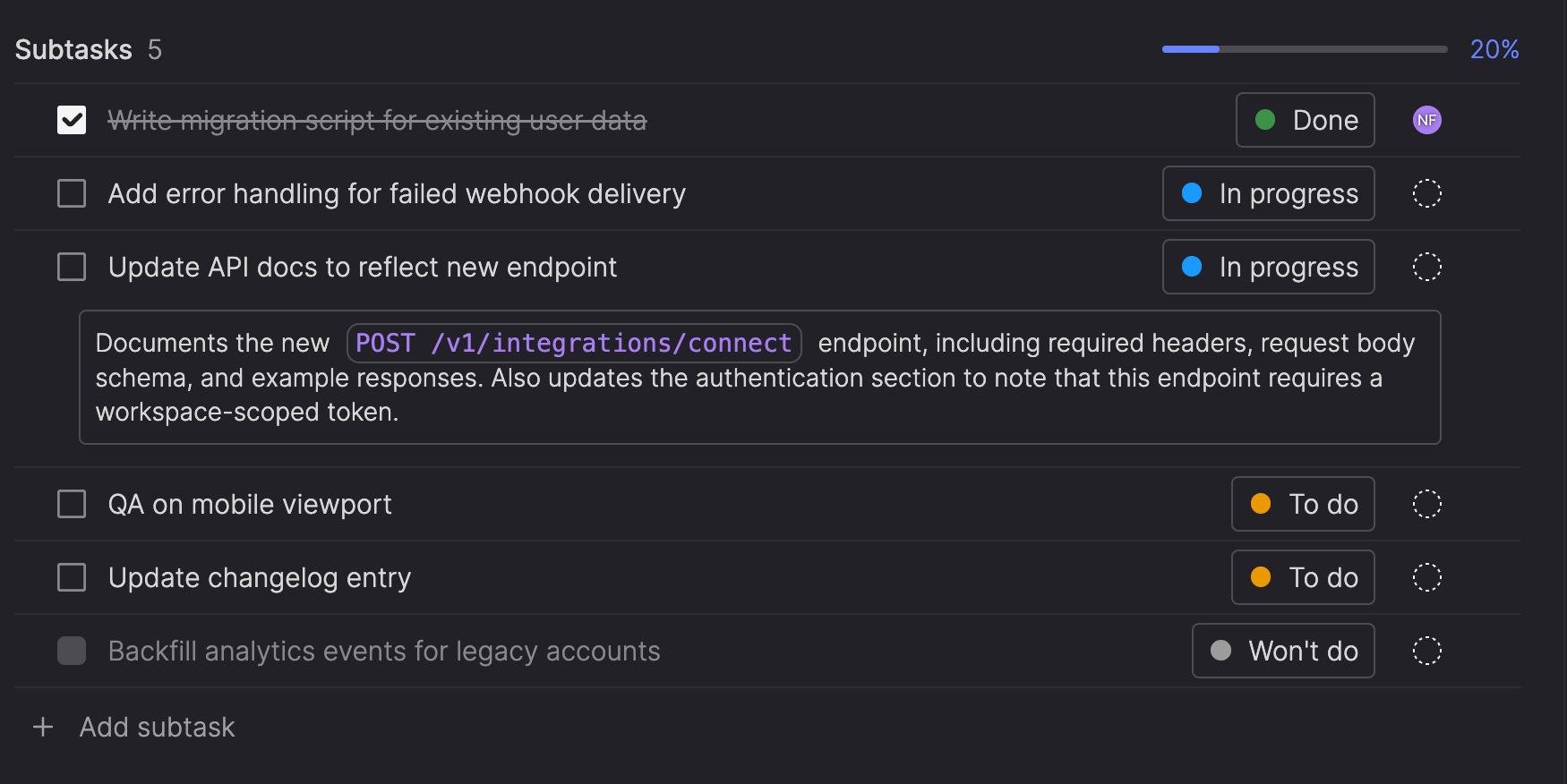
Subtasks let you capture the individual things that need to happen before a story or bug is done—things like "write the migration script" or "update the API docs."
At its simplest, it's a checklist: add tasks, check them off as you go. Each subtask also has an assignee and a status if you want to track things more closely, but you don't have to. A progress meter at the top of the subtask list shows how much work is complete at a glance.
View subtasks
Subtasks appear near the bottom of a story or bug, above the Activities list. If a story or bug doesn't have any subtasks yet, you'll see a link to Add subtask.
Subtasks aren't shown when viewing bugs in Bug triage. Open a bug to view its full content, including any subtasks.
Add a subtask
You can add subtasks to any existing story or bug. You can't add subtasks to drafts.
- On the item detail page, click Add subtask.
- Type a title and press Enter (or press Esc to cancel).
The new subtask is added to the bottom of the list, unassigned, and set to To do by default.
Press Enter after each title to quickly add more subtasks in a row, then fill in the description later.
Add a description
Click on a subtask row to show or hide its description inline. Click inside the description field to add or edit text.
Descriptions are optional and support the same text formatting as acceptance criteria—bold, italic, underline, strikethrough, inline code, and links. Descriptions are limited to 1,000 printable characters; formatting markup doesn't count toward this limit.
Edit a subtask's title
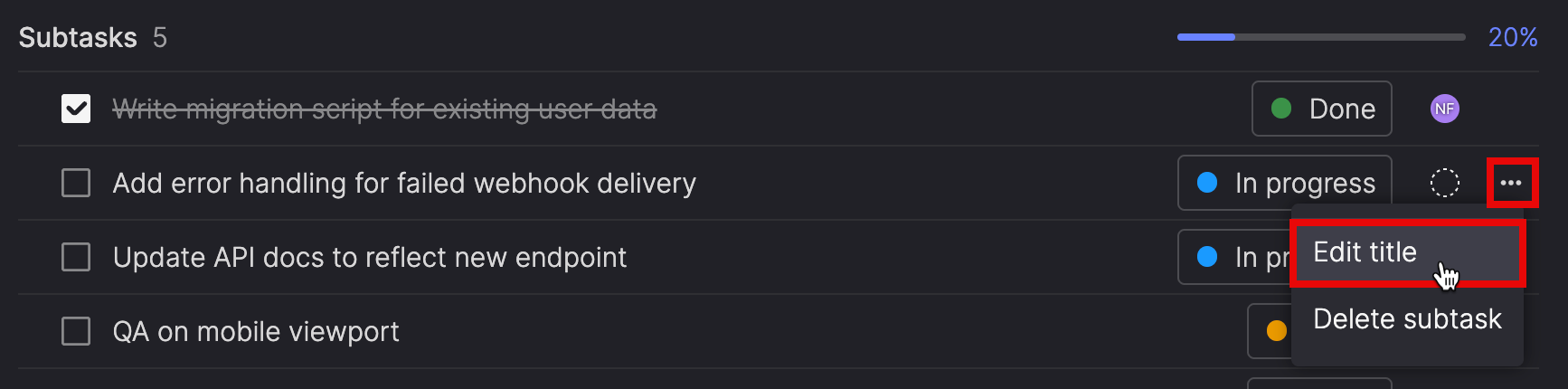
Click the ellipsis (...) icon and select Edit title. The cursor moves into the title field so you can make your changes.
Manage subtasks
Once you've added subtasks, you can check them off, update their status, assign them to teammates, reorder them, or delete them.
Use subtasks as a checklist
Each subtask row includes a checkbox that you can use to mark subtasks as complete or not.
Clicking an unchecked box moves the subtask to Done. Clicking a checked box returns it to its previous status—To do if it was most recently To do, or In progress if it was most recently In progress.
If a subtask is marked as Won't do, its checkbox is disabled.
Change the status of a subtask
Subtask statuses are separate from your team's workflow. Changing a subtask's status doesn't affect where the story or bug sits in your team's workflow—it only affects the subtask's checkbox and the progress meter.
To change the status of a subtask, click its current status (new subtasks default to To do) and select a different status.
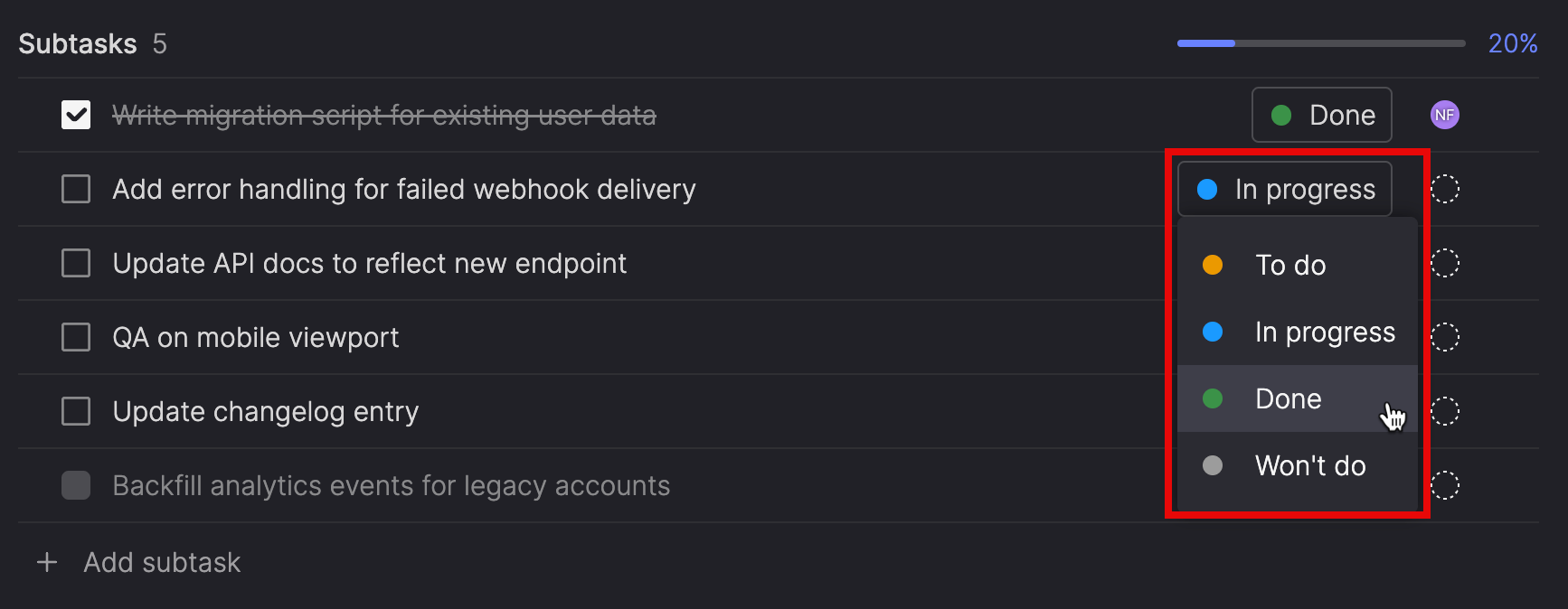
There are four statuses you can select from:
| Status | Description |
|---|---|
| To do | Default status for new subtasks. Work hasn't started. |
| In progress | Work is underway. |
| Done | Work is complete. |
| Won't do | The subtask has been intentionally skipped. Won't do subtasks are excluded from the progress meter. |
Track progress
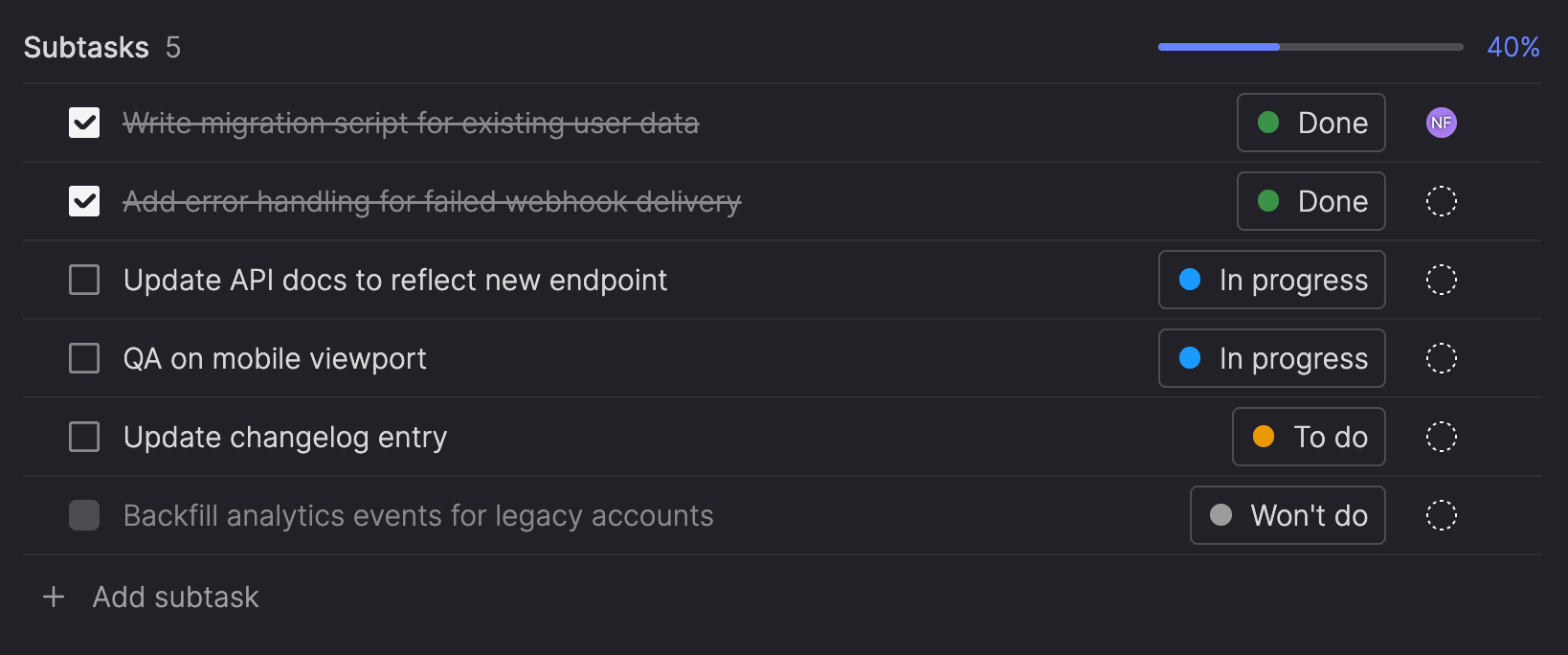
The subtask list includes a progress meter showing what percentage of subtasks are Done. Subtasks marked as Won't do are excluded from both the total and completed counts, so they don't skew your progress.
Assign a subtask
Click the assignee icon to search for and select an assignee, or select No assignee to unassign it.
The assignee dropdown prioritizes members of the team the item is assigned to, but you can assign a subtask to anyone in your workspace.
Reorder subtasks
Drag and drop subtasks to reorder them within the list. Use ordering to roughly indicate sequence or priority. Reordering is not recorded in the item's Activities list.
Delete a subtask
- Click the ellipsis (...) icon for the subtask you want to delete.
- Select Delete.
If the subtask is In progress or Done, you'll be asked to confirm before it's removed.
Complete a backlog item with unfinished subtasks
If you move a story or bug into a workflow step in a team's Done category while it has incomplete subtasks, Atono will ask you to confirm the action. This applies whether you're updating the workflow step from the item detail page or moving the item on a list or board view.
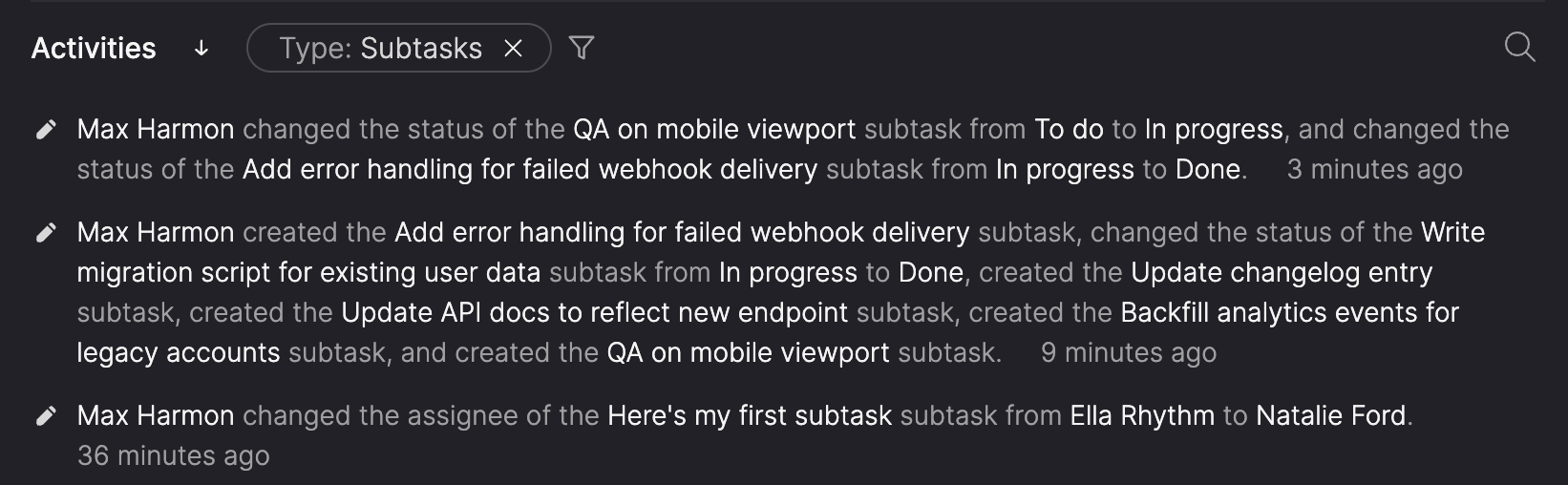
Subtask activities
Subtask activities are recorded in the backlog item's Activities list. The following events are tracked:
- Creating a subtask
- Assigning or reassigning a subtask
- Changing a subtask's status
- Deleting a subtask
Each entry includes the subtask title, the user who performed the action, and the date and time.
To focus the Activities list on just subtasks, select Subtask from the filter options.
Updated 6 months ago